Maintenance: scheduling a job
Purpose
Dates tell everyone when a job will happen. Beacon uses two kinds:
- Planned Date: the day the job should be done by. It drives the RAG colour (red once it has passed) and the board's Planned date filter, and Beacon won't let a job move to Planned without it.
- Est. Start Date and Est. End Date: the programme window when work, usually a contractor's, is on site. They put the job on the Calendar as a bar across those days, and drive the board's Contractor on site filter. Beacon won't let a job move to In progress without them.
Before you start
- You have Manager (full) maintenance access.
- Agree the dates with the contractor or whoever is doing the work.
Set the dates
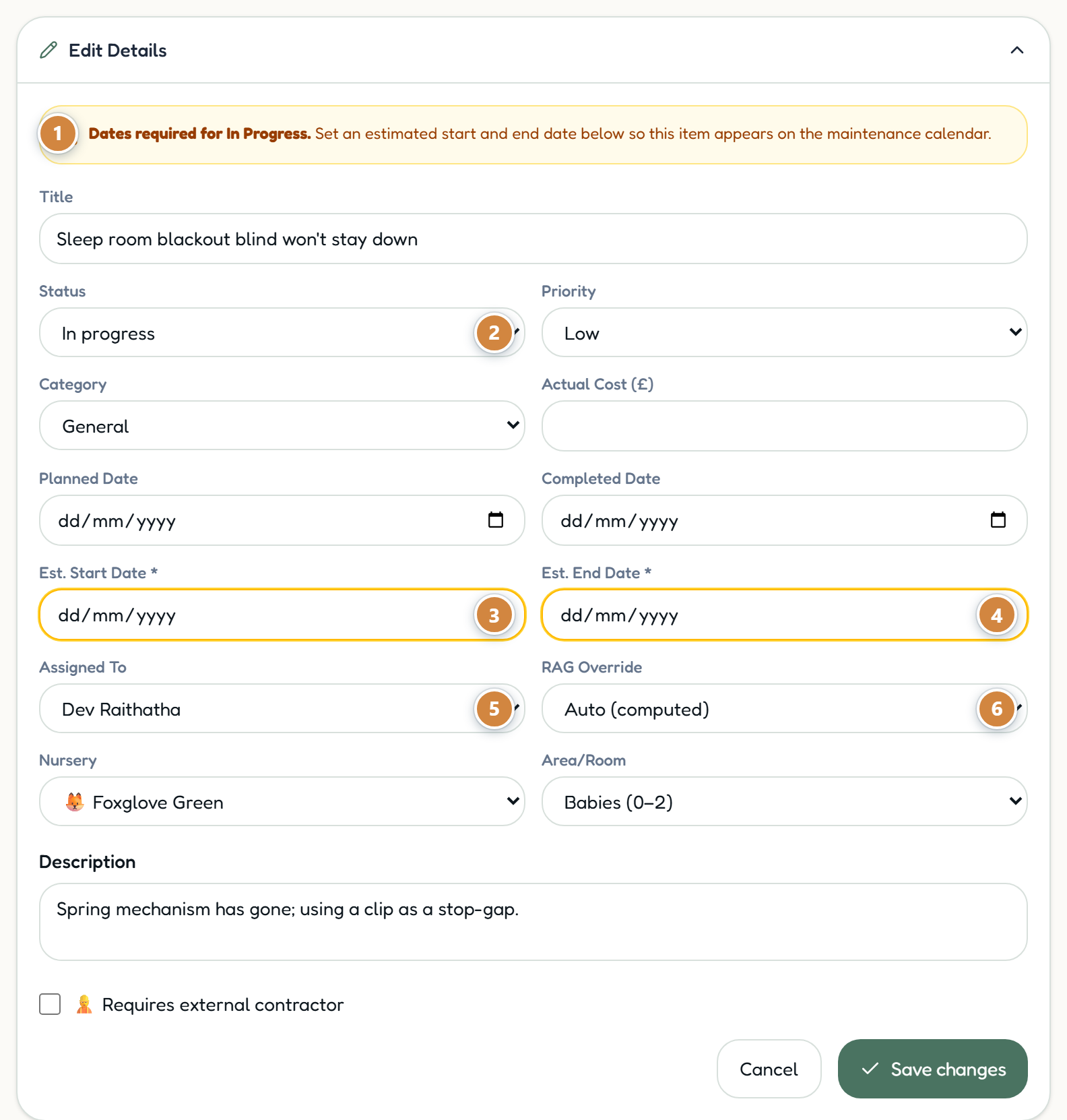
- Open the job and select Edit Details. If the job is In progress without dates, a warning says Dates required for In Progress 1.
- Set the Planned Date.
- Set Est. Start Date 3 and Est. End Date 4. For a one-day job, use the same date for both.
- If the job is booked, change Status 2 to Planned, or to In progress once work starts.
- Select Save changes.
What you should see
Beacon says Saved. The planned date shows on the job's card and page, and the RAG colour updates. The job appears on the Calendar across its start and end dates, until it's completed. See Calendar.
Move a job's dates on the Calendar
Area support managers can drag a maintenance job's bar along the Calendar to move its start and end dates together. Beacon says Dates updated. Other people change the dates in Edit Details.
Common problems
- A job isn't on the Calendar.
It has no Est. Start Date, or it's completed. A planned date on its own doesn't put a job on the Calendar.
- I can't drag a job on the Calendar.
- Only area support managers can. Change the dates in Edit Details instead.
- "Set an estimated start and end date before marking this In Progress."
- Set both dates in Edit Details, save, then move the job.
- "Set a planned date before moving this to Planned."
- Set the Planned Date in Edit Details, save, then move the job. Edit Details also warns Date required for Planned if you choose Planned without one.