Maintenance: contractors
Purpose
Keep one list of the contractors your organisation uses, with their contact details and trades, so that anyone booking a job picks the right firm and you can see what each one has done for you.
Before you start
- You have Manager (full) maintenance access, as area support managers and maintenance managers always do. Nobody else sees Contractors in the menu.
- Have the contractor's name, company, email, phone and trades.
See the contractor list
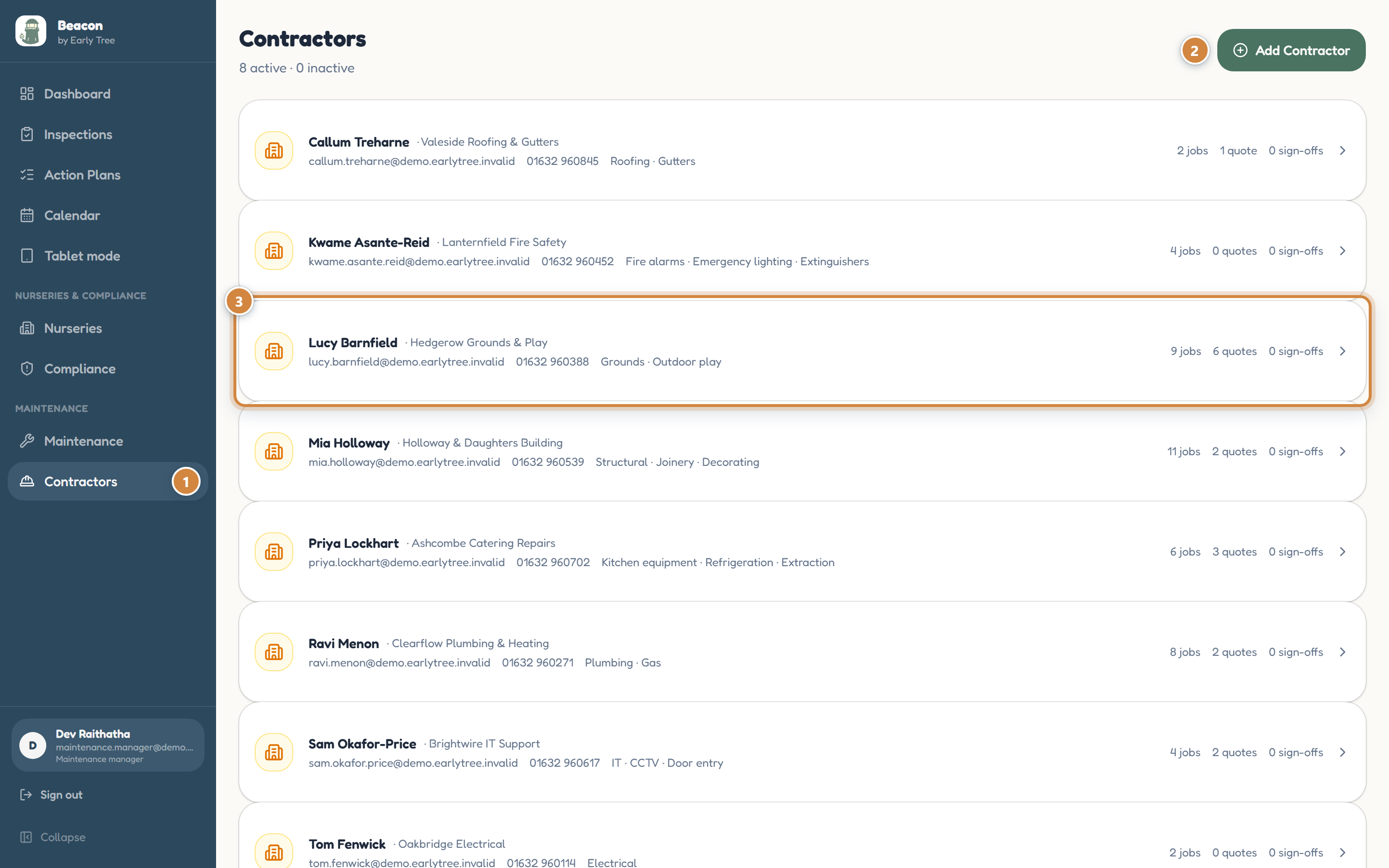
- In the menu, under Maintenance, select Contractors 1. The page lists every contractor, active ones first, with how many are active and inactive.
- Each row 3 shows the contact name and company, email, phone, up to three trades, and how many jobs, quotes and sign-offs they have.
- Select a row to open the contractor's page.
Add a contractor
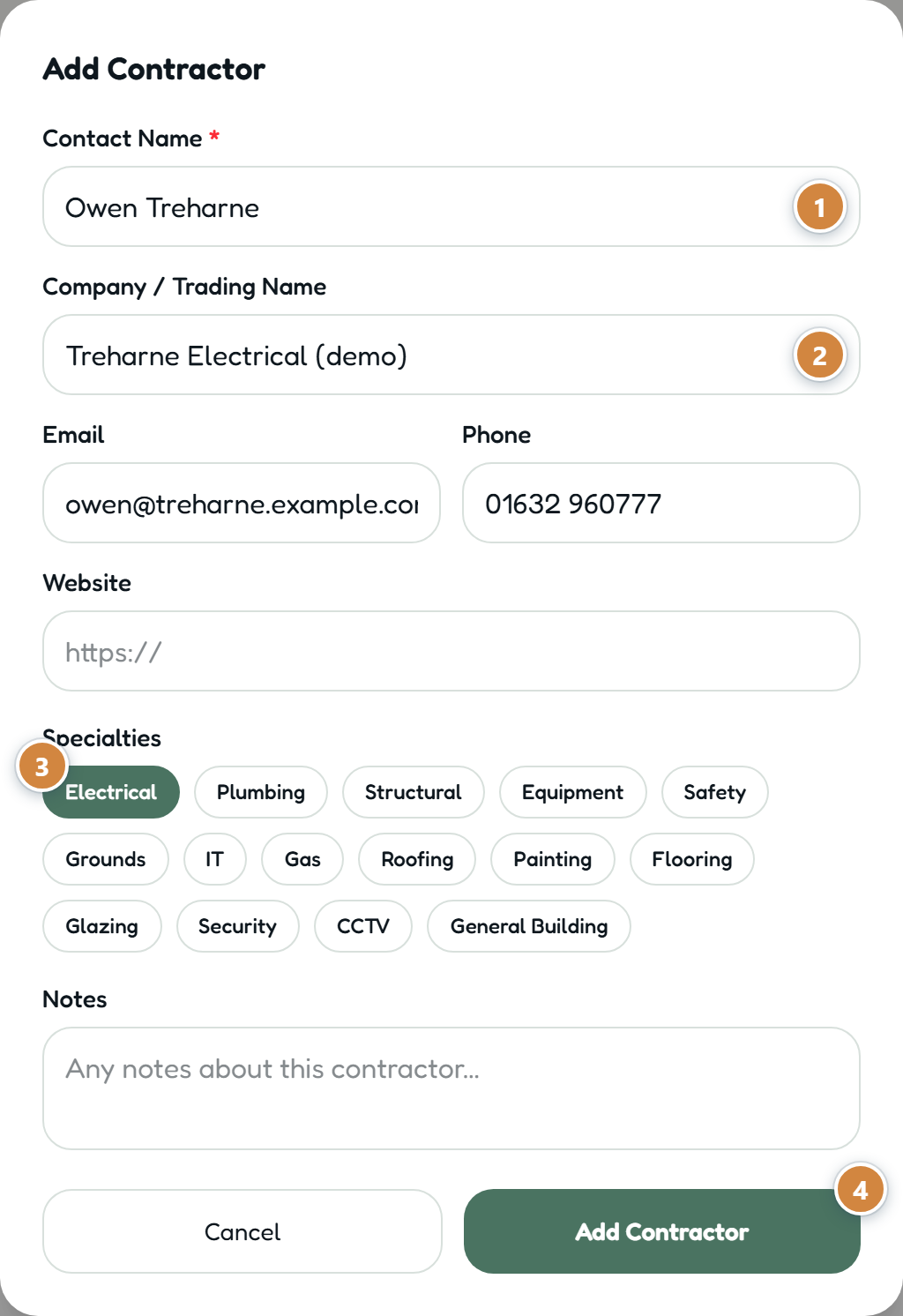
- Select Add Contractor 2 at the top right.
- Type the Contact Name 1. It's the only field you must fill in.
- Type the Company / Trading Name 2, and their Email, Phone and Website.
- Under Specialties, select each trade they cover 3, for example Electrical or Roofing. Select one again to remove it.
- Add any Notes, such as insurance or how to book them.
- Select Add Contractor 4.
People logging a job can also add a contractor on the spot, from Add new contractor in the contractor search (see Logging a maintenance job).
Update a contractor or mark them inactive
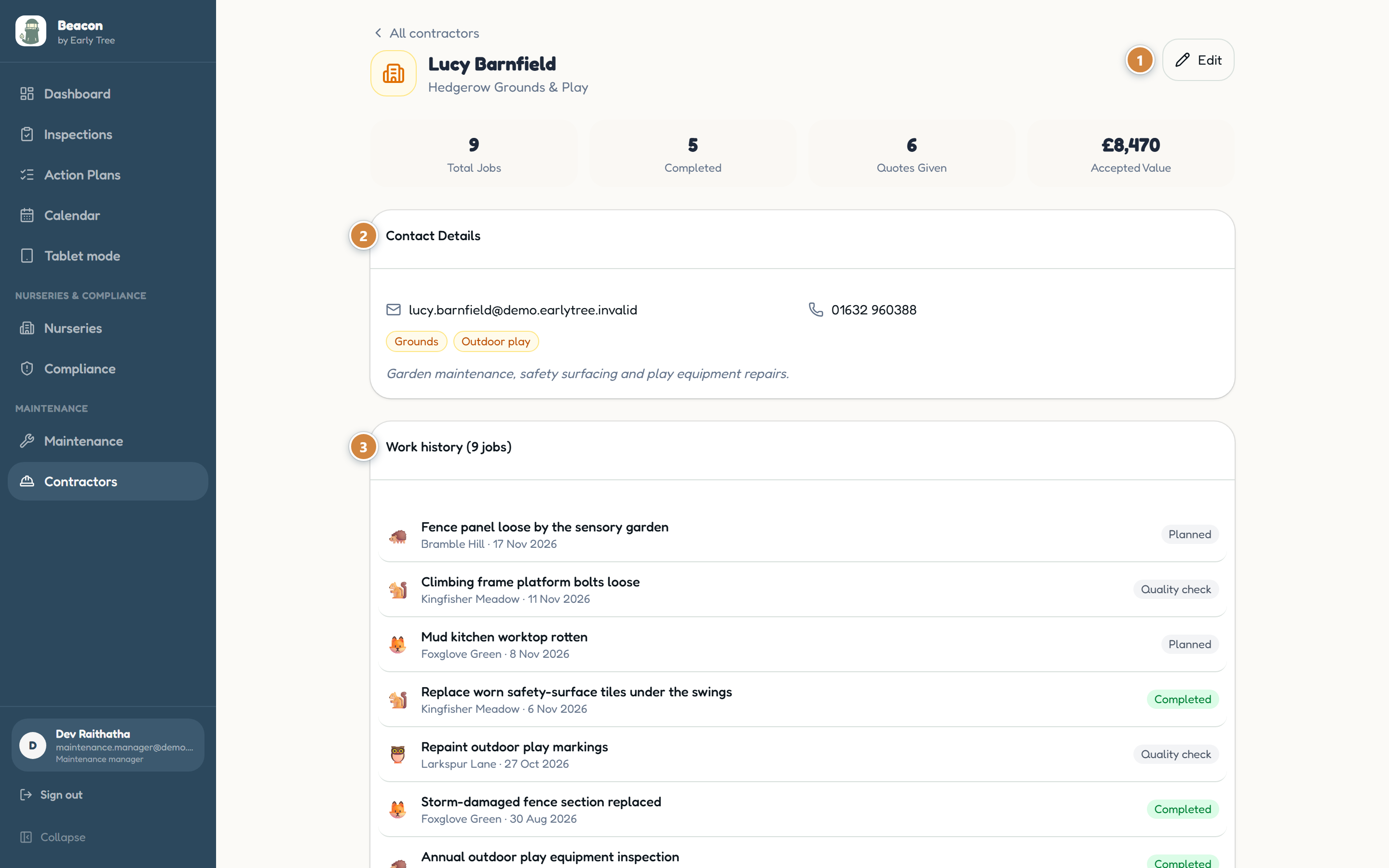
- Open the contractor's page. It shows their totals (Total Jobs, Completed, Quotes Given, Accepted Value), their Contact Details 2, their Work history 3 and their sign-off history.
- Select Edit 1.
- Change their Name, Company, Email, Phone, Specialties or Notes.
- To stop using a contractor without losing their history, untick Active.
- Select Save Changes.
What you should see
The contractor appears in the list (inactive ones at the bottom, under Inactive) and can be chosen when logging or editing a job. Their page lists every job they're linked to, with its nursery, date and status.
Common problems
- Contractors isn't in my menu.
- You need Manager (full) maintenance access. Ask your area support manager.
- A contractor's counts are lower than I expected.
The counts only include jobs where that contractor is chosen, and quotes recorded against them. Quotes recorded on a job by supplier name aren't counted here. If you look after one nursery, the work history only shows that nursery's jobs.
- I can't delete a contractor.
- Contractors can't be deleted, so their history is kept. Untick Active instead.