Maintenance: a job's page, details, owner and comments
Purpose
Every job has one place that holds everything about it: what's wrong, where, who owns it, when it's planned, what it costs, its quotes, the inspection it came from, and a history of every change and comment. Keeping it up to date means nobody has to chase anyone for news.
Before you start
- You can open any job you can see on the board.
- To change a job or add a comment you need Manager (full) maintenance access.
Open a job
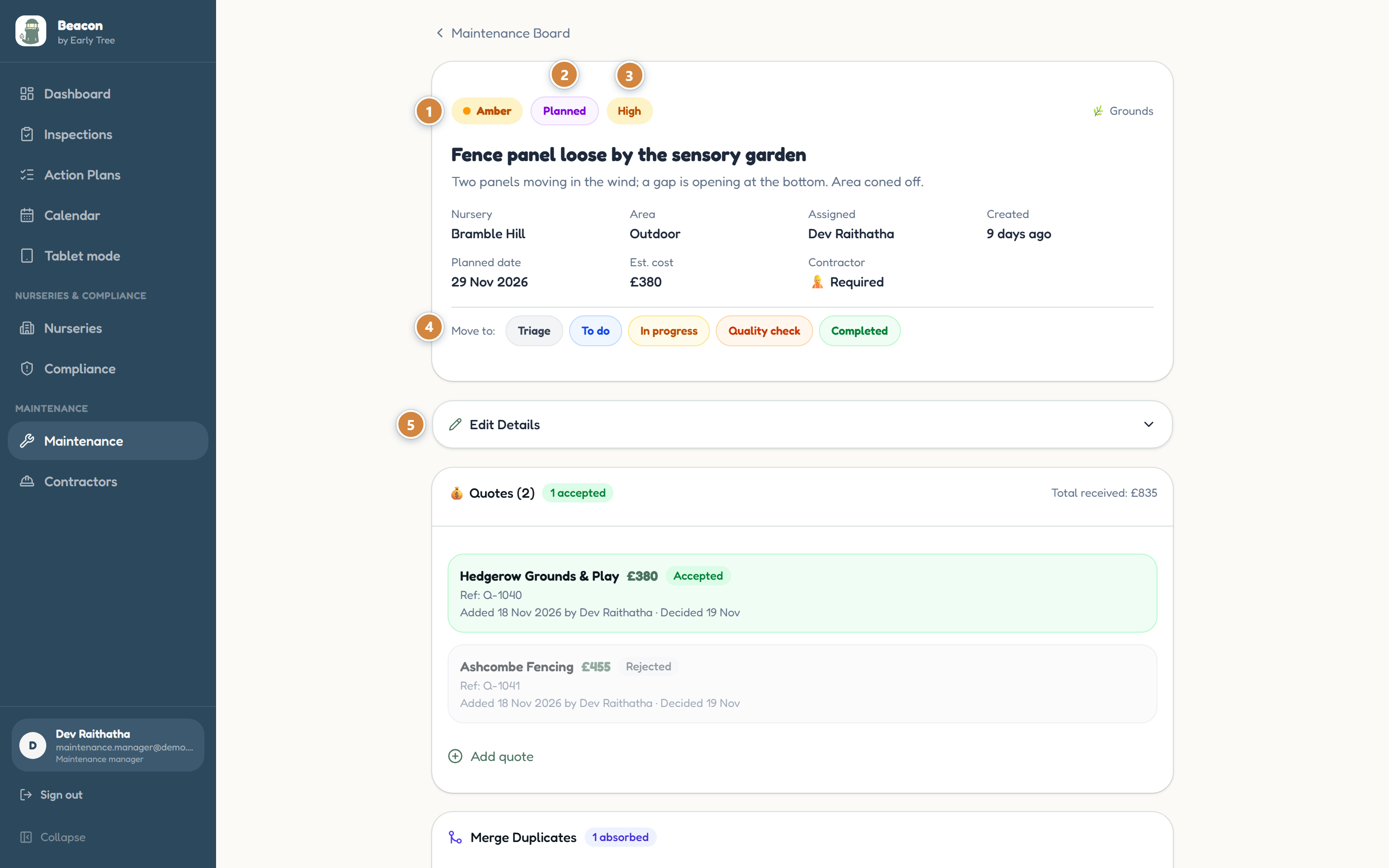
- On the board, select the job's card. The job's own page opens, with its RAG colour, status and priority at the top, then the description, nursery, area, owner, dates and costs, the Move to buttons, Edit Details, quotes, any linked inspections, Merge Duplicates and History & Comments.
- To go back, select Maintenance Board at the top of the page.
Change a job's details
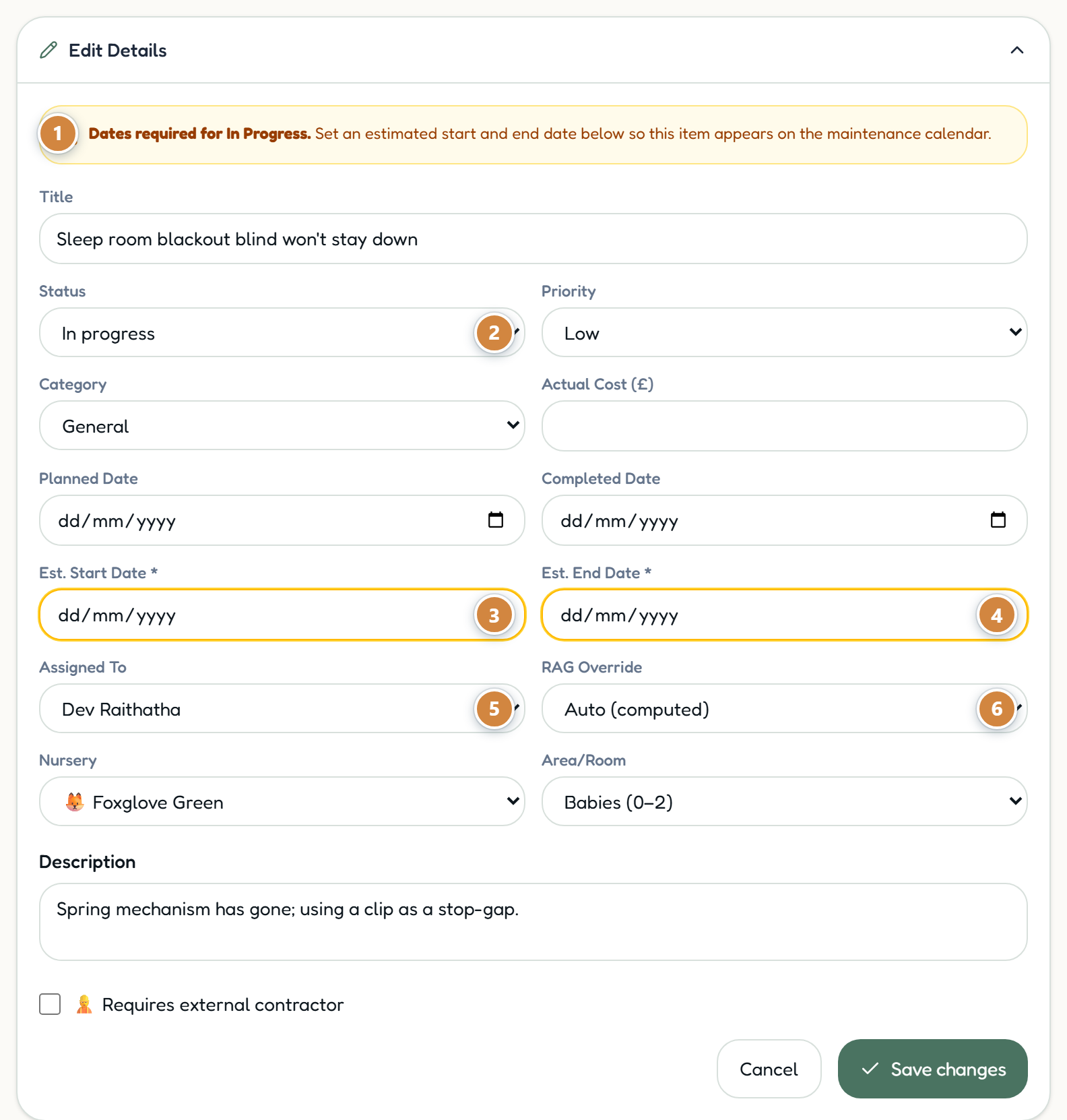
- On the job's page, select Edit Details. The form opens.
- Change what you need: Title, Status 2, Priority, Category, Actual Cost (£), Planned Date, Completed Date, Est. Start Date 3 and Est. End Date 4.
- Choose the owner under Assigned To 5. Choose Unassigned to clear it.
- Leave RAG Override 6 on Auto (computed) unless you have a reason to set the colour yourself (see Priority and RAG status).
- Check the Nursery and choose the Area/Room. Choose Group-wide for a job that isn't at one nursery.
- Edit the Description if needed. Tick Requires external contractor to choose the contractor and cost model (see Quotes and cost estimates); a change of contractor or cost is recorded in the history.
- Select Save changes.
What you should see
Beacon says Saved and the page shows the new details. A change of status, priority or owner is added to the History & Comments list with your name and the time.
Add a comment
Use comments for news that isn't a field: "Contractor booked for Thursday morning", "Parts on order".
- On the job's page, scroll to History & Comments.
- Type in Add a comment or update… and select the send button, or press Ctrl+Enter.
- To bring a colleague in, type @ and choose them from the list. Where your organisation has email switched on, they're emailed a link to the job.
- If your organisation uses Nina, mention @Nina to ask her about the job; her reply appears in the history.
What you should see
Your comment appears in the history, with your name and the time. The history also shows every status, priority, owner and cost change, quotes, merges and links to inspections, oldest first.
Where a job came from
If a job was raised by an inspection, the job's page has an Inspection History card listing the inspection (with the nursery, date and the maintenance note's title and severity). Select the nursery name to open that inspection's report. The card on the board shows a link symbol with a count. Jobs raised from an action plan say so in their history: "Raised from action item …". See About maintenance.
Common problems
- There's no Edit Details or Move to on the page.
- Your maintenance access is Read-only. You can read the job but not change it.
- I can see Edit Details, but saving says "Save failed", or a comment says "Failed to post comment".
You have Contributor access: the page shows the controls, but only someone with Manager (full) access can change a job or comment on it. Ask your maintenance manager to make the change.
- "Choose a contractor before setting a … cost".
- A cost model other than TBD needs a contractor. Choose one under Contractor, or set the cost model to TBD.
- A colleague isn't in the @ list.
- Only active people with a working role are listed (not the read-only auditor). Ask an administrator to check their account.
- "That person can't be given work at this nursery".
- The owner must have a working role at the job's nursery, or group-wide. Choose someone else, or ask an administrator to give them the nursery.