Maintenance: moving a job through its statuses
Purpose
A job's status says where it has got to, so everyone can see what's waiting and what's done. Keep statuses up to date as the work moves on: the board, the RAG colours, the Calendar and the RAG report all depend on them.
Before you start
- You have Manager (full) maintenance access. Area support managers and maintenance managers always do. Everyone else can look but not move jobs.
- To move a job to Planned, it needs a Planned Date. To move it to In progress, it needs an Est. Start Date and an Est. End Date. See Scheduling a job.
Triage new jobs
Check the Triage column ("New, not yet assessed") every day. For each new job:
- Open it and read the description. If it's the same as another job, merge it (see Merging duplicate jobs).
- Check the priority and category, and set an owner and the area or room, under Edit Details (see A job's page).
- Move it on: to To do if it's agreed but not booked, or to Planned once you've booked a date or a contractor.
Move a job
There are three ways to move a job. They all do the same thing.
- On the board, drag the card into another column. On a touch screen, press and hold the card first.
- On the board, use the status list at the bottom of the card, and choose the new status.
- On the job's page, use Move to 4: select the status you want.
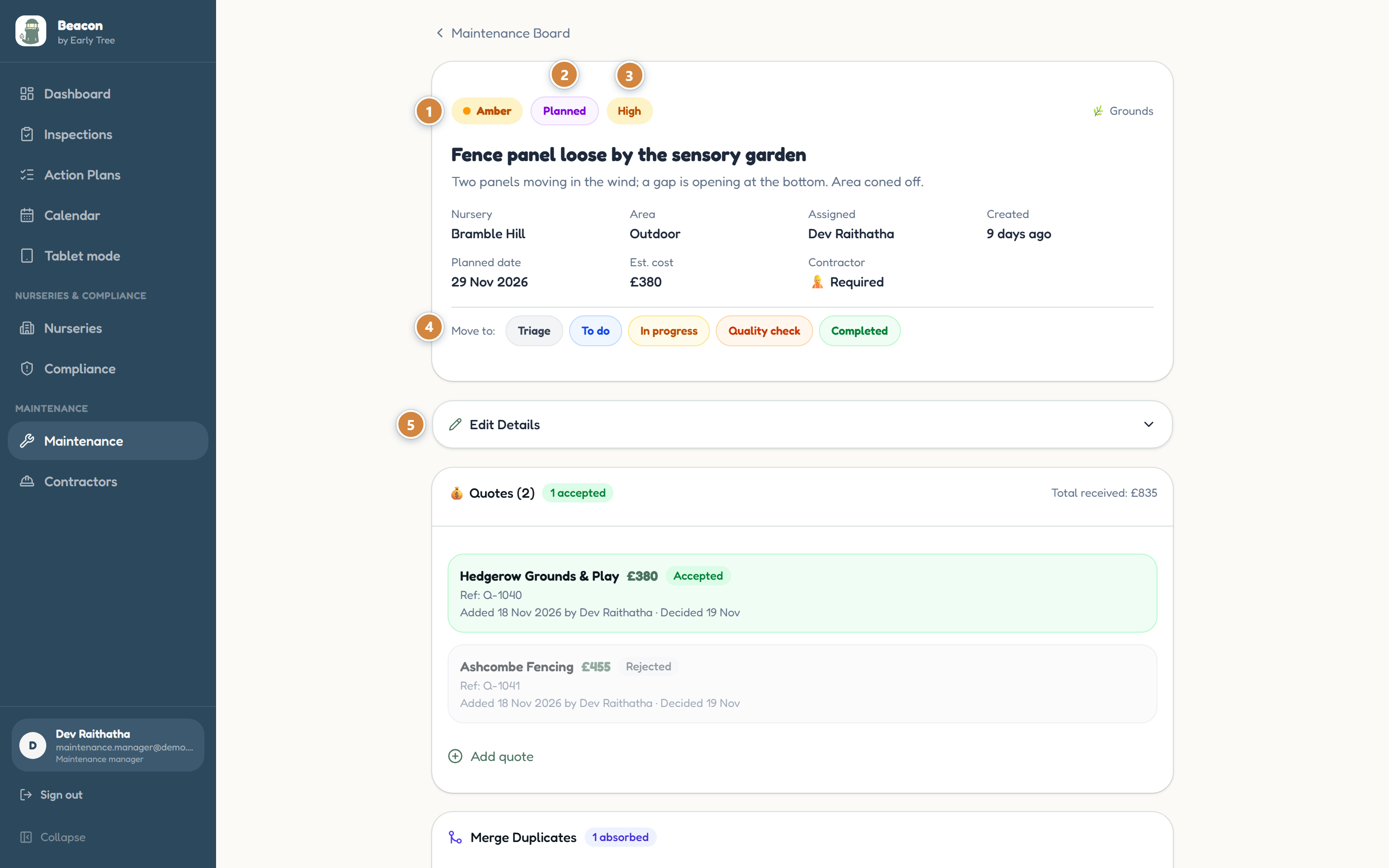
Small jobs that are done on the spot can go straight from Triage, To do or Planned to Quality check or Completed, without passing through In progress. Beacon allows it and notes "quick completion, skipped In Progress" in the job's history.
What you should see
Beacon says Moved to and the new status, the card moves to that column, and the job's history records the change with your name and the time. Moving a job to Completed also records today as its completed date (see Checking and completing a job).
Common problems
- "Set a planned date before moving this to Planned."
Open the job, select Edit Details, fill in Planned Date, save, and move it again.
- "Set an estimated start and end date before marking this In Progress."
Open the job, select Edit Details, fill in Est. Start Date and Est. End Date, save, and move it again. See Scheduling a job.
- "Manager access required to update items".
You have Contributor access. You may see the Move to buttons on a job's page, but only someone with Manager (full) access can change a job. Ask your maintenance manager.
- The card jumped back to its old column.
- The change wasn't saved: the message at the bottom of the screen says why. Fix that and try again.