Maintenance: logging a maintenance job
Purpose
Report anything that needs fixing, replacing or checking, so that it reaches the maintenance team, gets a priority, and is tracked until it's done. A job logged here goes straight into Triage for the maintenance team to look at.
If the problem puts children or staff at risk now, make the area safe and follow your nursery's own procedure first, then log it with priority Critical.
Before you start
- You have Contributor or Manager (full) maintenance access. With Read-only access there's no Log Issue button; ask your nursery manager to log it for you.
- Know which nursery it's at. If you only look after one nursery, Beacon fills it in for you.
- Search the board first, in case someone has already logged the same thing.
Log a job
- In the menu, select Maintenance, then Log Issue at the top right.
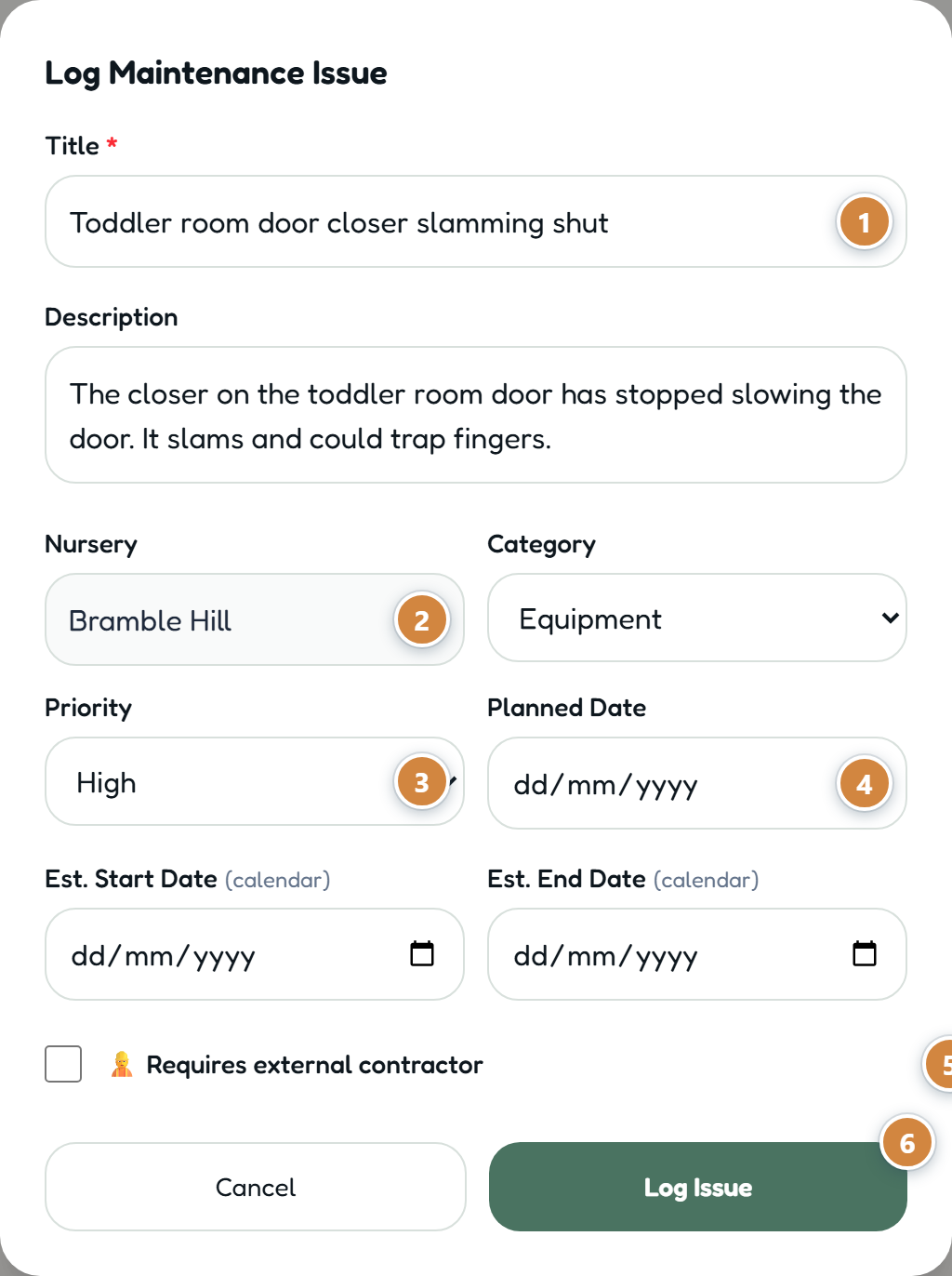
- Type a short, clear Title 1, for example "Toddler room door closer slamming shut". It's the only field you must fill in.
- Add a Description: where exactly, what's wrong, and anything you've done to make it safe.
- Check the Nursery 2. If you look after one nursery it's shown and can't be changed. Group-wide users choose one, or Group-wide for a job that isn't at one nursery.
- Choose a Category (General, Electrical, Plumbing, Structural, Equipment, Safety, Grounds, IT, External Contractor or Other).
- Choose a Priority 3: Low, Medium (the default), High or Critical. Critical jobs always show as red.
- If you know when it should be done, choose a Planned Date 4. If the work already has dates, add Est. Start Date and Est. End Date: these put it on the Calendar.
- If an outside contractor will be needed, tick Requires external contractor 5 (see below).
- Select Log Issue 6.
If the job needs a contractor
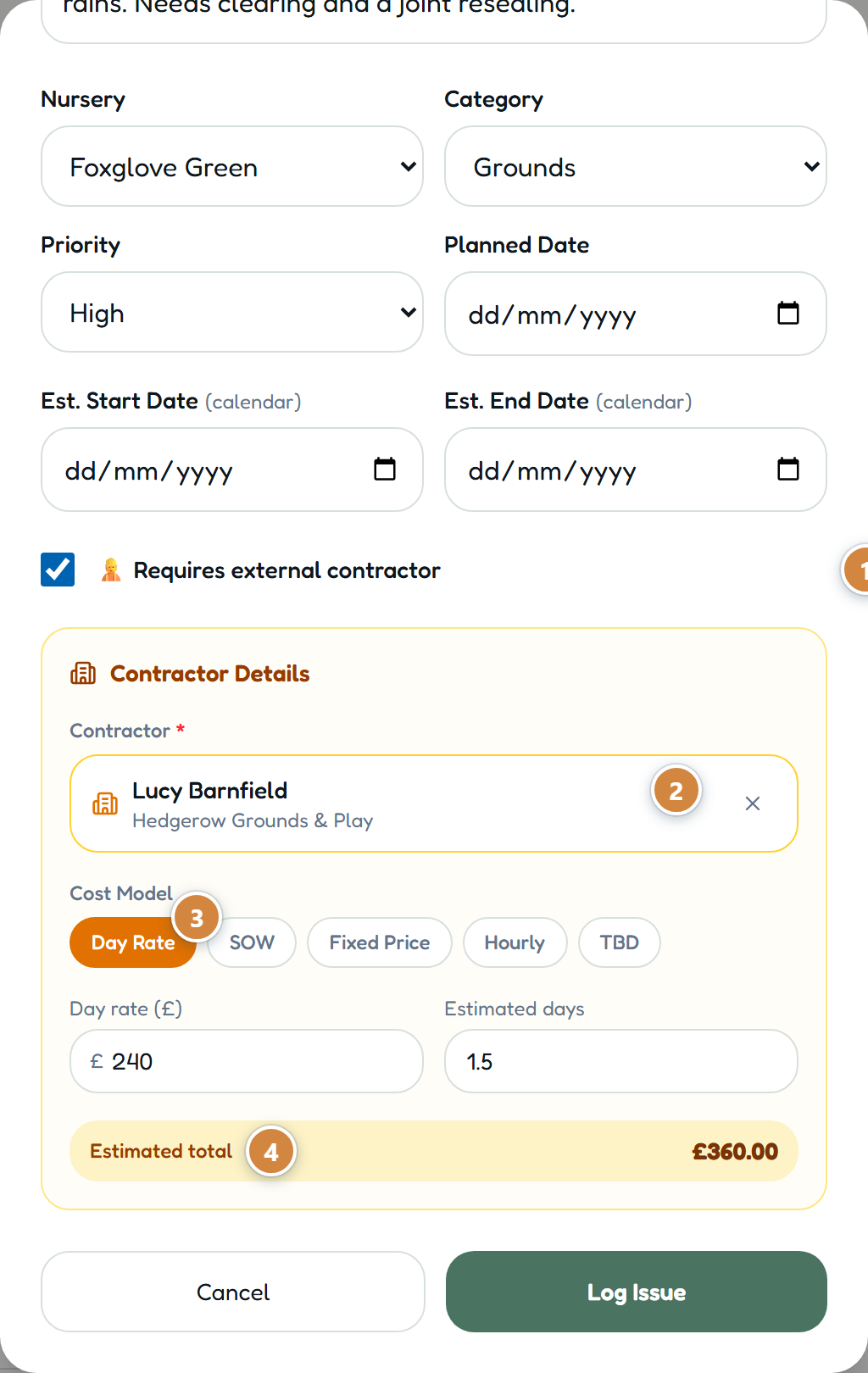
- Tick Requires external contractor 1. A Contractor Details section opens.
- Under Contractor, type a name to search your contractor list and select one 2. If they aren't listed, select Add new contractor and fill in their name, company, email and phone.
- Under Cost Model 3, choose how they charge: Day Rate, SOW (an agreed statement of work), Fixed Price, Hourly or TBD if you don't know yet.
- Fill in the figures for that model. Beacon shows the Estimated total 4: day rate times days, hourly rate times hours, or the agreed or fixed price.
What you should see
Beacon says Maintenance item created and the job appears in the Triage column of the board, with its RAG colour and priority. Its activity starts with "Item created and added to Triage". Someone with Manager access then triages it (see Moving a job through its statuses).
Common problems
- There's no Log Issue button.
- Your maintenance access is Read-only. Ask your nursery manager or area support manager.
- "Choose a contractor before setting a … cost".
- A cost model other than TBD needs a contractor. Choose one, or set the cost model to TBD.
- "Failed to create item", or a message about your nursery.
Check the title isn't empty. If you look after one nursery, you can only log jobs for it: only group-wide users can log a group-wide job.
- The contractor search says "No contractors found".
Only people with Manager (full) maintenance access can see the contractor list. Leave Requires external contractor unticked and say who you'd suggest in the description; the maintenance team can add the contractor when they triage the job.
- I can't choose a room.
Rooms aren't on the Log Issue form. Say where in the description; the maintenance team can set the Area/Room when they edit the job.