Maintenance: priority and RAG status
Purpose
Priority says how serious a job is. The RAG colour says whether it needs attention now. Together they make sure dangerous or late jobs stand out on the board, on the Calendar and in the RAG report.
Before you start
- Anyone with maintenance access can see priorities and RAG colours. Changing them needs Manager (full) access.
Priority
| Priority | Use it for |
|---|---|
| Critical | A risk to children or staff, or something that stops the nursery running safely. Always red. |
| High | Needs doing soon. At least amber until it's checked. |
| Medium | The default for a new job. |
| Low | Can wait for a convenient time. |
Jobs from an inspection take their priority from the inspector's note: Urgent becomes Critical, Required becomes High, anything else Medium.
How Beacon works out the RAG colour
Beacon checks these rules in order and uses the first that fits:
- Green if the job is in Quality check or Completed: the work is done.
- Red if the priority is Critical.
- Red if the planned date has passed (by UK date, so a job due today isn't late until tomorrow).
- Amber if the priority is High.
- Amber if the planned date is within the next 7 days.
- Amber if the job is in Triage or To do with no planned date: nobody has booked it yet.
- Green otherwise.
The colour updates by itself as dates pass and statuses change.
Override the colour
Occasionally you know something Beacon doesn't: a high-priority job that's safely contained, say, or a low-priority one that's become urgent.
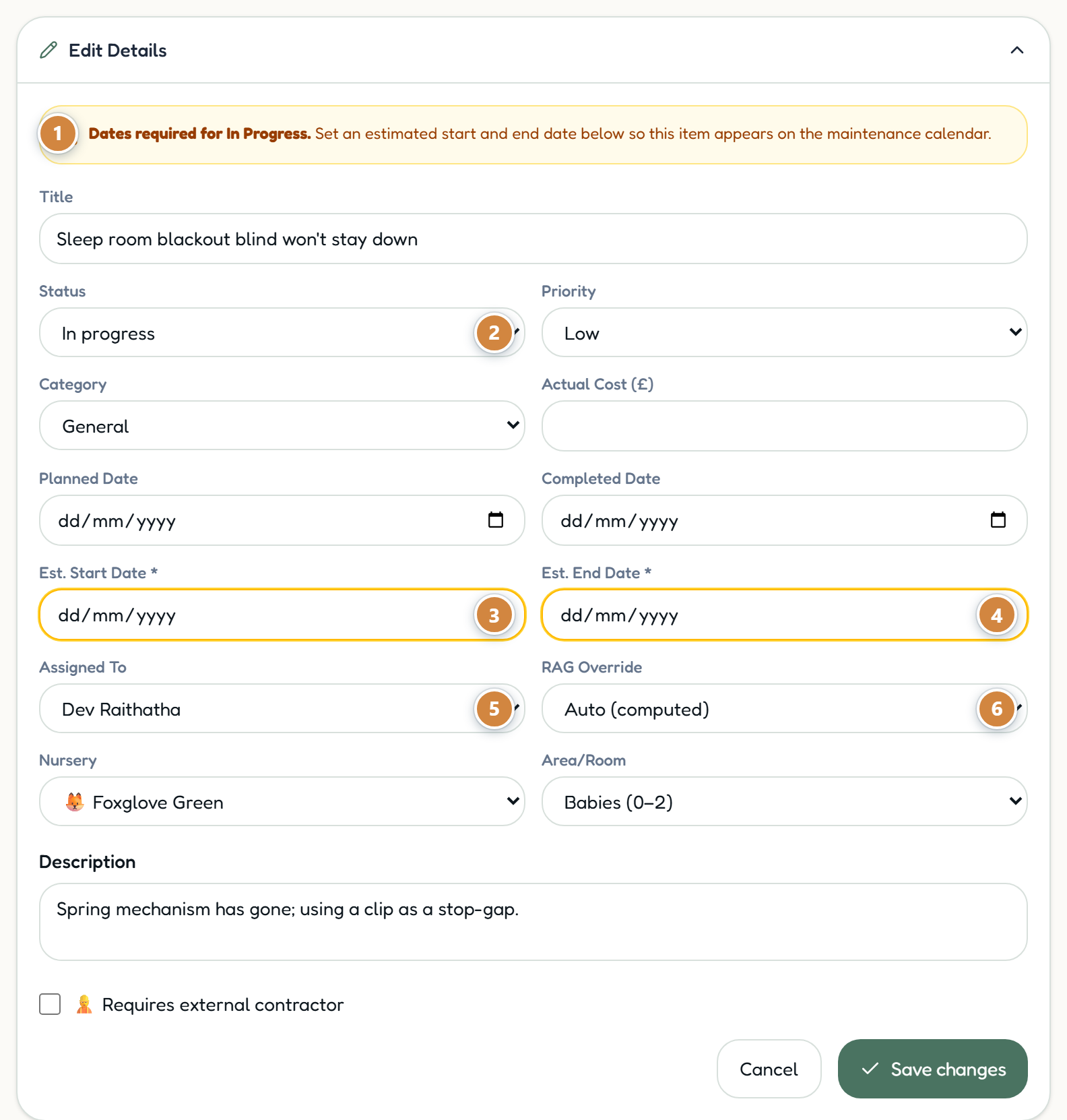
- Open the job and select Edit Details.
- Under RAG Override, choose Green, Amber or Red.
- Select Save changes.
- Explain why in a comment, so the next person understands.
What you should see
The job shows the colour you chose everywhere: its card, its page, the Calendar and the RAG report. It stays that colour until someone sets RAG Override back to Auto (computed).
Common problems
- A job stays red after the work was booked.
Check its priority (Critical is always red) and its planned date (a date in the past is red). Update the planned date, or move the job on. If it's still red, check whether someone set a RAG Override.
- A job stays the same colour whatever happens.
- Someone has overridden it. Set RAG Override back to Auto (computed).
- A new job is amber even though it's low priority.
- It's in Triage or To do without a planned date. Give it a planned date, and it turns green if that's more than a week away.