Inspections: carrying out an inspection room by room
Purpose
Record what you find in every room and area of the nursery, item by item, while you're there. Each answer is saved as soon as you make it, and failed items become actions in the nursery's action plan when the inspection is signed off.
Before you start
- The inspection has been started (see Starting an inspection).
- You're its main inspector, or an area support manager or lead.
- You have a tablet or laptop with you. Beacon works in the browser; see Getting started for using it on an iPad.
Find your way around the inspection
- Open the inspection from the In Progress section of the Inspections page or the dashboard.
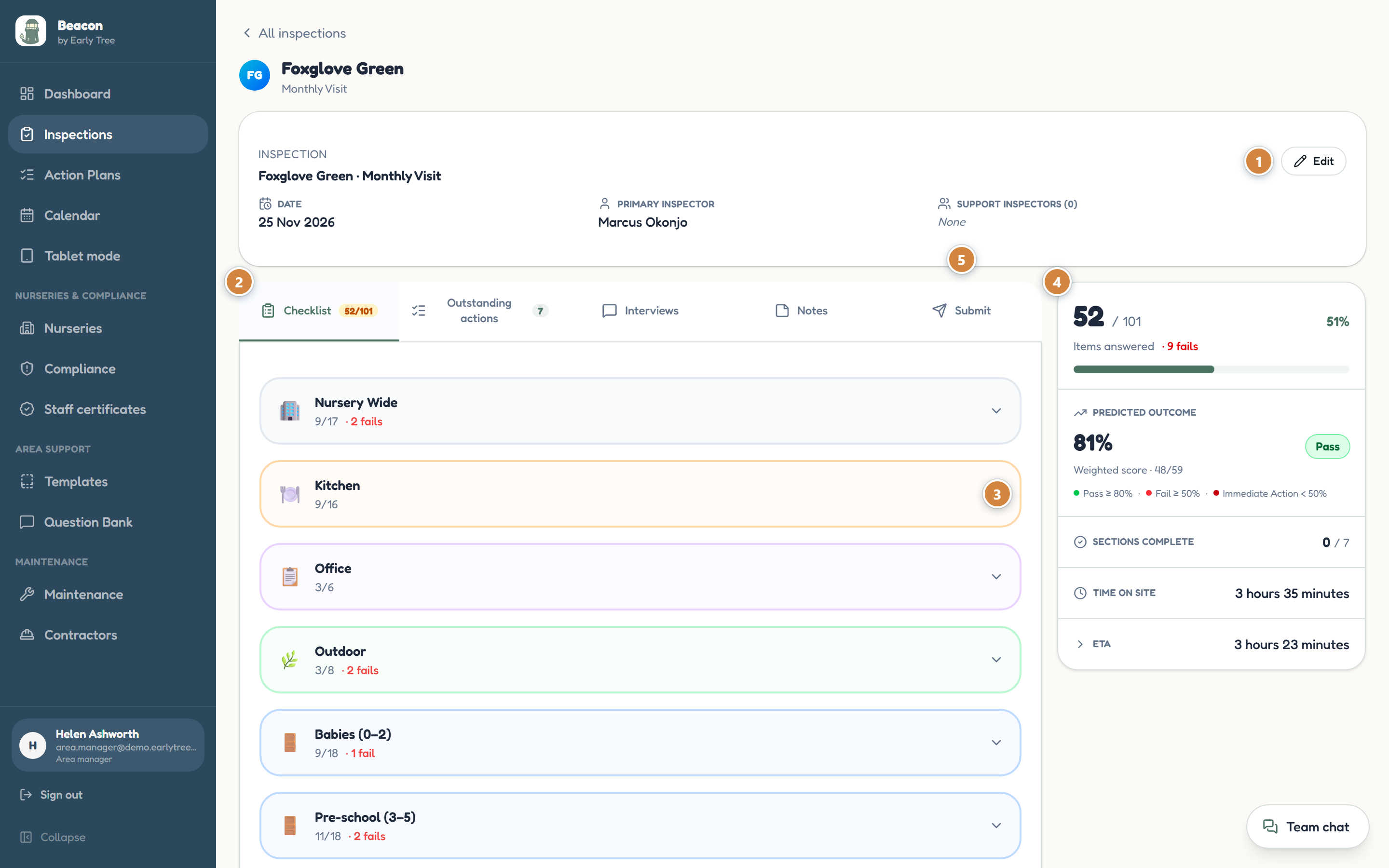
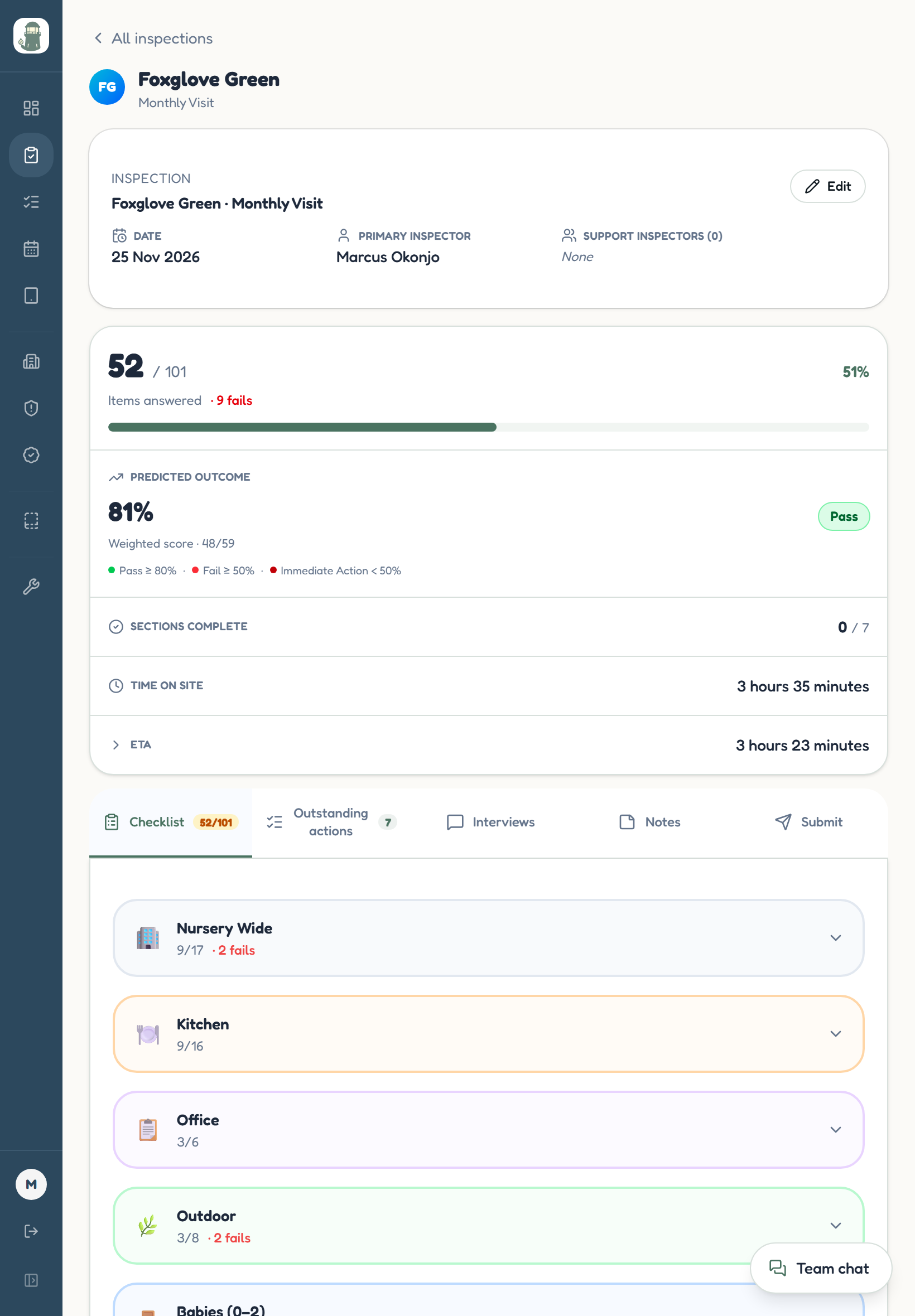
- The card at the top shows the visit, its date and the team. Area support managers and leads can select Edit 1 to change them.
- Checklist 2 is where you answer the items. Its badge shows how many you've answered.
- Each area of the nursery has its own card 3: Nursery Wide, Kitchen, Office, Outdoor and each room. The card shows how many items you've answered and how many have failed.
- The panel on the right 4 shows your progress, the Predicted outcome so far, how many areas you've finished, the time on site and an estimate of how long is left.
- When you've finished, go to Submit 5.
Answer the items in an area
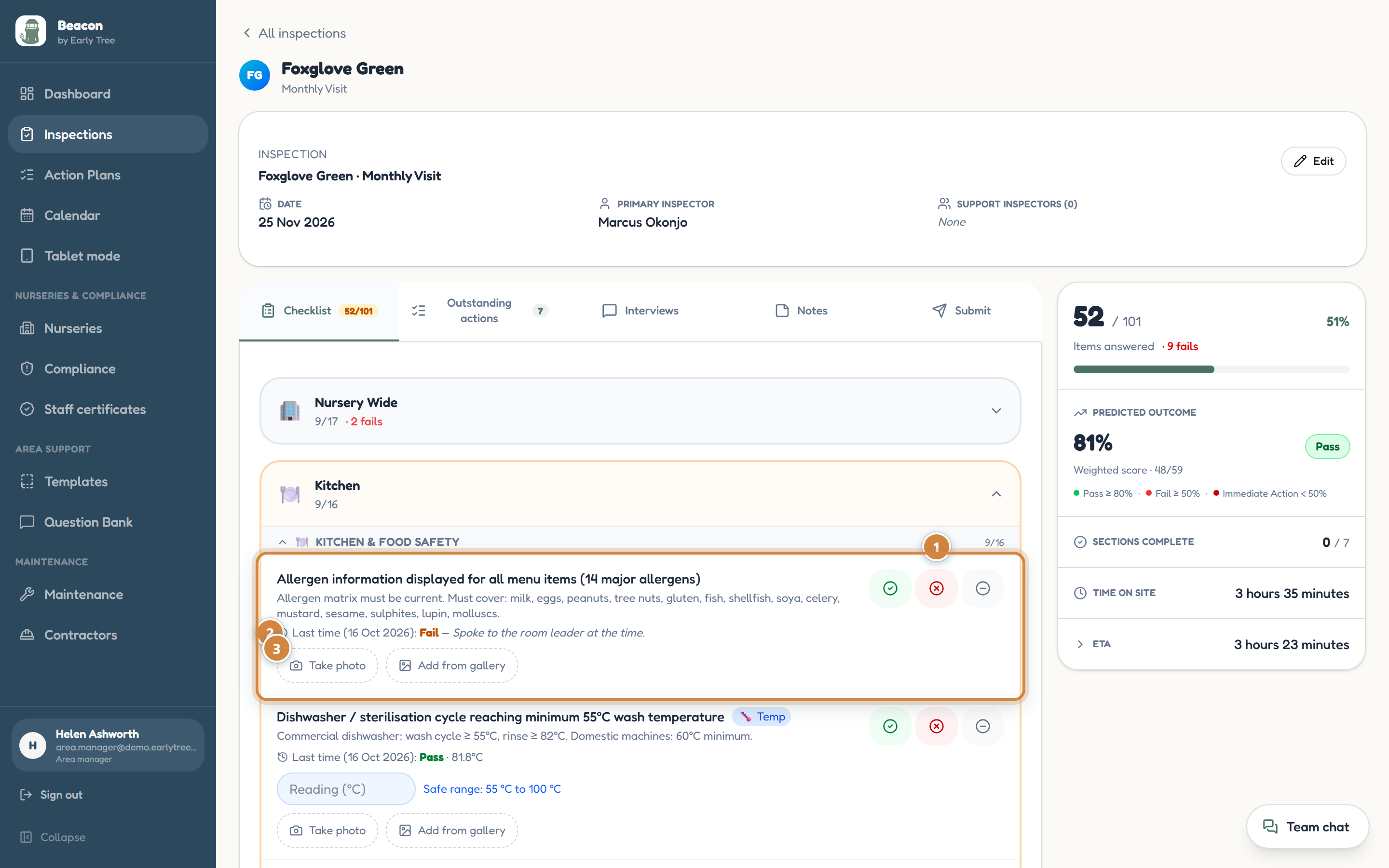
- Select an area's card to open it. Its items are grouped into sections, such as Kitchen & Food Safety. Select a section to open it.
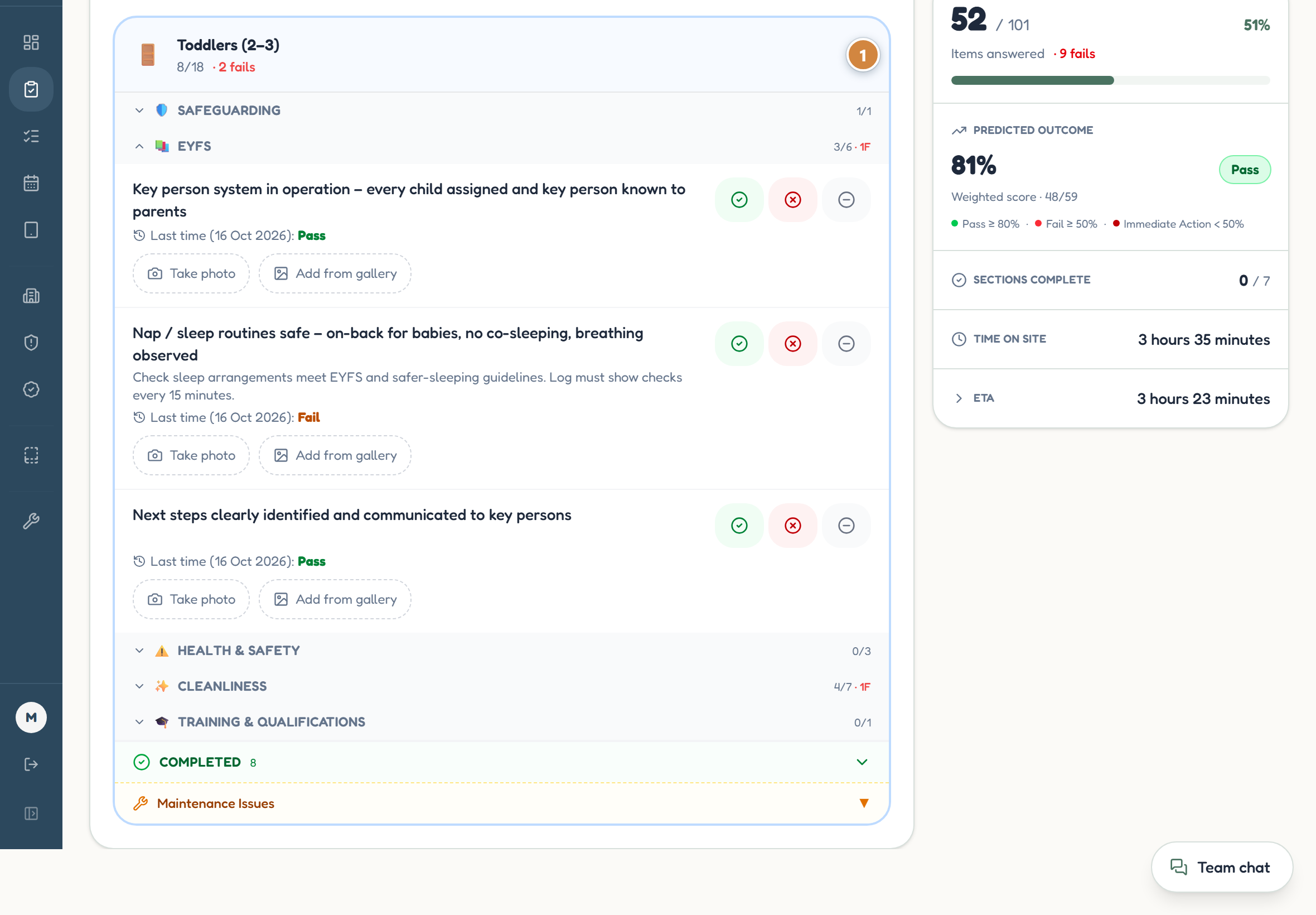
- Read the item and its guidance. If the item was checked on the last visit, Last time 2 shows the date, the result and any note.
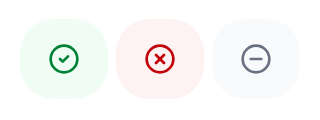
- Choose the answer with the three buttons 1: the tick for Pass, the cross for Fail, or the dash for N/A (not applicable here). Your answer is saved straight away.
- To add evidence, select Take photo 3 or Add from gallery. See Photos and temperature readings.
What you should see
An item you pass or mark N/A moves straight into the area's Completed section, so only the items still to do are in front of you. The area card's count goes up, and the progress panel updates. A small Saved shows at the top of the checklist each time an answer is saved.
When an item fails
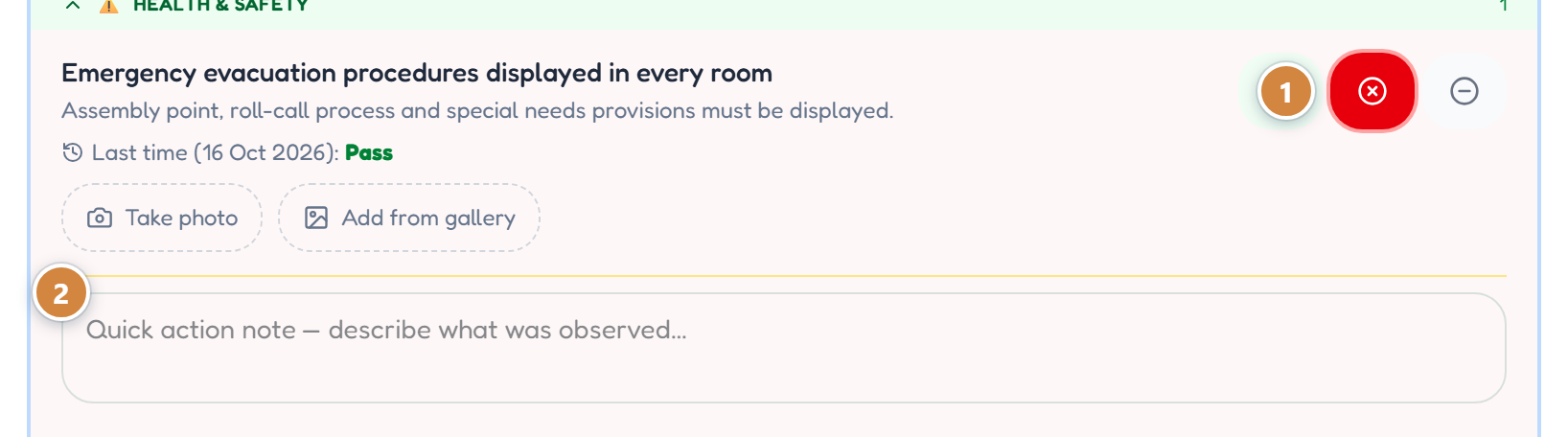
- Select the cross 1 on the item.
- A box opens under it: type what you saw in Quick action note 2, for example "Two plug sockets uncovered by the book corner". The note goes into the report and the action plan, so make it specific.
- The item stays in view for 20 seconds (Auto-hiding in 20s) so you have time to write the note. The countdown pauses while you're typing. Select Skip — no comment to move it on without a note.
If you see something that worries you about a child's safety, follow your organisation's safeguarding procedure straight away. Don't wait for the report: a checklist note isn't a safeguarding referral.
Change an answer
Open the area's Completed section, then the section the item is in, and choose a different answer. You can change answers until the inspection is submitted. You can't set an item back to unanswered once it has an answer.
Outstanding actions from earlier visits
If the nursery still has open actions from earlier inspections, an Outstanding actions tab appears next to Checklist, grouped into overdue, blocked, in progress, not started and done but awaiting verification. On the checklist, an item with an open action shows it under the item; select it to open the action. Each area also lists Open maintenance for this area. Use them to check on site whether the work has been done.
Working with colleagues
- Everyone on the inspection team sees each other's answers as they're made. When a colleague answers an item, Beacon shows a short message with their name, the item, their answer and the room.
- Select Team chat at the bottom of the screen to message the rest of the team about the visit.
- When more than one person has answered items, the progress panel shows how many each person has done.
On an iPad
The inspection works the same way on an iPad. Held landscape, the checklist and the progress panel sit side by side; held upright, the progress panel moves above the tabs. Open one area at a time 1 as you walk into each room, so only that room's items are on screen. For a full-screen, room-by-room way of inspecting on an iPad, with big buttons and photos that wait for a signal, use tablet mode: see Tablet mode.
Common problems
- An area I expected isn't on the checklist.
The nursery doesn't have that area set up, or it was inactive when the inspection started. Items are only created for the areas that existed then. See Nurseries.
- "No items due for this visit type."
- No checklist items match the visit type for the nursery's areas. Check the template with an area support manager.
- The item disappeared before I finished my note.
It has moved to the area's Completed section. Open Completed, then its section, and carry on typing: the note is saved as you type.
- I see "failed to save" at the top of the checklist.
Beacon couldn't save some answers and won't keep retrying them. Open each affected item and answer it again. See Working without a connection.
- The checklist is greyed out and says Signed off.
- The report has been signed off, so the checklist is a read-only record. Open the report to read it.
- I get "page not found" when I open the inspection.
Only the main inspector, area support managers and area support leads can open an inspection that's in progress.