Inspections: starting an inspection
Purpose
Start the visit when you arrive at the nursery, so Beacon builds the checklist for that nursery's rooms and areas and the visit's date and team are recorded.
Before you start
- You're an area support manager or area support lead with access to the nursery.
- The nursery's rooms and areas are set up in Beacon (Nursery Wide, Kitchen, Office, Outdoor and each room). Checklist items are created for each matching area, so a missing area means missing items. See Nurseries.
- Start the inspection on the day of the visit: its start time is used for the time-on-site figure.
Choose the nursery and visit type
- In the menu, select Inspections, then Start Inspection. The dashboard's Start inspection button opens the same page.
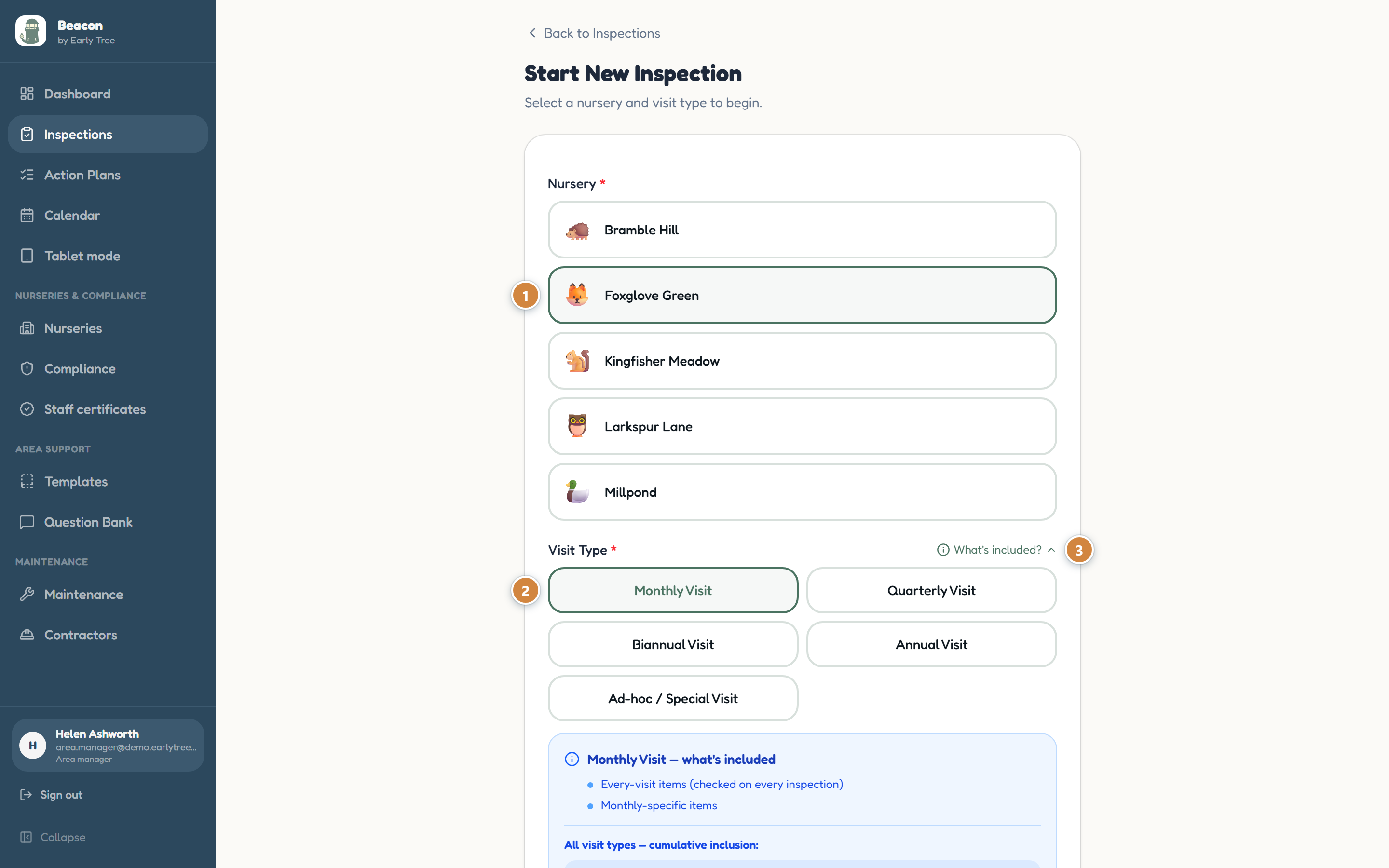
- Under Nursery, select the nursery you're visiting 1.
- Under Visit Type, select the type of visit 2. Select What's included? 3 to see which items each type adds.
Name the inspection team
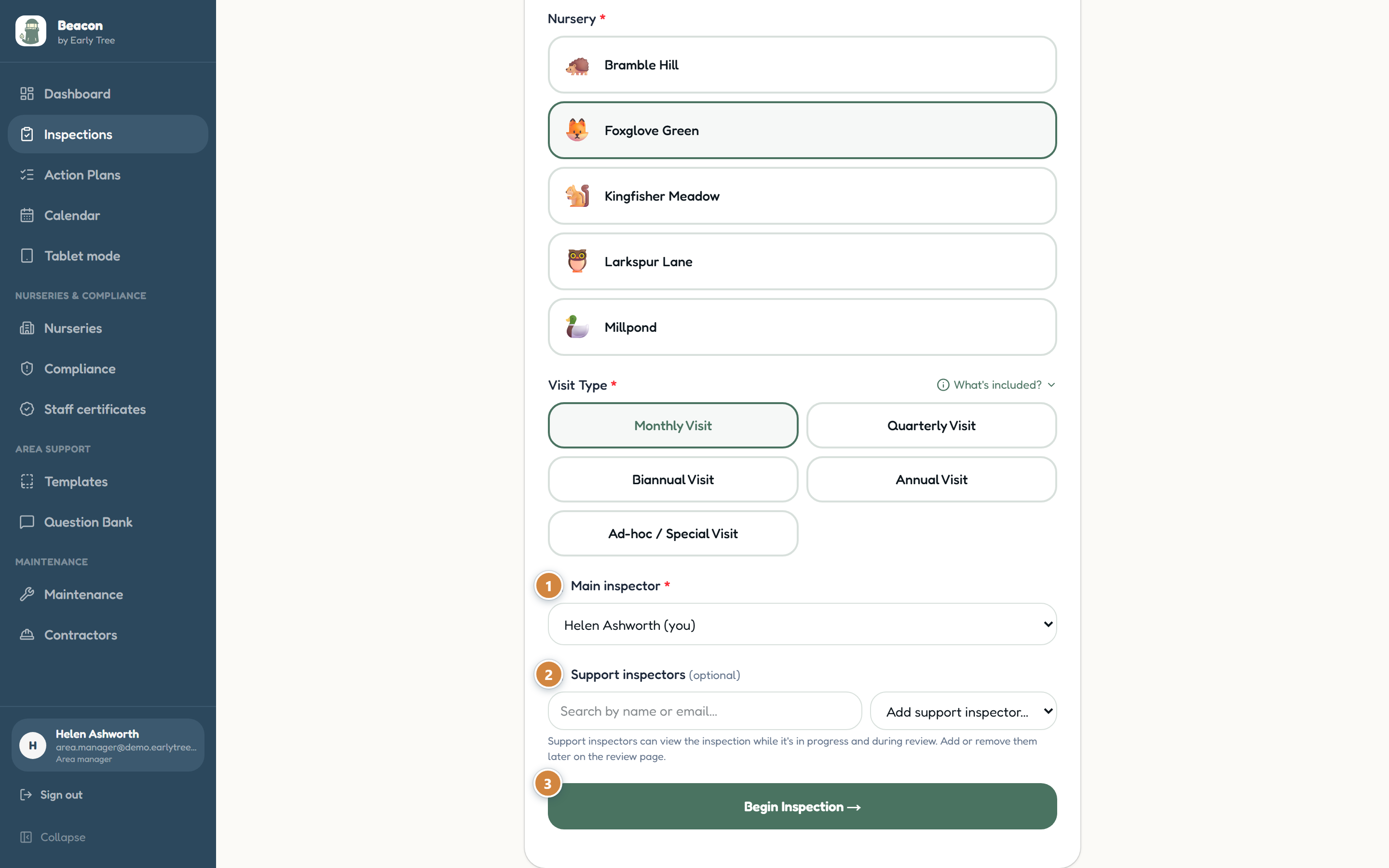
- Under Main inspector 1, check the person leading the visit. It starts as you. The main inspector can answer the checklist and submit the inspection, whatever their role.
- If colleagues are visiting with you, add them under Support inspectors 2: search by name or email and choose them from the list. Select the cross on a name to take it off. Support inspectors can open the visit (it's under Visits you're on on their Inspections page, and in tablet mode) and record answers, photos, maintenance notes, interviews and notes while it's in progress. The main inspector or area support submits it.
- Select Begin Inspection 3.
What you should see
Beacon opens the inspection's checklist, with a card for each area of the nursery. The inspection now shows in the In Progress section of the Inspections page and on the dashboard. See Carrying out an inspection room by room.
If Beacon warns about missing area types
When you choose a nursery and visit type, Beacon checks the nursery has an area for every kind of item due. If it doesn't (for example, there are kitchen items but no Kitchen area), you'll see Missing area types, with how many items will be left out.
- To include those items, add the missing area to the nursery first. See Nurseries.
- To carry on without them, tick I understand — proceed without these items. Begin Inspection stays greyed out until you do.
Start from a planned visit
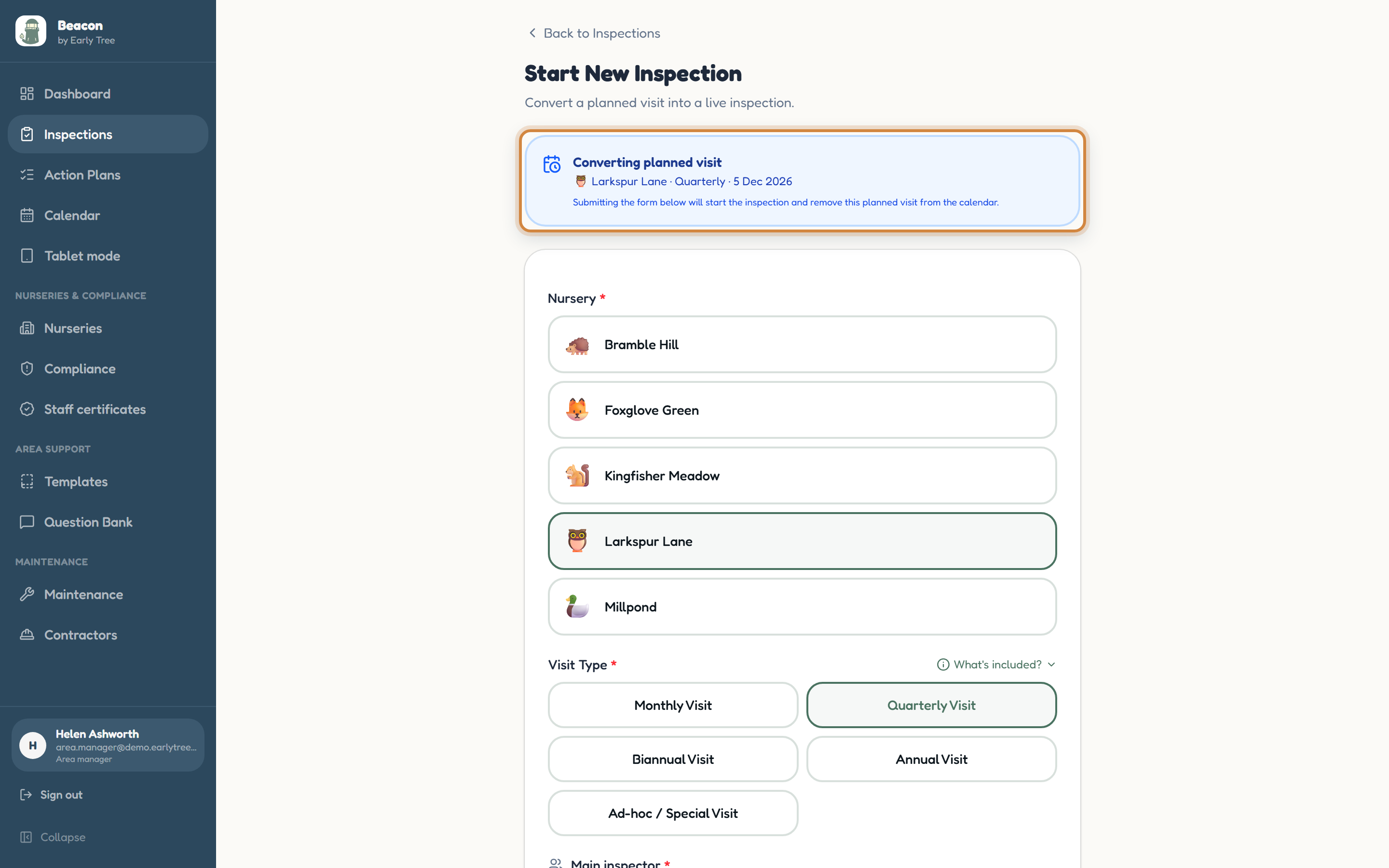
If the visit was planned, select Start inspection next to it on the Inspections page or the dashboard. Start New Inspection opens with the nursery and visit type filled in, and a Converting planned visit box shows which plan you're starting, with its notes. Check the team and select Begin Inspection. The planned visit is then removed from the calendar.
Change the date or team later
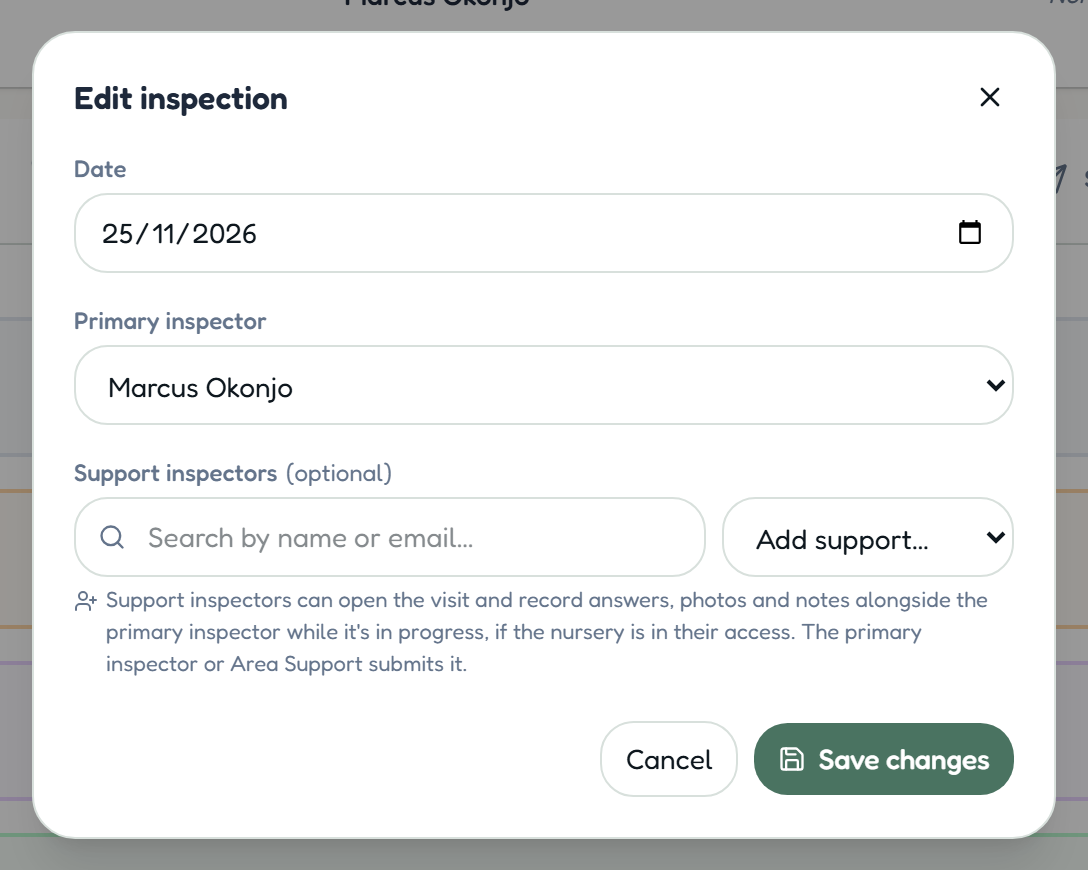
Area support managers and leads can change the date, the main inspector and the support inspectors until the report is signed off. On the inspection, select Edit on the card at the top, make the changes and select Save changes.
Common problems
- There's no Start Inspection button.
- Only area support managers and area support leads can start inspections.
- The nursery isn't listed.
- Only active nurseries you have access to are listed. Ask your Beacon administrator.
- Begin Inspection is greyed out.
Beacon is still checking the nursery's areas ("Checking areas…"), or it found missing area types and you haven't ticked I understand — proceed without these items.
- A support inspector can't open the checklist.
They need access to the nursery: a support inspector from another nursery can't open its visit. Give them the nursery in Users & Roles, or make the person who'll answer the checklist the main inspector. Support inspectors also can't open a visit once it's been submitted.
- I started the wrong nursery or visit type.
Visit type and nursery can't be changed after you begin. An area support manager can archive the inspection (see Archiving an inspection started by mistake) and you can start again.