Inspections: submitting an inspection
Purpose
Close the visit and hand it over for review. Submitting freezes the checklist, works out the score and creates a draft report, a draft action plan and maintenance jobs, ready for the review team.
Before you start
- You've answered every item you can, and added photos, notes, maintenance issues and staff interviews.
- You have a connection. Submit first sends any answers and photos still waiting on the device, and won't go ahead until they've reached Beacon (see Working without a connection).
- Once you submit, the checklist can't be changed. Check it first.
Submit the inspection
- On the inspection, select Submit. A green dot on the tab means every item has an answer.
- Check the summary under Ready to Submit? 1: Checklist (items answered, and how many are unanswered), Failed Items and the staff interviews you recorded.
- If any items are unanswered, Beacon says so. You can still submit: unanswered items are left out of the score and listed as not assessed in the report. Tick I confirm I am happy to submit this inspection with unanswered items 2.
- Read What happens after submission? 3.
- Select Submit Inspection 4.
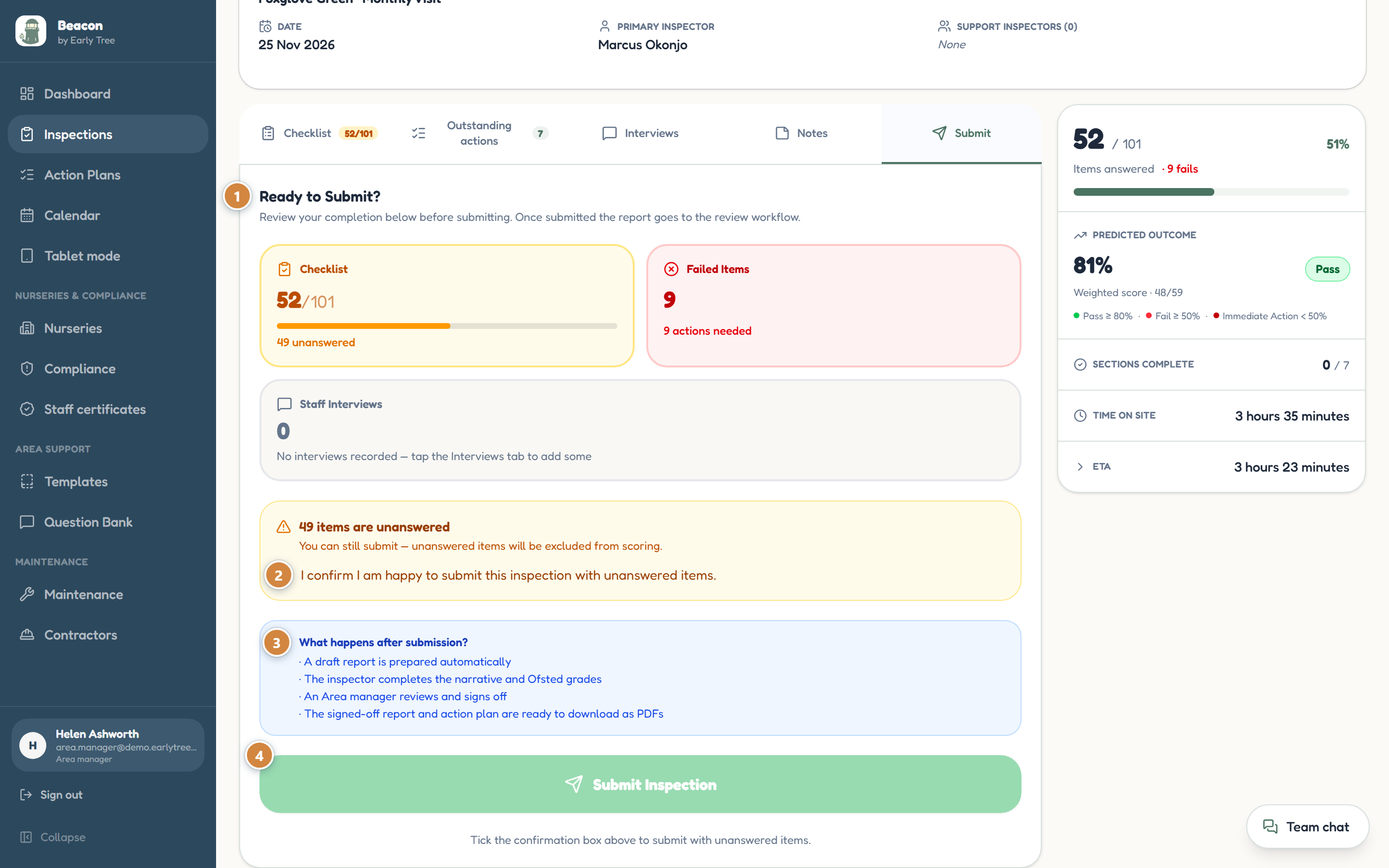
What you should see
Beacon opens the inspection's review page. On the Inspections page it moves from In Progress to In Review with Review Required. Beacon has also created:
- a draft report with the score and result (Pass, Fail or Immediate Action) and a first draft of the narrative;
- a draft action plan, with an action for each failed item, each maintenance issue and each staff answer rated Adequate or Poor, and links to actions still open from earlier visits;
- a maintenance job in Triage for each maintenance issue you logged.
If your organisation uses Nina, Beacon may show a loading screen for a moment while she drafts a fuller narrative and suggests grades. See Nina.
The draft is only seen by area support managers and leads until it's signed off. See About review and sign-off.
Common problems
- Submit Inspection is greyed out.
- Some items are unanswered and the confirmation box isn't ticked, or the inspection has already been submitted.
- "You're offline" or "still uploading from this device".
- Some of your work is only on this device. Get a connection and wait for the pending count to go, then submit again.
- "You're a support inspector on this visit".
- The main inspector or area support submits the visit. Let them know you've finished.
- I submitted too early.
The checklist can't be reopened. Tell the reviewer: they can add actions, notes and corrections on the review page, or an area support manager can delete the report and you can start a new inspection.