Inspections: logging maintenance during an inspection
Purpose
Record repairs and building problems you spot on the visit (a broken gate latch, a damp patch, a split fridge seal) so they reach the maintenance team. Maintenance issues are separate from the checklist: you can log one in any area, whether or not an item failed.
Before you start
- The inspection is in progress and you can answer its checklist.
- If something is dangerous right now, deal with it on site first and tell the nursery manager. Logging it in Beacon doesn't alert anyone straight away.
Log an issue
- Open the area where the problem is, such as Kitchen or a room.
- At the bottom of the area, select Maintenance Issues, then Log a maintenance issue in followed by the area's name.
- To add a photo, select Take photo or Add from gallery 1.
- Describe the problem in Describe the issue 2, for example "Broken gate latch on outdoor fence". This becomes the job's title. Add anything else in Additional details (optional).
- Choose how serious it is 3:
- Advisory (preventative): not broken yet, but worth doing.
- Required (fix needed): needs fixing.
- Urgent (safety concern): a risk to safety.
- Select Log Issue 4.
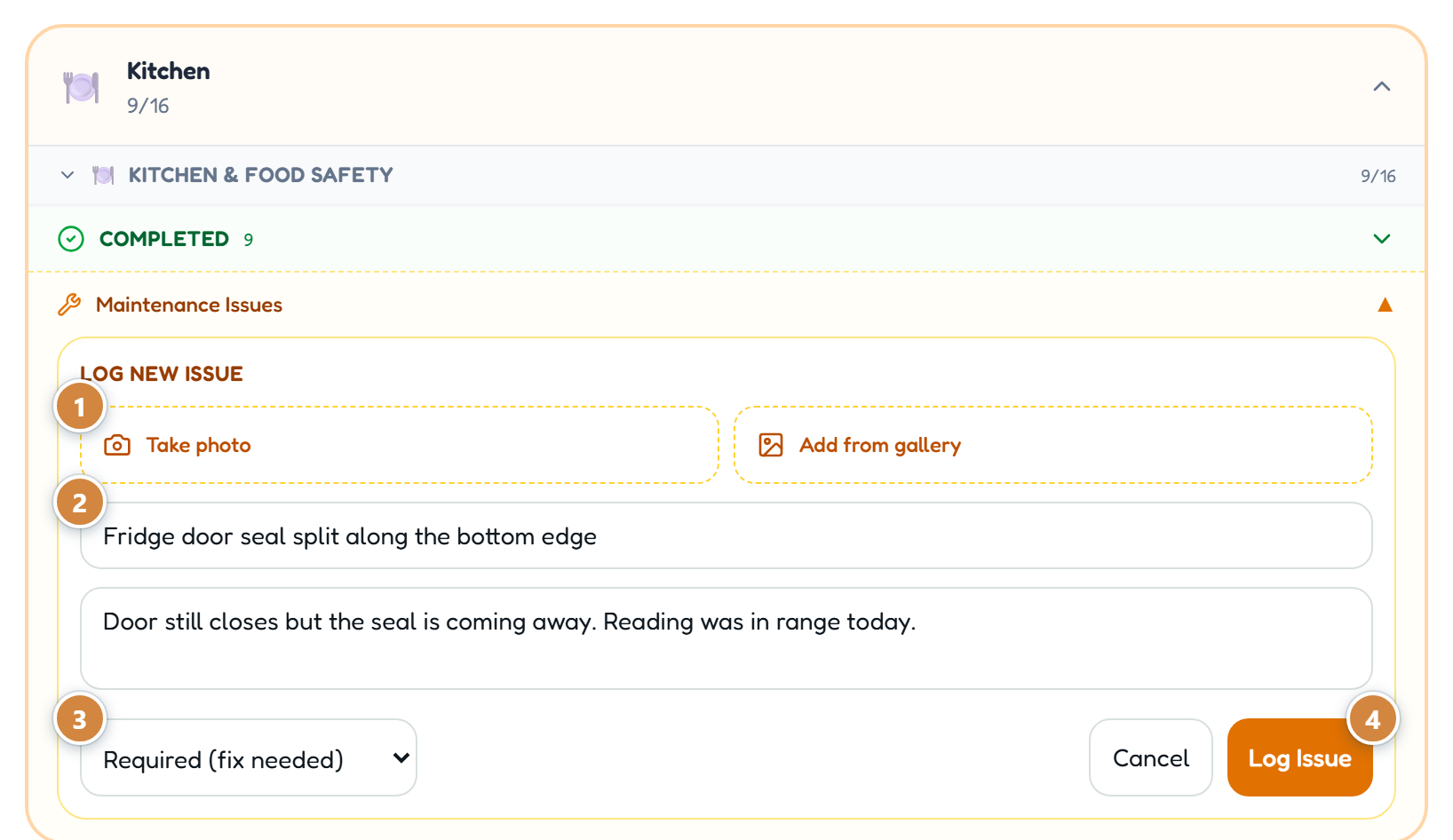
What you should see
Beacon shows Maintenance issue logged, and the issue is listed under Maintenance Issues for that area with its severity. Use the pencil to change it or the bin to delete it until the inspection is submitted.
What happens when the inspection is submitted
Each issue you logged becomes:
- a maintenance job in the Triage column of the maintenance board, linked back to this inspection. Its priority comes from the severity: Urgent becomes Critical, Required becomes High, and Advisory becomes Medium;
- an action in the inspection's action plan, with a target date 4 working days ahead for Urgent (the shortest Beacon sets), 7 for Required and 14 for Advisory. Bank holidays aren't counted.
Reviewers can correct an issue's details on the review page before sign-off. See About review and sign-off and Maintenance.
Issues carried over from earlier visits
Under Maintenance Issues, Carry-overs from previous inspections lists issues from earlier visits to this area that are still open, so you can check them while you're there. Open maintenance for this area lists the area's open maintenance jobs, with their priority and status.
Common problems
- "Restored your unsaved maintenance note — please re-take the photo if you'd added one."
The page reloaded (for example, the tablet closed the browser while the camera was open) before you selected Log Issue. Beacon kept what you'd typed. Take the photo again, then select Log Issue.
- "Photo upload failed … the note will save without the new photo".
- The issue was saved but the photo wasn't. Edit the issue with the pencil and add the photo again when you have a signal.
- "Failed to save".
Maintenance issues need a connection: they aren't saved for later when you're offline. Write the issue down and log it when you're back online.