Tablet mode for inspections
Purpose
Tablet mode is a full-screen, touch-first way to carry out an inspection on an iPad while you walk round a nursery. It takes you room by room, with large Pass, Fail and N/A buttons, a big Take photo button and a summary before you leave each room. Everything you record saves as you go, and keeps working without Wi-Fi.
Tablet mode uses the same inspections as the rest of Beacon: you can start a visit in tablet mode and finish it on a computer, or the other way round.
Before you start
- Add Beacon to the iPad's home screen. See Using Beacon on an iPad.
- You're an area support manager or lead for the nursery. Other roles can open tablet mode, but see a read-only view with the note Tablet mode is set up for running inspections.
- Open the visit while you still have a connection, so the checklist is on the iPad before you lose signal.
Open tablet mode
- Select Tablet mode in the menu. If you opened Beacon from the iPad's home screen, the dashboard also offers On site with your iPad? with a button to switch; select Not now to hide it.
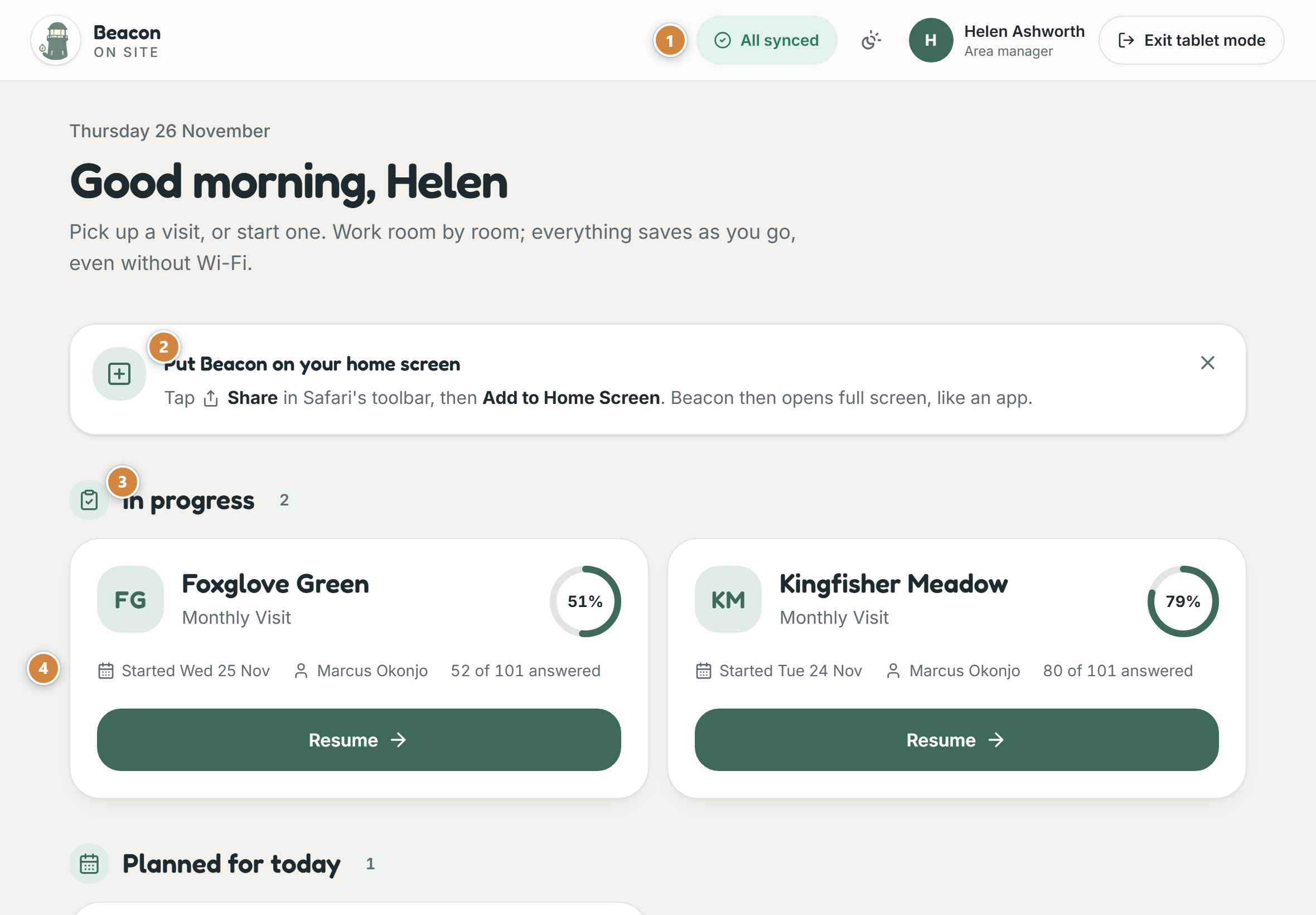
- Tablet mode opens on its home screen. At the top, the pill 1 shows whether everything is saved.
- In Safari, Put Beacon on your home screen 2 explains how to add Beacon to the home screen (Share, then Add to Home Screen). Tap the cross to dismiss it.
- In progress 3 lists visits already started, each with a progress ring, who's inspecting and how many items are answered. Planned for today lists today's planned visits.
Start or resume a visit
- To pick up a visit, select Resume 4 on its card.
- To start a planned visit, select Start on it.
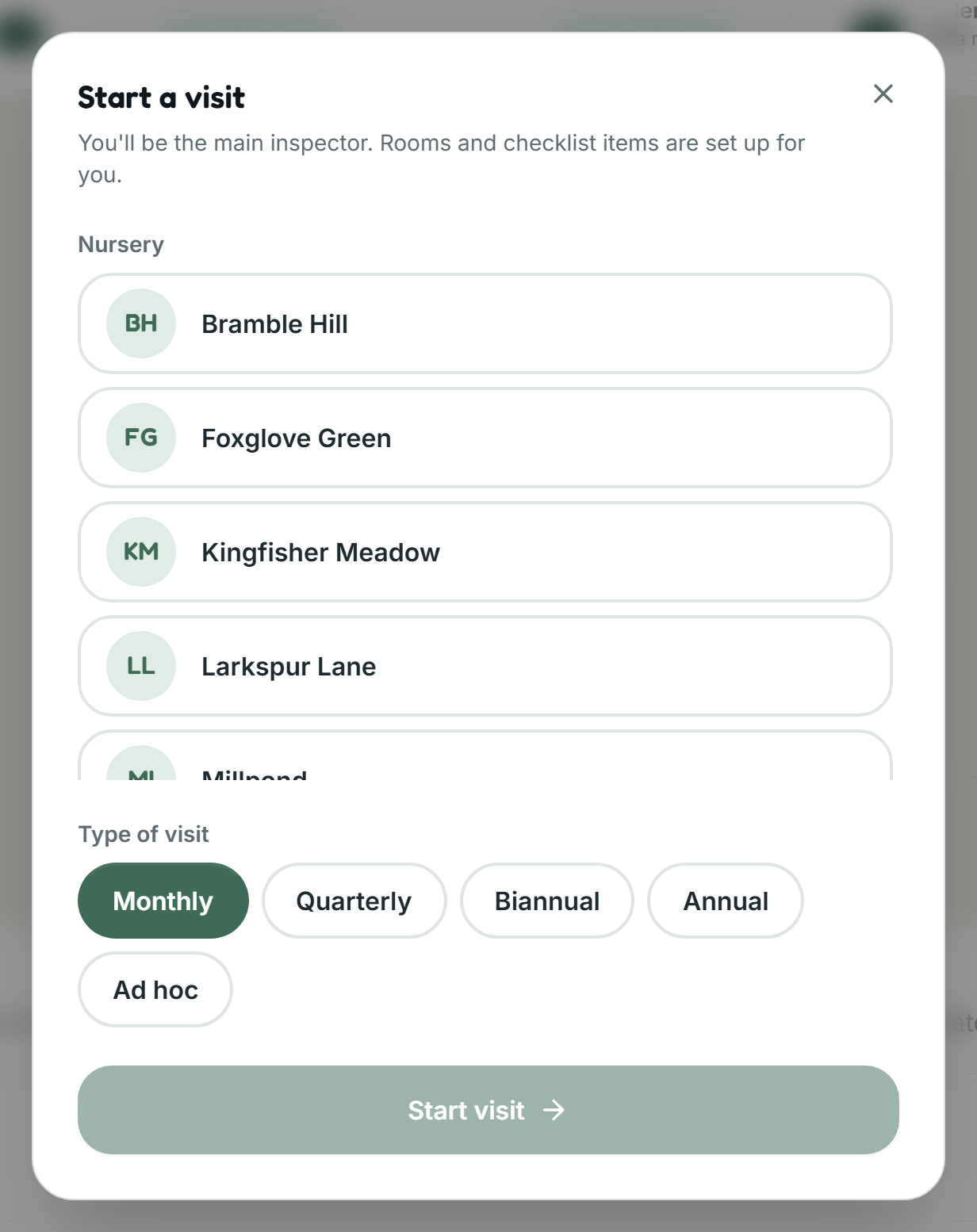
- To start one that isn't planned, select Start another visit. In Start a visit, choose the Nursery and the Type of visit (Monthly, Quarterly, Biannual, Annual or Ad hoc), then select Start visit. You'll be the main inspector, and the rooms and checklist items are set up for you.
Work room by room
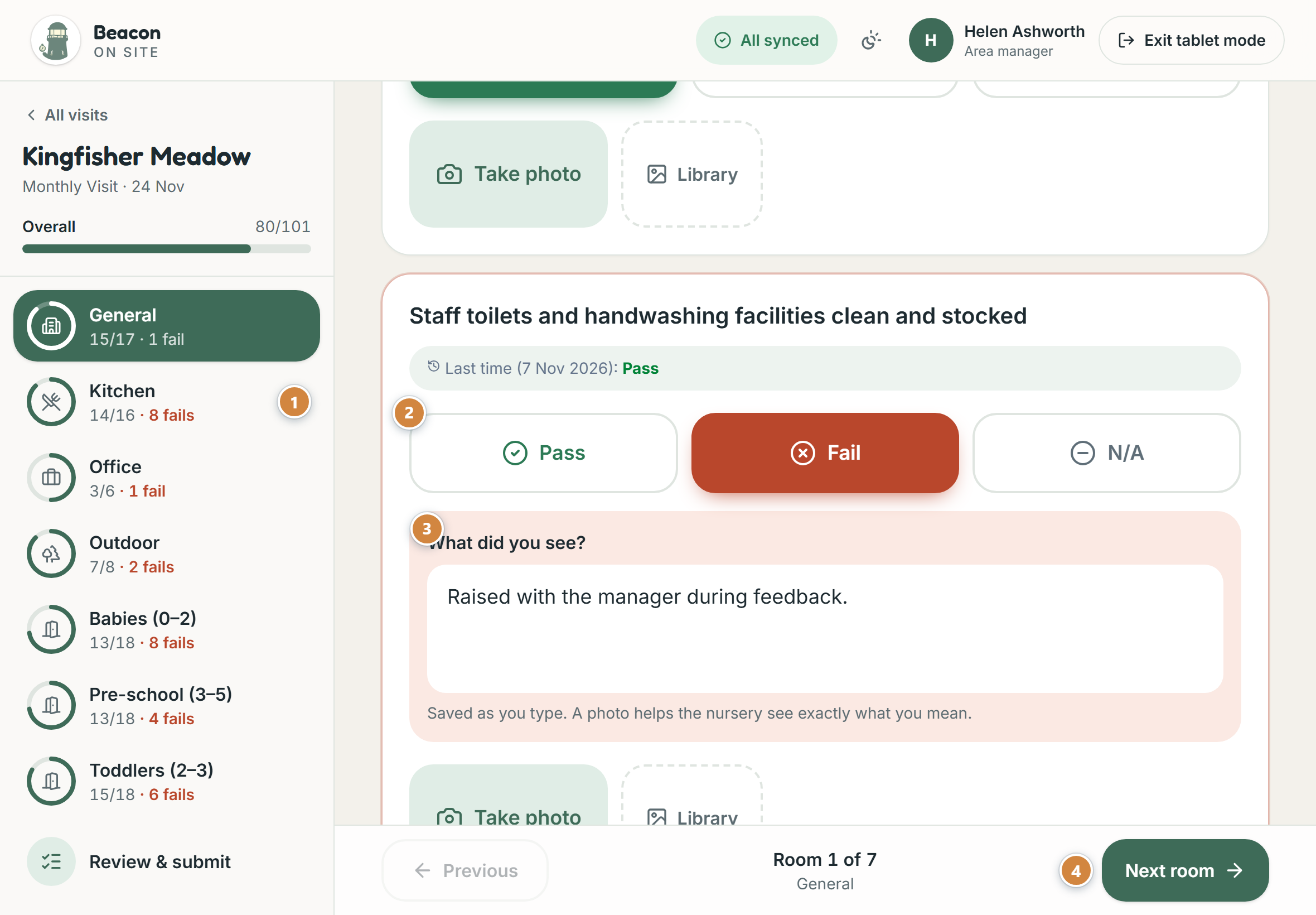
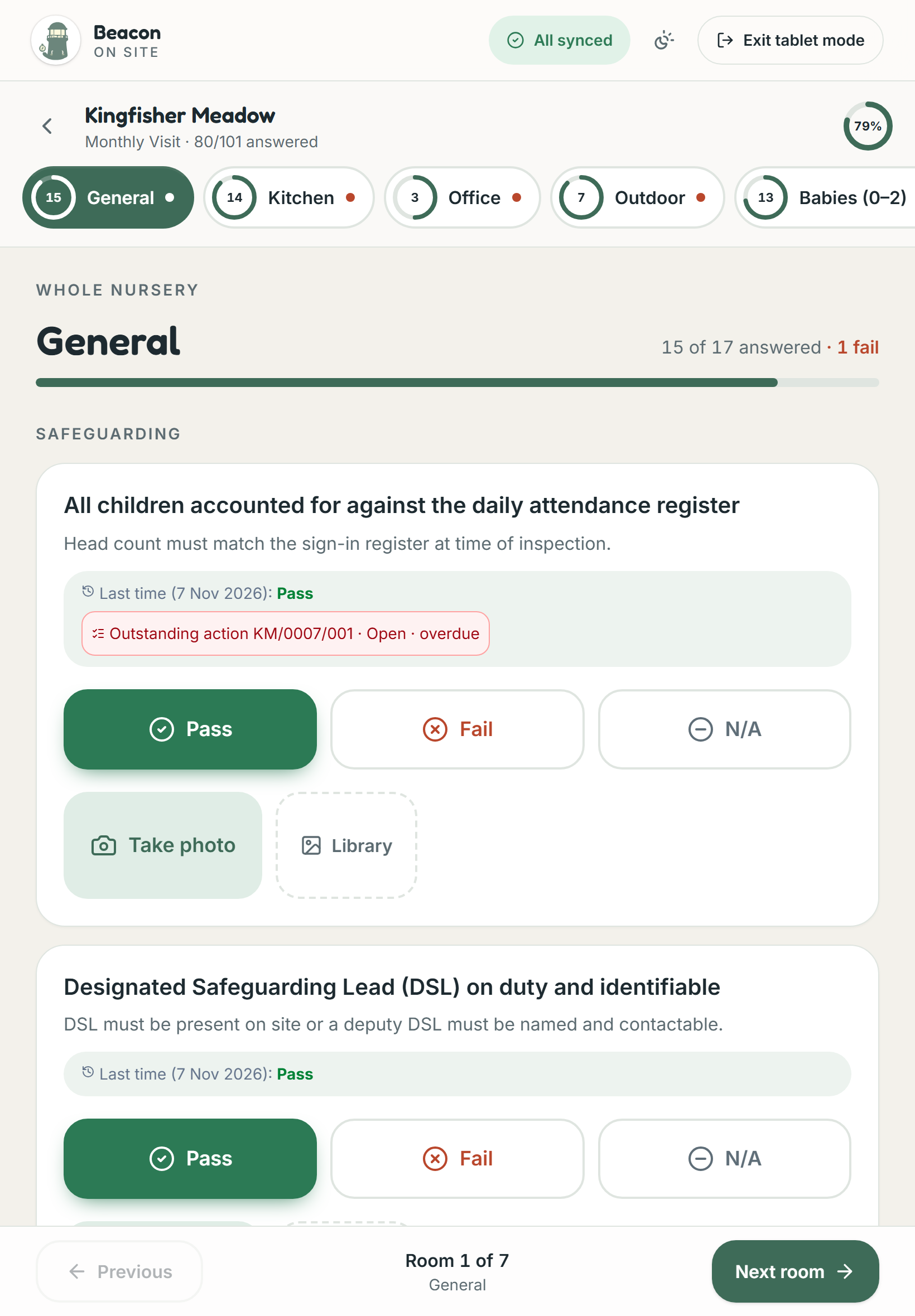
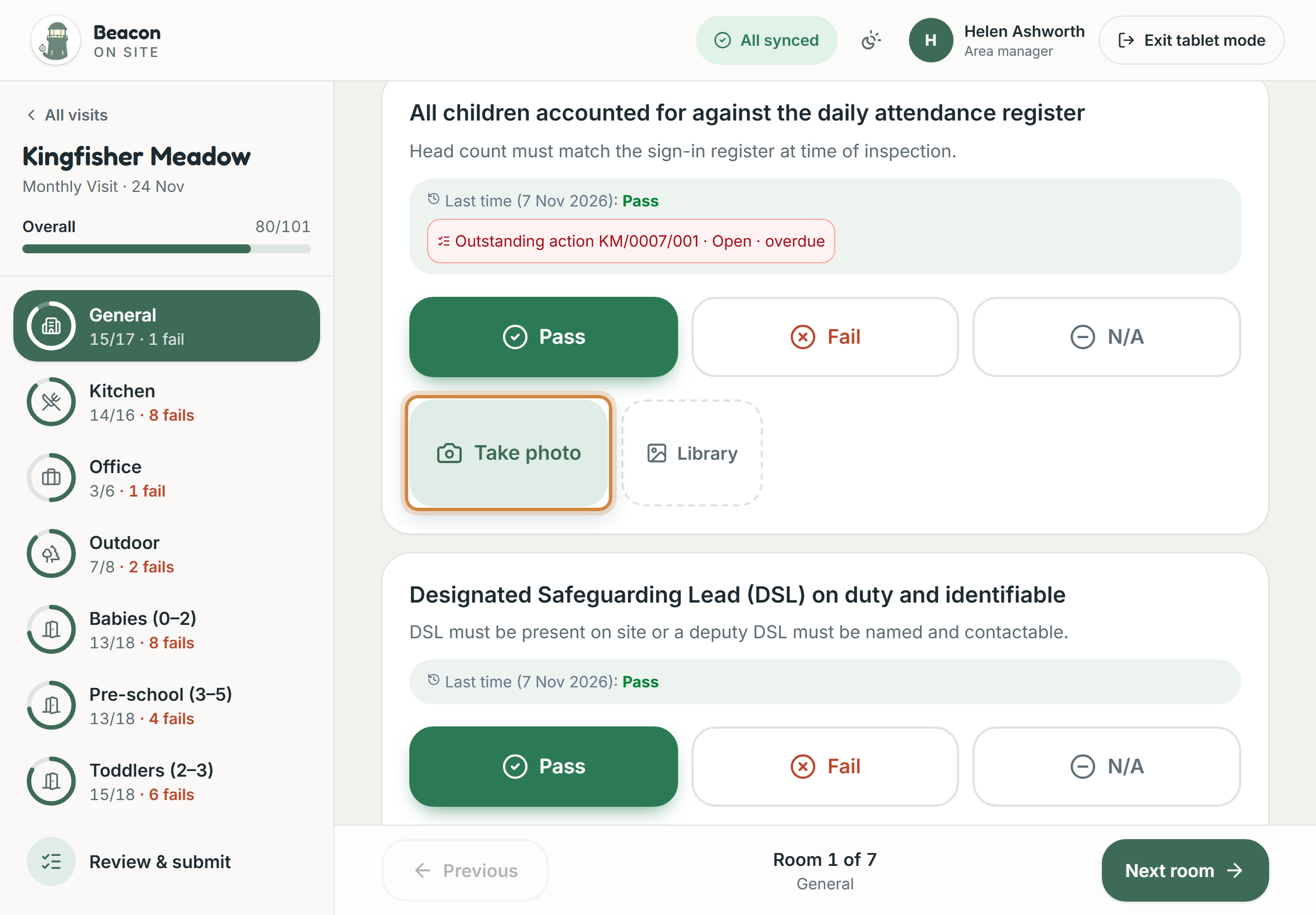
- The rooms are listed down the left in landscape, or across the top in portrait. Each shows a progress ring and how many items have failed. Tap a room 1 to go to it. Overall shows progress for the whole visit.
- For each item, tap Pass, Fail or N/A 2. Each item shows last visit's result (Last time) and any actions from earlier visits that are still open.
- When you tap Fail, What did you see? 3 opens under the item. Describe what needs putting right: this becomes the action on the report. It's saved as you type.
- For a temperature item, type the reading. The safe range is shown; a reading outside it is flagged, and the item is marked Fail ("Reading is outside the safe range, so this is marked Fail").
- Use Next room 4 at the bottom ("Room 1 of 7") to move on, or Previous to go back.
Photos
Tap Take photo to add a photo to an item, or Library to choose one already on the iPad. Tap a photo to see it larger, or remove it. Allow camera access when Safari asks.
Before you leave a room
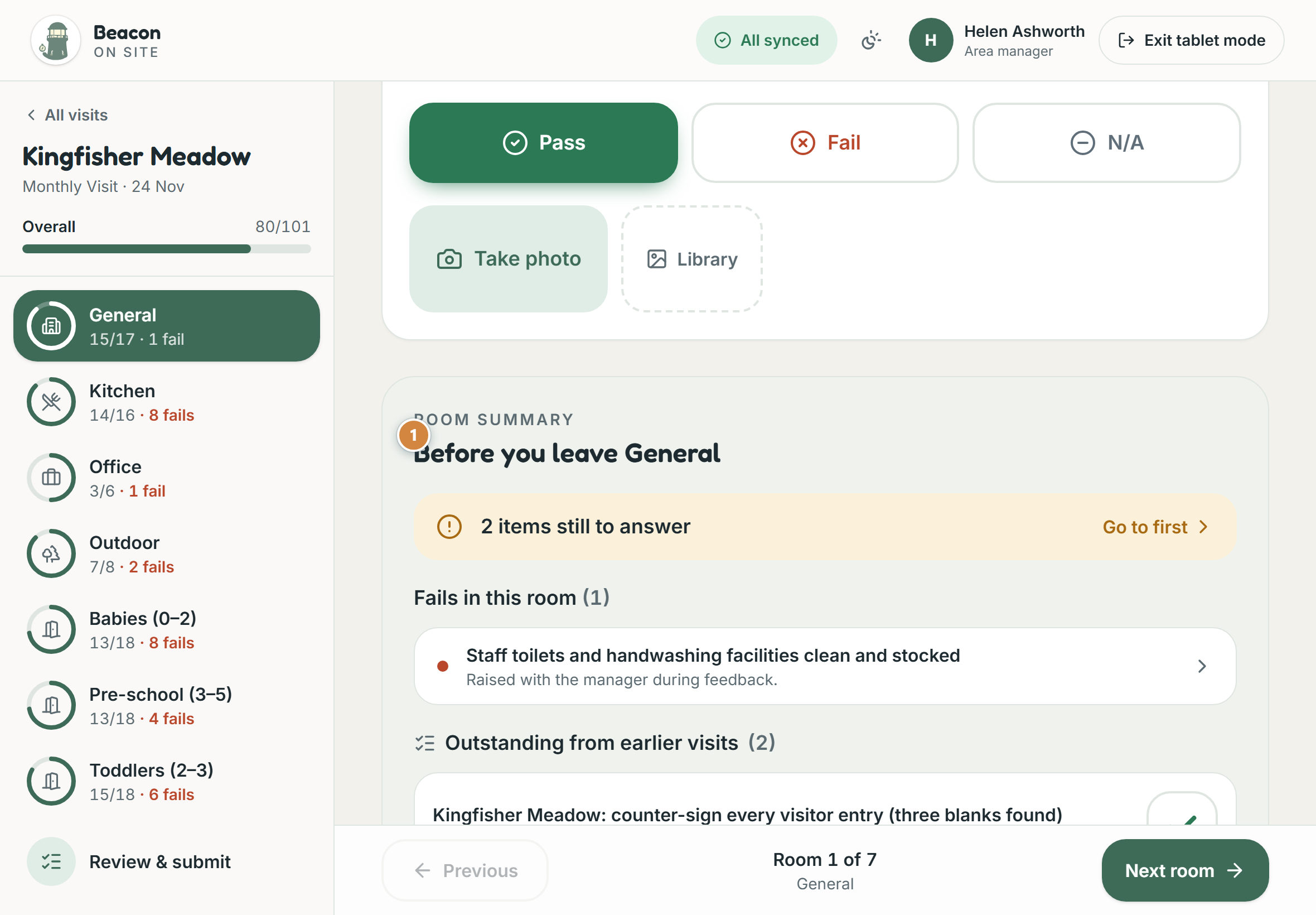
At the end of each room, Before you leave and the room's name 1 starts the room summary:
- how many items are still to answer (Go to first takes you to the first), and the room's fails (tap one to go back to it);
- actions from earlier visits that are still open for this room. If one has been done, tap its tick to verify it on site; it shows Verified on site, with Undo. Only area support leads and managers verify;
- open maintenance for the room, and Log maintenance to report a new job.
Working without Wi-Fi
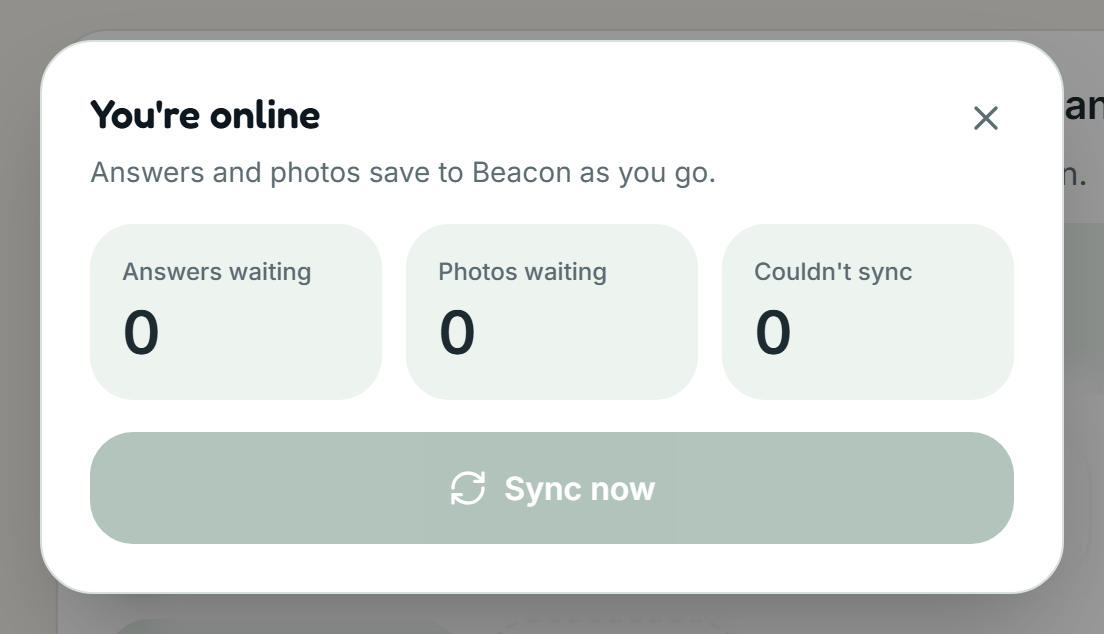
The pill in the top bar shows how things stand:
| The pill says | Meaning |
|---|---|
| All synced | Everything you've recorded is saved in Beacon. |
| N waiting to sync | Some answers or photos are still on the iPad, waiting to be sent. |
| Offline | No connection. Keep going: everything is kept safely on the iPad and syncs by itself when you reconnect. |
Tap the pill to see what's waiting (Answers waiting, Photos waiting), and select Sync now to send it straight away. Photos taken offline show Waiting to sync until they've uploaded.
Don't reload or close Beacon while you're offline. What you've already recorded is kept, but the page can't load again until you're back online.
Review and submit
- After the last room, select Review & submit.
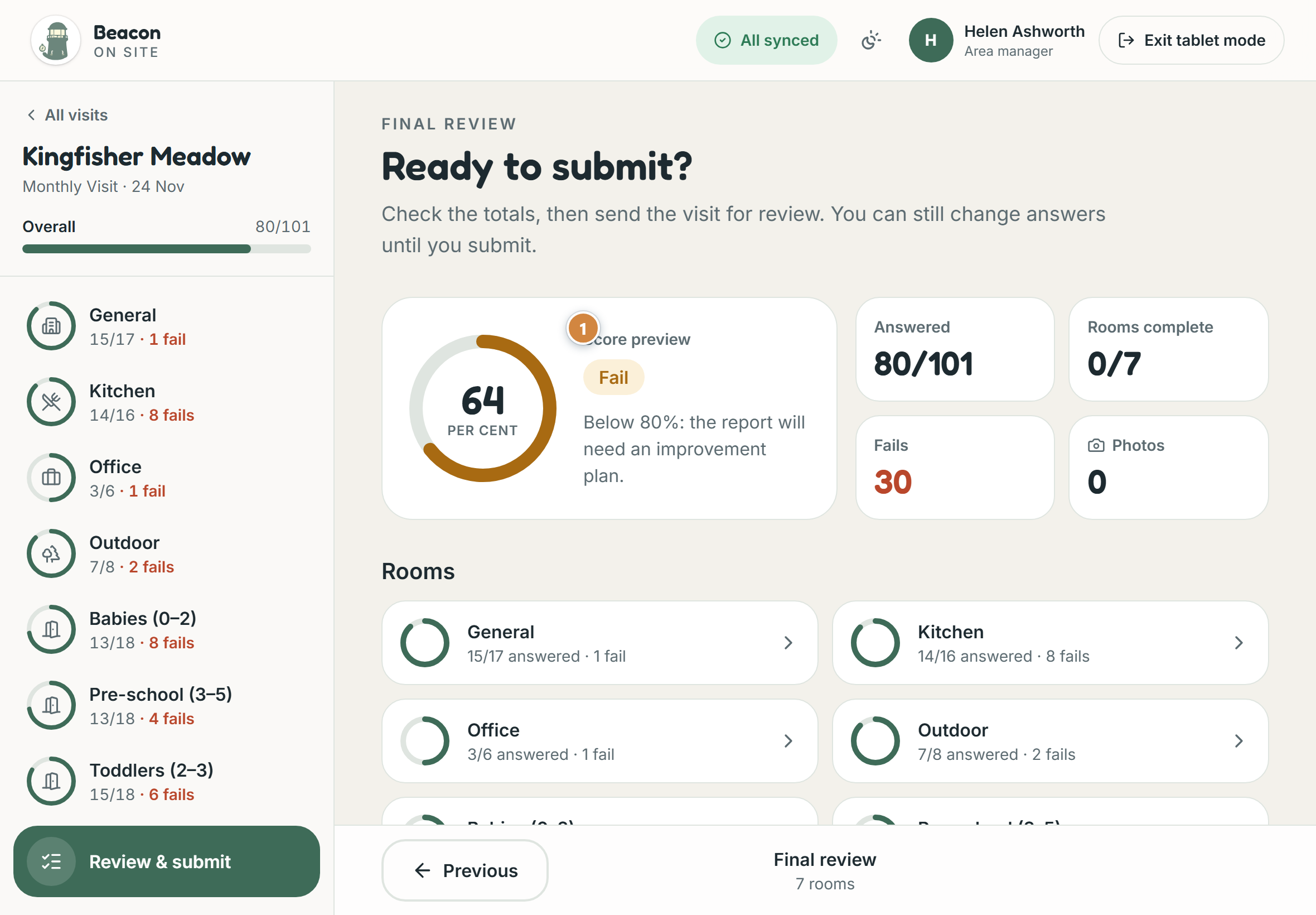
- Final review shows a Score preview 1 with what it means (for example "On track: 80% or more of weighted items passed"), how many items are Answered, Rooms complete, Fails and Photos, and a card per room.
- Check the totals. You can still go back and change answers.
- Select Submit for review 2, then Submit. Once submitted, answers can't be changed here, and a draft report is created for the review.
What you should see
Submitted for review, with buttons to go back to the tablet home or open the review. The visit now appears under In review on the dashboard.
Light and dark
Tablet mode follows the iPad's light or dark setting. The theme button in the top bar switches between matching the iPad, light and dark. To leave tablet mode, select Exit tablet mode.
Common problems
- There's no Start or Resume button.
- Only area support managers and leads for that nursery can start or carry out a visit. Others see a read-only view.
- "You're offline. Your work is safe on this iPad; submit once you're back online."
- Submitting needs a connection. Wait until the pill shows All synced, then submit.
- The pill says "Couldn't sync".
- Something was refused when sending. Tap the pill and select Sync now. If it keeps failing, finish the visit on a computer and tell your area support manager.
- "No items due for this visit".
- No rooms or checklist items match this type of visit. Check the nursery's rooms and the template with your area support manager.
- I need to record staff interviews or inspection notes.
- Those aren't in tablet mode yet. Select Exit tablet mode and use the inspection page.