Inspections: photos and temperature readings
Purpose
Back up what you found with evidence: a photo of a hazard, a video of a broken door closer, a fridge reading. Photos appear in the report and its PDF (failed items first), and help the nursery see exactly what needs fixing.
Before you start
- The inspection is in progress and you can answer its checklist (see Carrying out an inspection).
- To take photos in Beacon, allow the browser to use the camera when it asks.
- Don't photograph children's faces or anything that identifies a child. Follow your organisation's photo policy.
Add a photo or video
- Open the area and section, and find the item.
- Select Take photo. Where the browser allows it, the camera opens inside Beacon: point it, then select the round Take photo button. Select the arrows to switch between the front and back cameras, or the cross to close the camera without taking a photo.
- To use a photo or video you already have, select Add from gallery and choose one or more files.
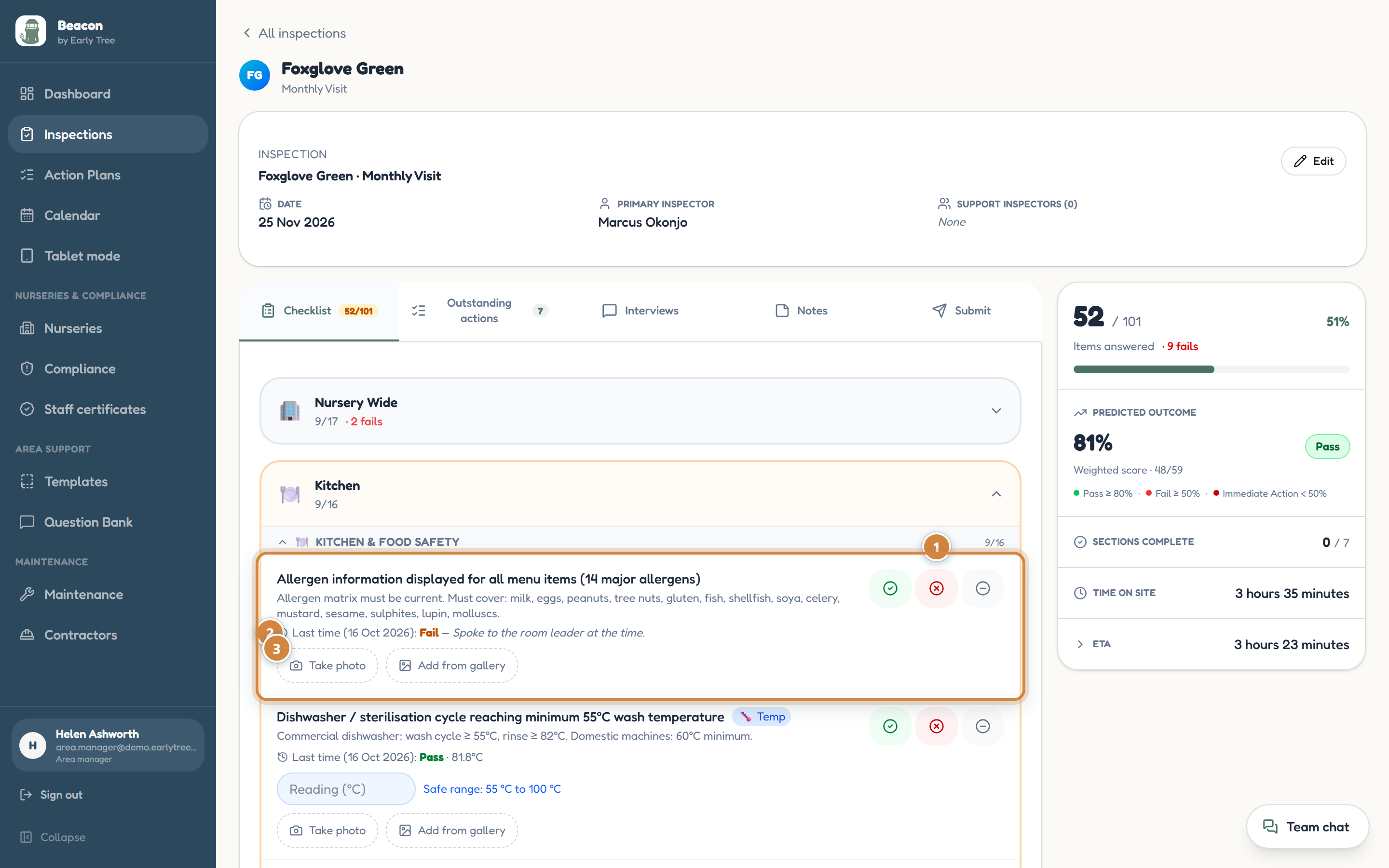
What you should see
Beacon shows Photo attached to (or Video attached to) with the item's name and room, so you can check it went on the right item, and a small picture appears under the item. Photos are made smaller before they're sent, so they upload quickly on a weak connection.
View or remove a photo
- Select a picture under the item to see it full size. Use the arrows to move between the item's photos and videos, and the cross to close.
- To remove one, select its cross and confirm with Remove in Remove photo?. It's removed from the inspection.
Record a temperature reading
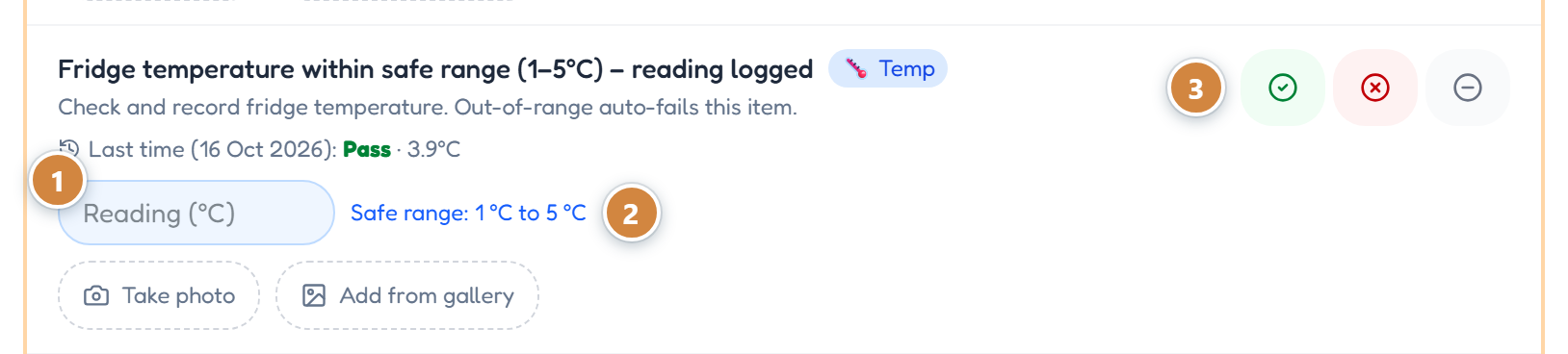
Some items, such as fridge, freezer and hot food checks, are temperature readings. They show a 🌡️ Temp label, the safe range and a box for the reading.
- Take the reading with your thermometer or probe.
- Type it in the reading box 1, for example
4.2for a fridge. Use a minus sign for freezers, such as-19.5. - Check it against Safe range 2, which shows the range for that item.
- Press Enter or move on to the next field. Beacon answers the item for you from the reading 3: Pass if it's in the safe range, Fail (with Temperature out of range — marked Fail) if it isn't. If you've marked the item N/A, it stays N/A.
Common problems
- "Camera access was refused — opening the device camera instead."
The browser isn't allowed to use the camera, so Beacon opens the device's own camera instead. To use the camera in Beacon, allow camera access for your Beacon address in the browser's settings.
- "Failed to upload media".
The photo didn't reach Beacon, usually because the connection dropped. Photos aren't saved for later when you're offline, so try again when you have a signal. See Working without a connection.
- A thumbnail shows a grey camera instead of the photo.
- The picture couldn't be loaded. Refresh the page; if it stays grey, add the photo again.