Review: the signed-off report and its PDFs
Purpose
Read the finished inspection report, share it as a PDF, and open the action plan that came from it. Once signed off, a report is the record of the visit: it can't be changed.
Before you start
- The report has been signed off.
- You have access to the nursery. Nursery managers, room leaders, maintenance managers and auditors see reports for their own nurseries; area support staff with group-wide access see them all.
Open the report
- In the menu, select Inspections, then select the visit in Signed off. The dashboard's Recent signed-off reports opens the same page.
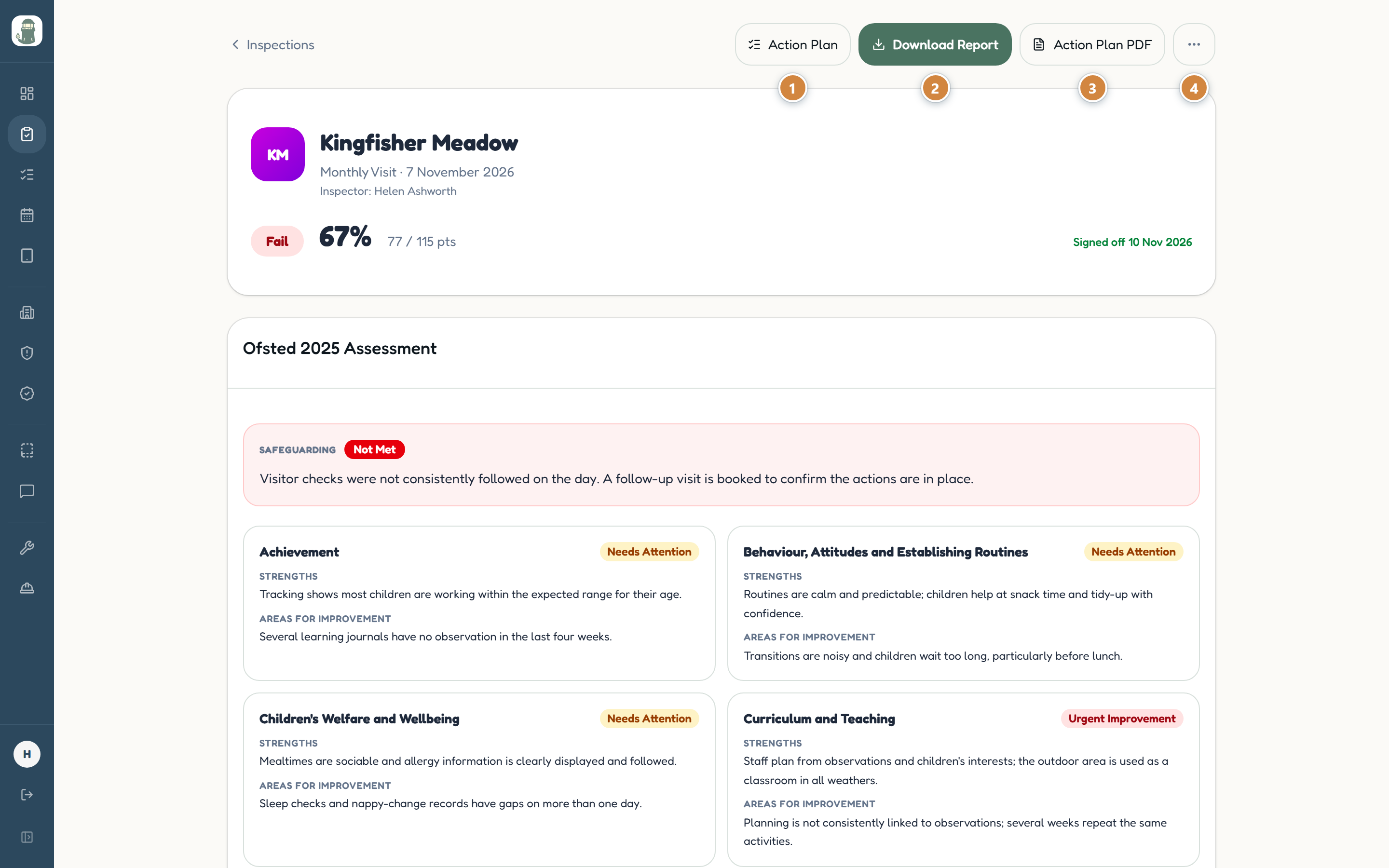
- At the top are the buttons for the report:
- Action Plan 1 opens the nursery's action plan for this visit;
- Download Report 2 opens the report PDF;
- Action Plan PDF 3 opens the action plan PDF;
- More report actions (the three dots) 4 holds Delete report…, for area support managers only (see Deleting a report).
- Read down the page: the result and score, Ofsted 2025 Assessment (the safeguarding judgement and each area's grade, strengths and areas for improvement), Inspector's Assessment (the narrative), then each area's checklist results with notes and photos, anything not assessed, the photo gallery and a summary of the actions.
Immediate Action
A report with the result Immediate Action (a score under 50%) shows Escalate immediately. This inspection result requires urgent attention. Follow your organisation's escalation procedure.
The PDFs
Beacon creates two PDFs when a report is signed off: the report (including a photo appendix, failed items first) and the action plan. They're kept with the report under Generated Documents.
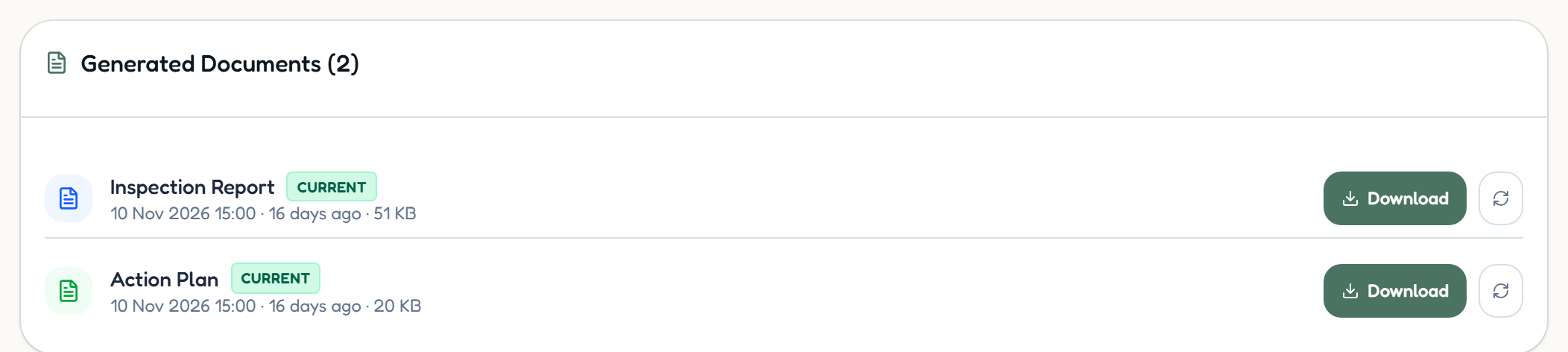
- Current marks the latest version of each PDF; select Download to open it.
- If a PDF has been made again, the older copy is marked Superseded and kept for audit. It can still be downloaded.
- Area support managers can make a fresh copy of a current PDF from the latest data with the circular arrow next to Download. The old one is kept as superseded.
What you should see
The PDF opens in a new tab, ready to save, print or share. If a report has no PDFs yet, Beacon creates them the first time someone downloads one.
Common problems
- I can't see a report for my nursery.
- It hasn't been signed off yet. Reports appear for nursery staff only after sign-off.
- "Report not yet finalised".
- You tried to download the PDF of a report that isn't signed off. Only area support managers can do that.
- The PDF shows old information.
- Ask an area support manager to regenerate it from Generated Documents.