Review: signing off a report
Purpose
Finish the review and make the report official. Signing off locks the narrative and grades, creates the report and action plan PDFs, and hands the action plan to the nursery. Only an area support manager can sign off; an area support lead sends their review to one for approval.
Before you start
The Sign Off tab checks the report is ready. You need:
- a narrative of at least 50 words that isn't still Beacon's automatic summary (edit or rewrite it);
- an internal quality grade;
- a safeguarding judgement (Met or Not Met).
Beacon also flags, as warnings, fewer than six evaluation areas graded and an empty action plan. You can sign off with three or more areas graded and with no actions, if that's right.
Check the report is ready
- On the review page, select Sign Off. Area support managers see ASM on the tab.
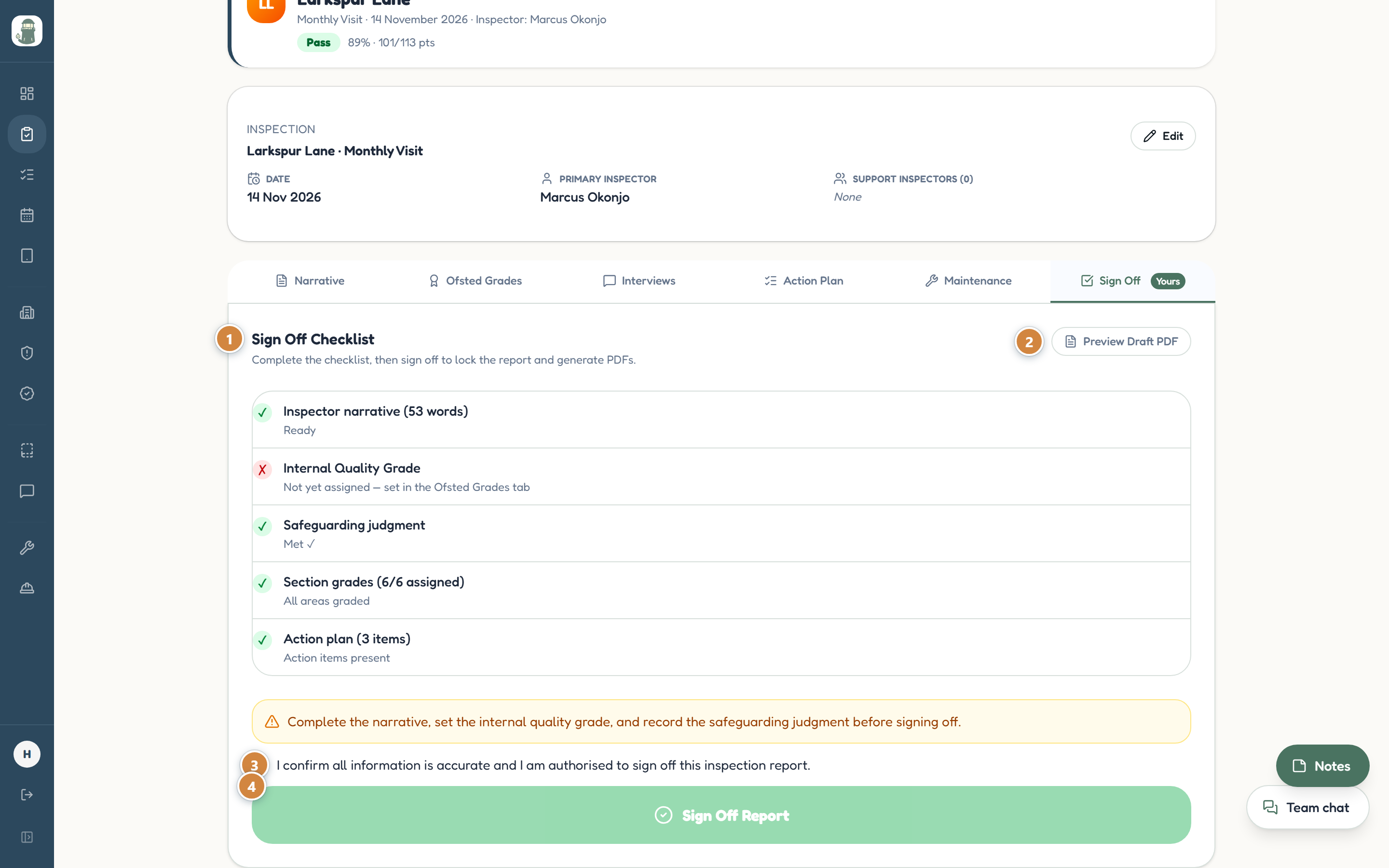
- Read the Sign Off Checklist 1. A tick means ready, a cross means something is missing, and an exclamation mark is a warning.
- To see the report as the nursery will, select Preview Draft PDF 2.
Sign off (area support manager)
- Check the Grade Summary.
- Tick I confirm all information is accurate and I am authorised to sign off this inspection report 3.
- Select Sign Off Report 4, then Sign Off in Sign off this inspection report?.
What you should see
Beacon shows Report signed off — PDFs being generated and opens the report. The inspection moves to Signed off on the Inspections page with its result, and:
- the narrative and grades are locked, and the review page can't be changed again;
- the report and action plan PDFs are created (see The signed-off report and its PDFs);
- the nursery's manager and staff can now see the report, and its actions appear on the Action Plans board, where they're worked on and updated from now on;
- maintenance actions assigned to the maintenance manager become maintenance jobs;
- if your organisation's Beacon sends email, the report and action plan are emailed to the nursery.
Submit for approval (area support lead)
- Complete the checklist on the Sign Off tab.
- Select Submit for Manager Approval 1, then Submit for Approval to confirm.
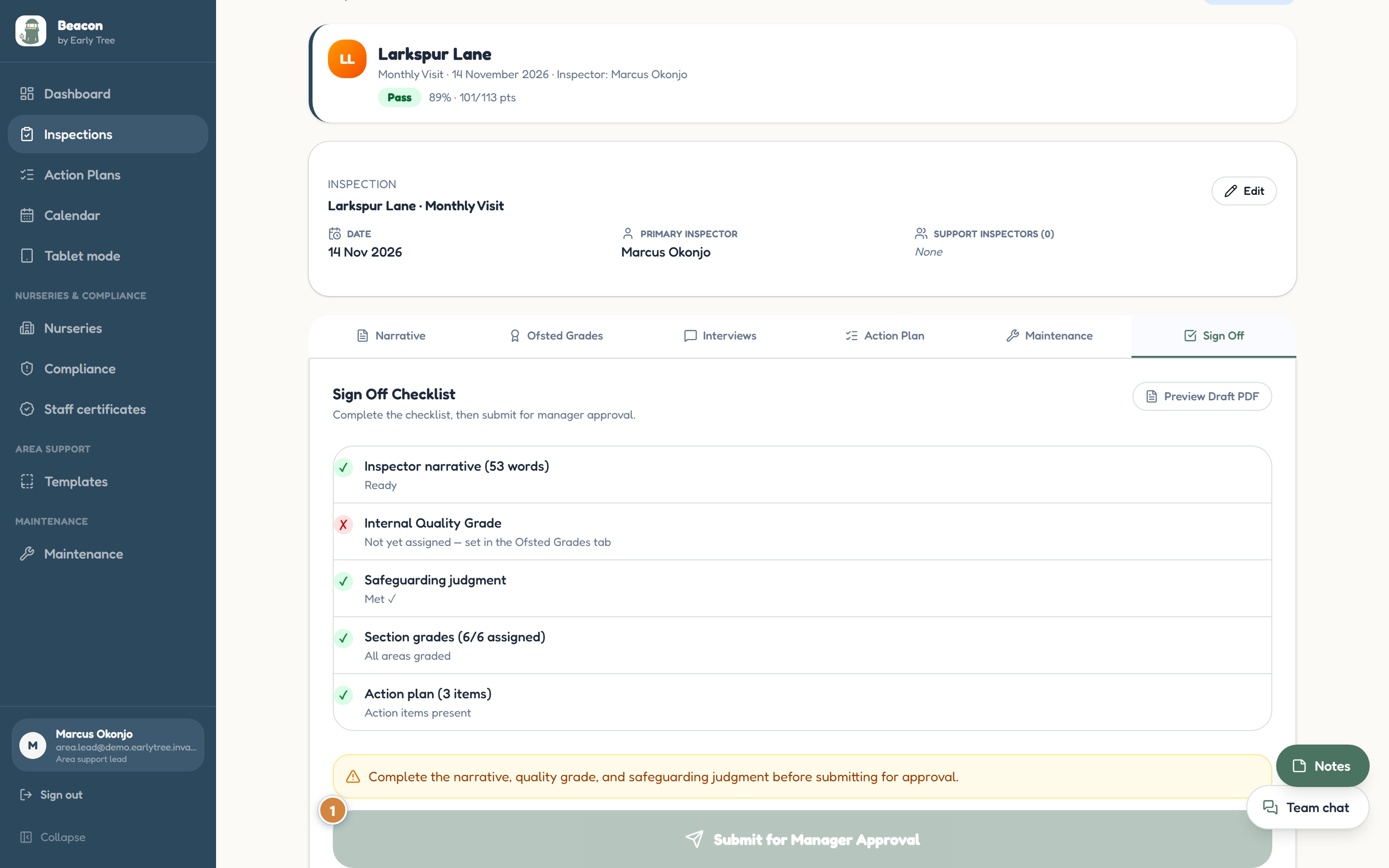
The report shows Awaiting Manager Approval and is locked for leads. The Sign Off tab then says "Your review has been submitted. The Area Support Manager will approve or request changes."
Approve or request rework (area support manager)
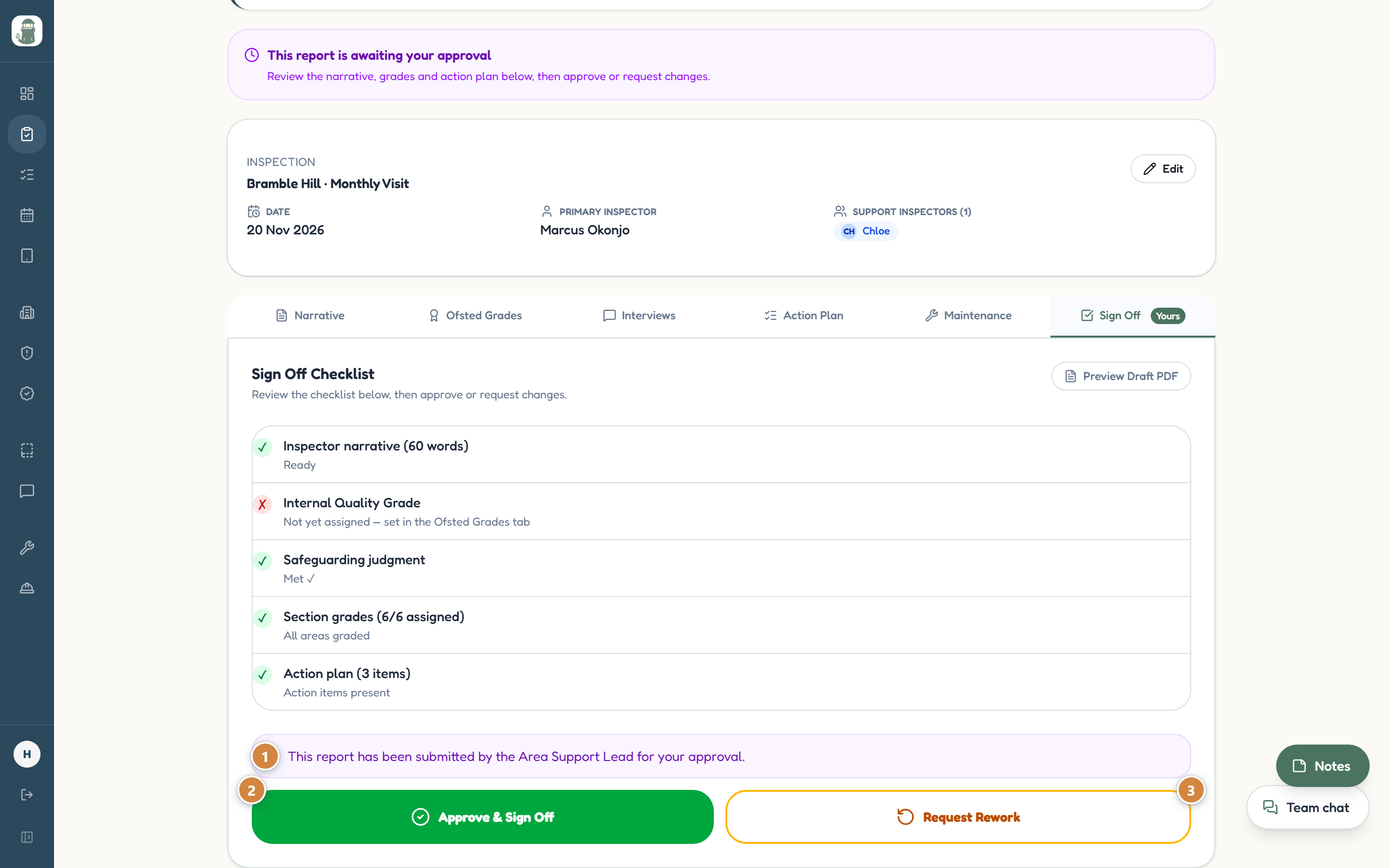
When a lead has submitted a report, its Sign Off tab says "This report has been submitted by the Area Support Lead for your approval." 1
- To approve it, select Approve & Sign Off 2, then Approve & Sign Off again to confirm. It's signed off as above.
- To send it back, select Request Rework 3, explain in What needs to change? what the lead should update, and select Send for Rework. See Rework.
Common problems
- Sign Off Report is greyed out.
The narrative is under 50 words or is still the automatic summary, or the internal quality grade or safeguarding judgement isn't set, or the confirmation box isn't ticked. Beacon says "Complete the narrative, set the internal quality grade, and record the safeguarding judgment before signing off."
- I'm an area support lead and there's no Sign Off button.
- Only area support managers sign off. Use Submit for Manager Approval.
- "Already signed off".
- Someone else signed it off a moment before you. Refresh the page to see the report.
- Can I sign off from an AI app connected to Beacon?
- No. Sign-off is deliberately only possible on this page, by a person.
- Can a signed-off report be unlocked?
No. If something is seriously wrong, an area support manager can delete the report (see Deleting a report) and the visit can be inspected again.