Review: reviewing the action plan
Purpose
Turn the draft actions into a clear plan the nursery can work through: each action says what needs to happen, what evidence will close it, who does it and by when. The plan goes live for the nursery when the report is signed off.
Before you start
- The inspection has been submitted and you're reviewing it.
- Beacon has already drafted actions for each failed item, each maintenance issue and each staff answer rated Adequate or Poor.
Check each action
- On the review page, select Action Plan. Actions are grouped by section, such as Safeguarding or Health & Safety. Actions without a section are in Uncategorised at the top, so you can sort them.
- Select an action to open it, and check or complete:
- its title (select the title to rename it);
- What needs to happen (SMART): specific, measurable and with a deadline;
- Evidence required to close: for example a photo, certificate or signed checklist;
- Section, Assigned Role, Assigned Person and Target Date.
- Changes save as you go. If the action came from a failed item, its photo and From checklist show the evidence from the visit; actions from a maintenance issue show From maintenance note.
- To see every action at once in a grid, select Table view 1. Preview Draft shows the action plan PDF as it stands.
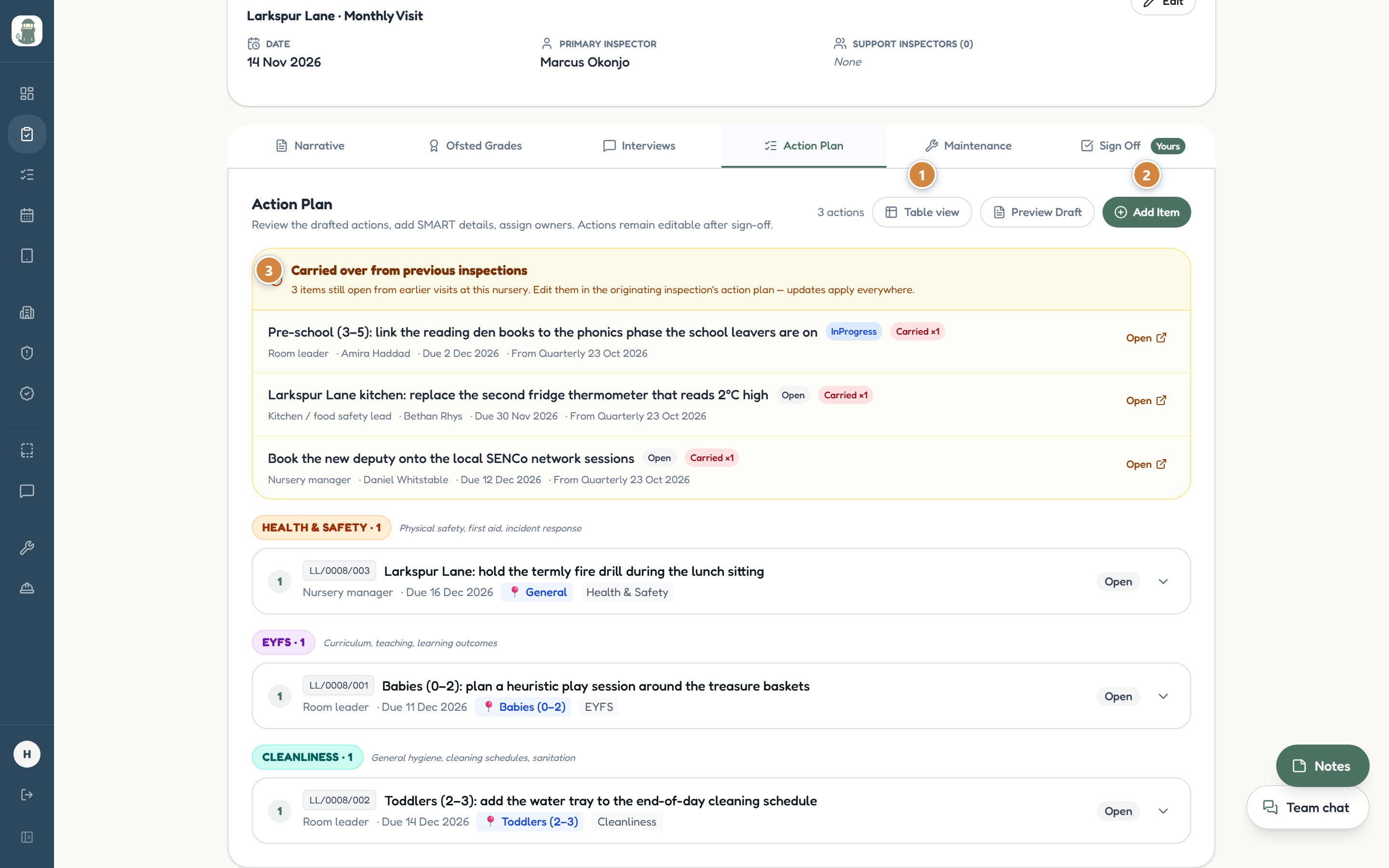
What you should see
Every action has a clear description, the evidence needed, an owner and a target date. The Sign Off tab shows how many actions the plan has.
Add, merge or delete actions
- Add an action: select Add Item 2, fill in the title and the other fields, then select Add Item again.
- Merge duplicates: if two actions are really the same problem, open one, select Merge into…, find the other action, add an optional note, and select Merge. The merged action keeps both sources.
- Delete an action: open it and select Delete.
- Move a photo: if a photo is on the wrong action, select Move this photo to a different action item under the photo and choose the right one.
Ask Nina to fill in actions
If your organisation has Nina switched on, Ask Nina on an action drafts its SMART description and evidence, and Ask Nina to fill all drafts every action that's still blank. Read and correct each draft before sign-off.
Actions carried over from earlier visits
Carried over from previous inspections 3 lists actions from earlier visits that the nursery hasn't finished, with their status and how many times they've been carried over. They stay on their original plan: select Open to change one there.
Common problems
- An action I expected isn't here.
Only failed items, maintenance issues and Adequate or Poor interview answers create actions. Add any others with Add Item, or from a note (see Maintenance issues and inspection notes).
- I can't edit anything.
- The report is locked: signed off, or awaiting manager approval if you're an area support lead.
- Merge into… is greyed out.
- There are no other actions to merge with.