Nurseries: editing a nursery's details and photo
Purpose
Keep a nursery's details right: its name and address as they appear across Beacon and on PDFs, the photo that appears next to its name, its site code, and whether it's still active.
Before you start
- You're an area support manager.
- For a photo, have a PNG, JPEG, GIF or WebP image ready. A square picture or logo looks best: it's shown in a small rounded square.
Edit the nursery
- Open the nursery's page and select Edit.
- Under Nursery Photo 1, select Upload photo (or Replace), choose the image, then select Save photo. To go back to the nursery's initials, select Remove.
- Change the Name 2 or Address if you need to.
- Site code 3 is 2 to 6 letters or digits, used at the start of every action's reference (such as BH/0002/004). Change it only if you must: references already given out keep the old code.
- Untick Active 4 if the nursery has closed or left the group.
- Select Save 5.
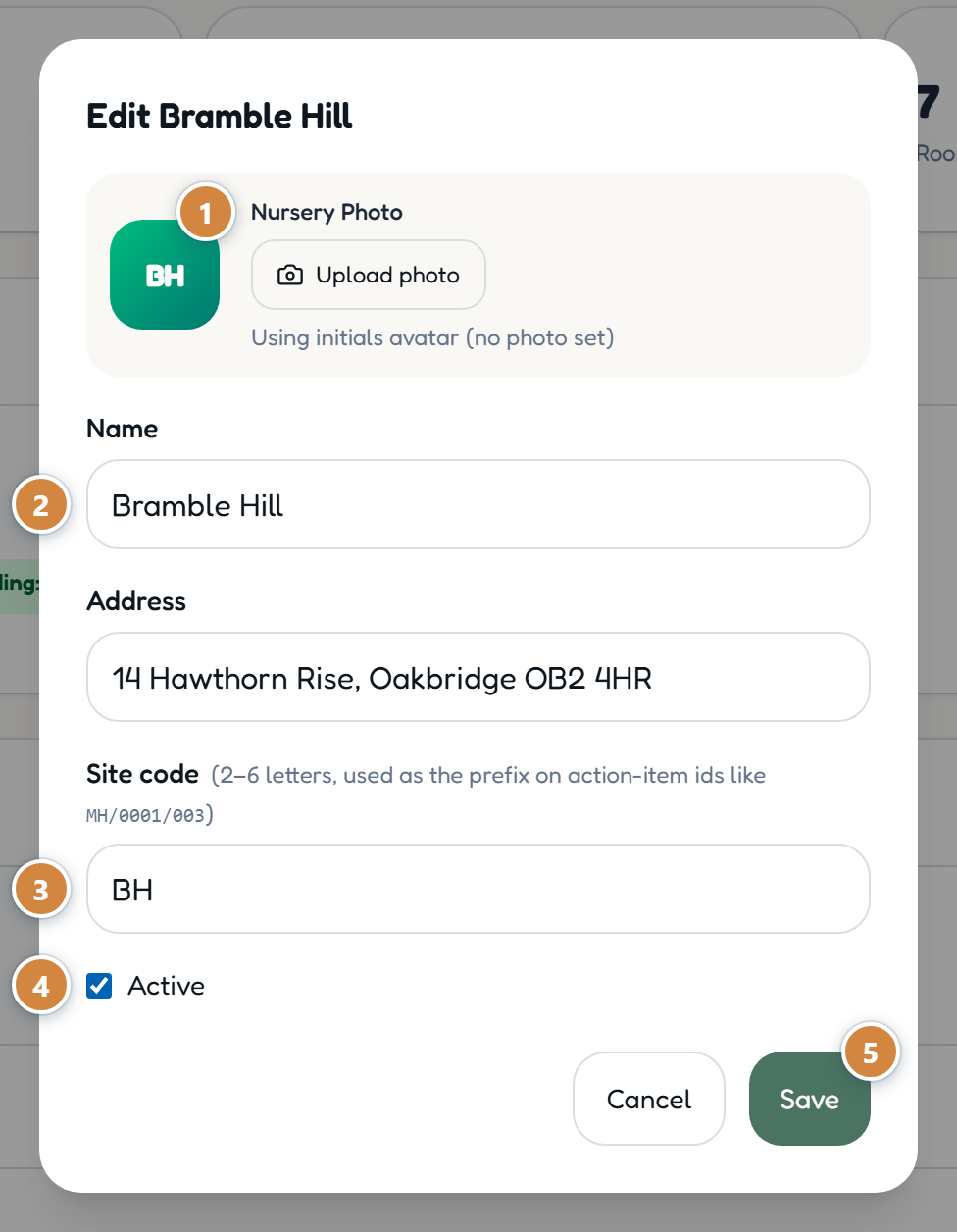
What you should see
Logo updated appears when the photo is saved, and the photo replaces the initials everywhere the nursery is shown. When you select Save, the window closes and the page shows the new details. An inactive nursery is marked Inactive and is no longer offered when someone starts an inspection.
Common problems
- "The logo must be a PNG, JPEG, GIF or WebP image".
- SVG and other files aren't accepted. Save the logo as a PNG and try again.
- "Site code "…" is already used by another nursery — pick a different one".
- Each nursery needs its own code. Choose another.
- "Site code must be 2–6 letters or digits".
- Use only letters and numbers, with no spaces, for example BH or BH2.
- I chose a photo but it didn't change.
- Select Save photo after choosing it. Selecting Save at the bottom saves the other details only.