Action plans: working on an action
Purpose
Keep everyone up to date as you work through an action: what you've done, what you're waiting for, and the evidence that it's finished. Every update, photo and status change is kept on the action with your name and the time, so area support can see the progress and check the evidence before they verify it.
Before you start
- The action is on the action plans board for your nursery. See The action plans board.
- To add a photo, have it on the device you're using (on an iPad or phone you can take it there and then).
Open the action
- In the menu, select Action Plans, then select the action's card. The action opens in a window over the board.
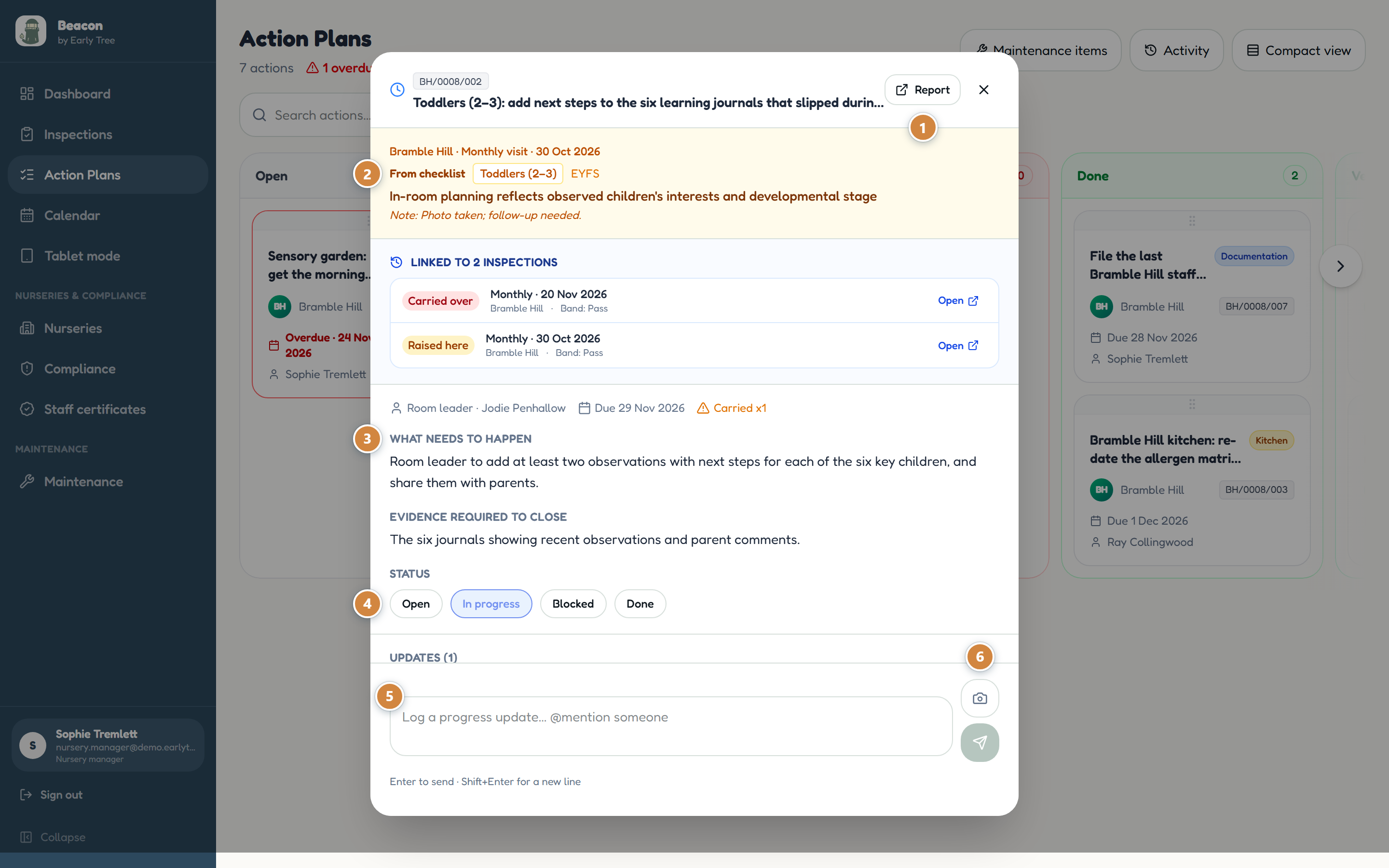
- Select Report 1 to open the inspection report it came from, in a new tab.
- The yellow box 2 shows where the action came from: the nursery, the visit, the room, the checklist item that failed and the inspector's note. If the same problem was found again at later visits, Linked to … inspections lists them, marked Raised here or Carried over.
- Read What needs to happen 3 and Evidence required to close. The evidence is what area support will look for before they verify the action.
- The line above shows the owner, the due date (in red with Overdue if it has passed) and Carried x2 if the action has been carried over from earlier inspections.
Post an update
- In the box at the bottom 5, write what you've done or what you're waiting for. Type @ and start typing a name to mention a colleague; they're sent an email with your update (if your organisation has email switched on).
- To add photos, select the camera button 6 and choose one or more pictures. They appear above the box; select the bin on one to remove it before you post.
- Press Enter, or select the send button, to post the update. (Shift and Enter starts a new line.)
Change the status
- Under Status 4, select the new status. You only see the statuses your role can choose.
- Select Done when the work is finished and the evidence (photos, a note of where the paperwork is) is on the action.
- If nobody can move the action forward, select Blocked: Beacon asks why first. See Marking an action as blocked.
You can also drag a card from one column to another on the board. On an iPad, press and hold the card for a moment before you drag it.
What you should see
Saved appears briefly, the status button you chose is highlighted and Beacon adds a note to the updates, such as "Status changed from Open to InProgress". Your update appears under Updates with your name, the time and any photos. On the board, the card moves to its new column.
Common problems
- There's no Verified button.
- Only area support can verify an action, after checking the evidence. Select Done; area support will verify it.
- The action says "View only" and there's no update box.
Your role can look at this action but not change it: for example, a room leader can only work on actions assigned to them or to the Room Leader role, and a read-only auditor can't change anything. Ask the action's owner or your manager.
- "… is not an image" when adding a photo.
- Only photos and other images can be attached to an update. Note where a document is kept in the update instead.
- I can't change the due date or owner.
Only area support can reassign or reschedule an action. Post an update asking for more time, and @mention your area support manager.
- The person I @mentioned didn't get an email.
Mention emails are only sent when your organisation has Beacon's email switched on. They'll still see the update on the action.
- "This action item was merged or deleted and cannot be edited".
Area support merged it into another action, or removed it, while you had it open. Close it and look for the action it was merged into on the board.