Action plans: marking an action as blocked
Purpose
Tell area support that an action can't move forward, and why, so the right person can unblock it. Blocked means nobody can move it forward right now: for example, a decision or approval is needed from someone else, access has been refused, or funding was declined. Waiting for something that's already in motion (an order placed, a contractor booked) isn't blocked: that's In Progress, with an update saying what you're waiting for.
Before you start
- Open the action. See Working on an action.
- Know what's stopping it and what needs to happen next: that's what Beacon asks for.
Mark an action as blocked
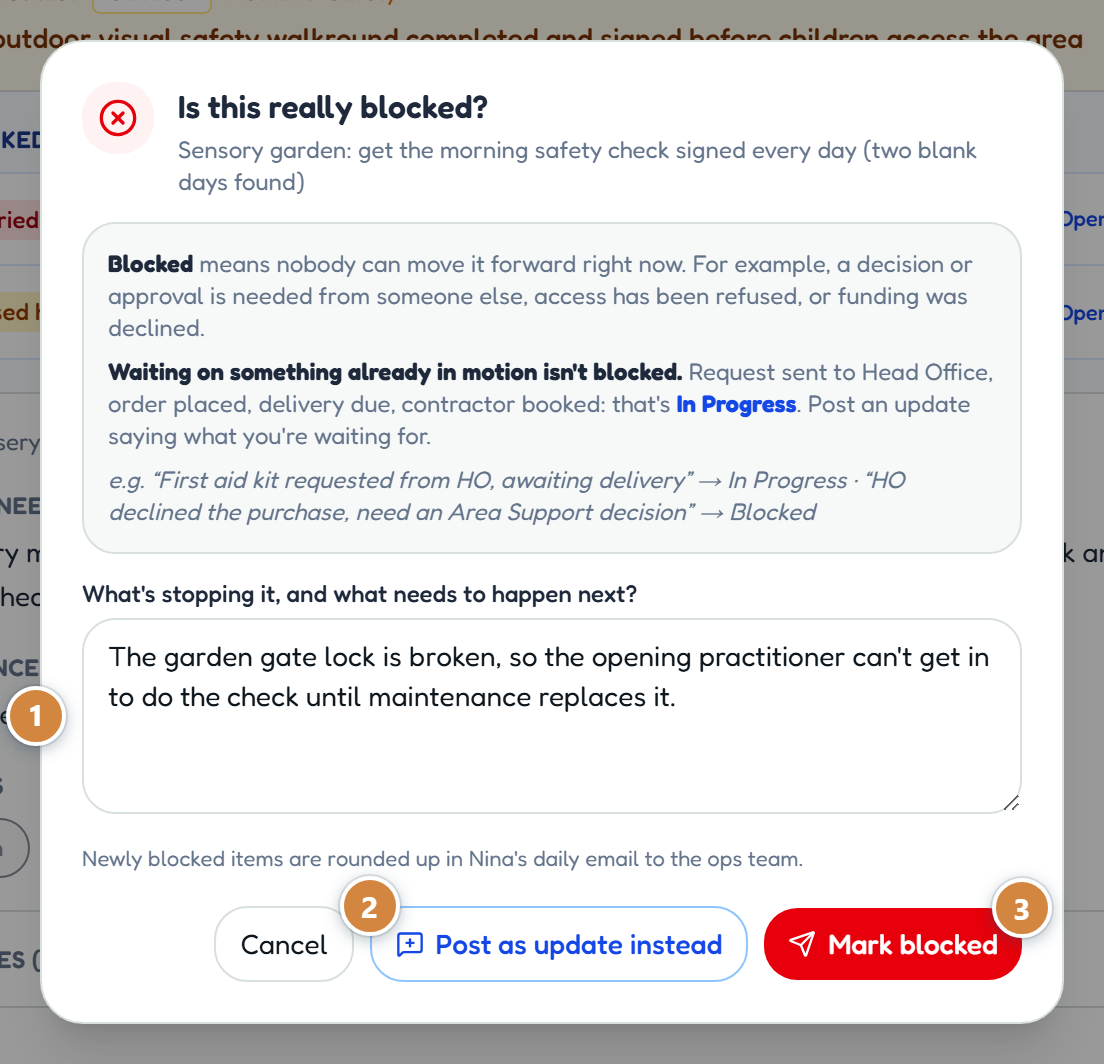
- Under Status, select Blocked, or drag the card into the Blocked column on the board. The Is this really blocked? window opens.
- If the action isn't yours, Beacon says so and who owns it. If you're waiting on them, it's usually better to post an update and @mention them. To mark it blocked anyway, tick I know this isn't my item and it genuinely can't move forward.
- Under What's stopping it, and what needs to happen next? 1, write the reason. If what you write sounds like something already in motion, Beacon suggests posting it as an update instead.
- Select Mark blocked 3. Or, if it isn't really blocked, select Post as update instead 2: your note is posted as an update, and an Open action moves to In Progress.
What you should see
The action moves to Blocked, and its updates show "Status changed from … to Blocked" with your reason underneath. If you chose Post as update instead, your note appears under Updates and the action stays where it was (or moves from Open to In Progress).
Common problems
- Mark blocked is greyed out.
- Write a reason first. If the action isn't yours, also tick the box to confirm.
- I selected Cancel by mistake.
- Nothing was saved and the card goes back to where it was. Select Blocked again.
- The window mentions a daily email to the ops team.
That round-up is sent by Nina, the AI assistant, only where your organisation has Nina and email switched on. Either way, the reason is kept on the action for area support to see.