Action plans: the board
Purpose
See every open action across your nurseries in one place, spot what's overdue or blocked, and narrow the board down to the actions you need: one nursery, one section, one person, one room or a date range.
Before you start
- You can see actions for the nurseries you're assigned to. Area support see all of them; everyone else sees a nursery's actions once its inspection report has been signed off.
- The board shows actions from signed-off reports only, unless you're area support (who also see actions on reports still in review). Read-only auditors can look at both, but not change anything.
Open the board
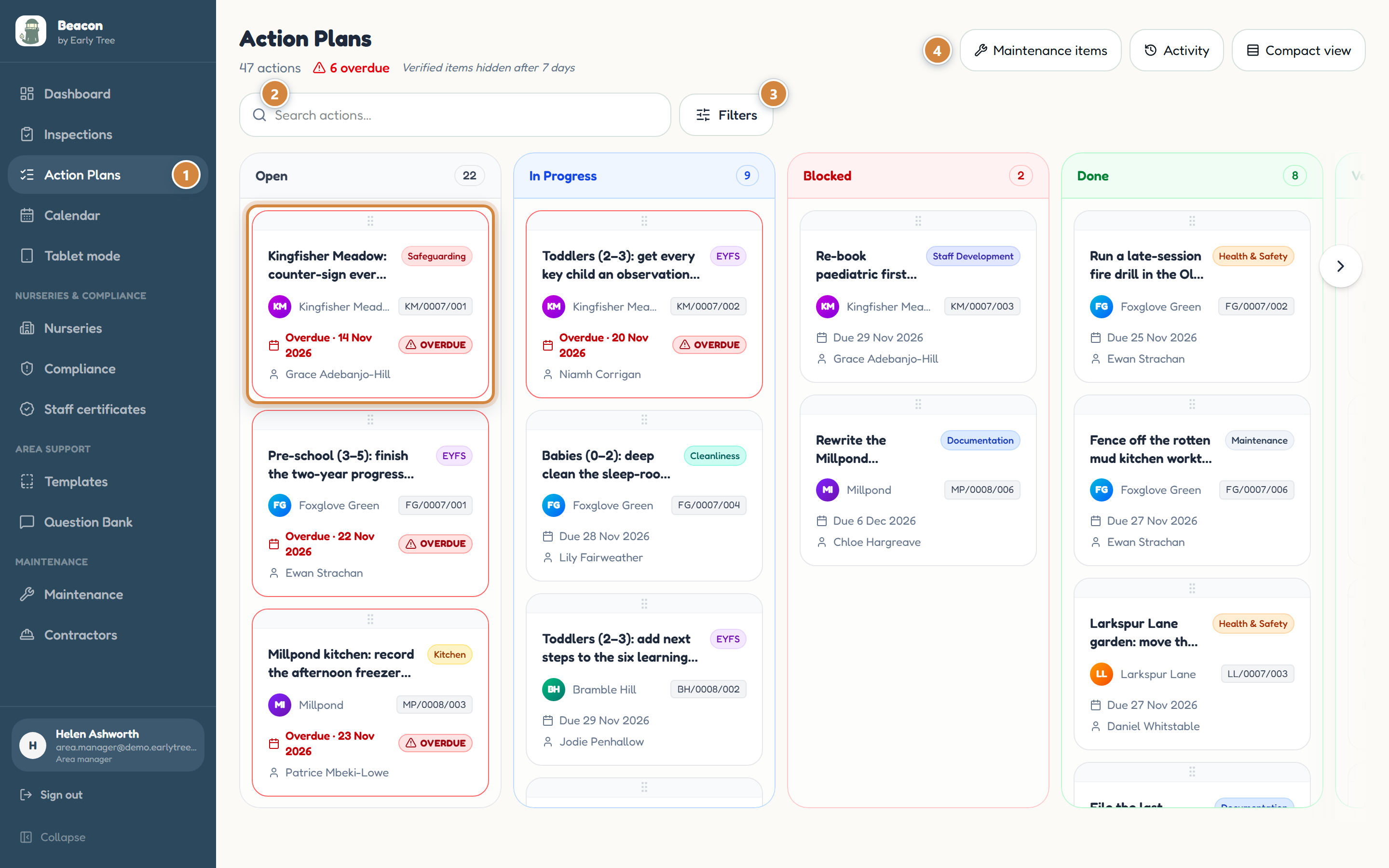
- In the menu, select Action Plans 1. The board has a column for each status: Open, In Progress, Blocked, Done and Verified. At the top you'll see how many actions there are and how many are overdue.
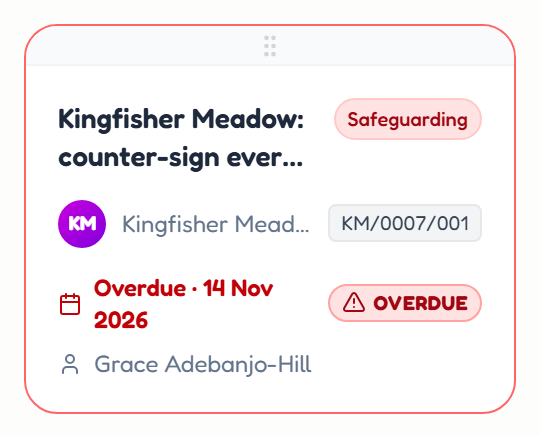
- Each card (highlighted in the picture) shows the action's title, its section (for example Safeguarding), the nursery, its reference, its due date and who owns it. Overdue cards have a red border and an OVERDUE badge.
- Select a card to open the action. See Working on an action.
Search and filter the board
To find an action by its words, type in Search actions… 2 (the title, description, what needs to happen or the evidence) and press Enter.
For everything else, select Filters 3. The filters you choose are kept in the page address, so you can bookmark a filtered view or send it to a colleague.
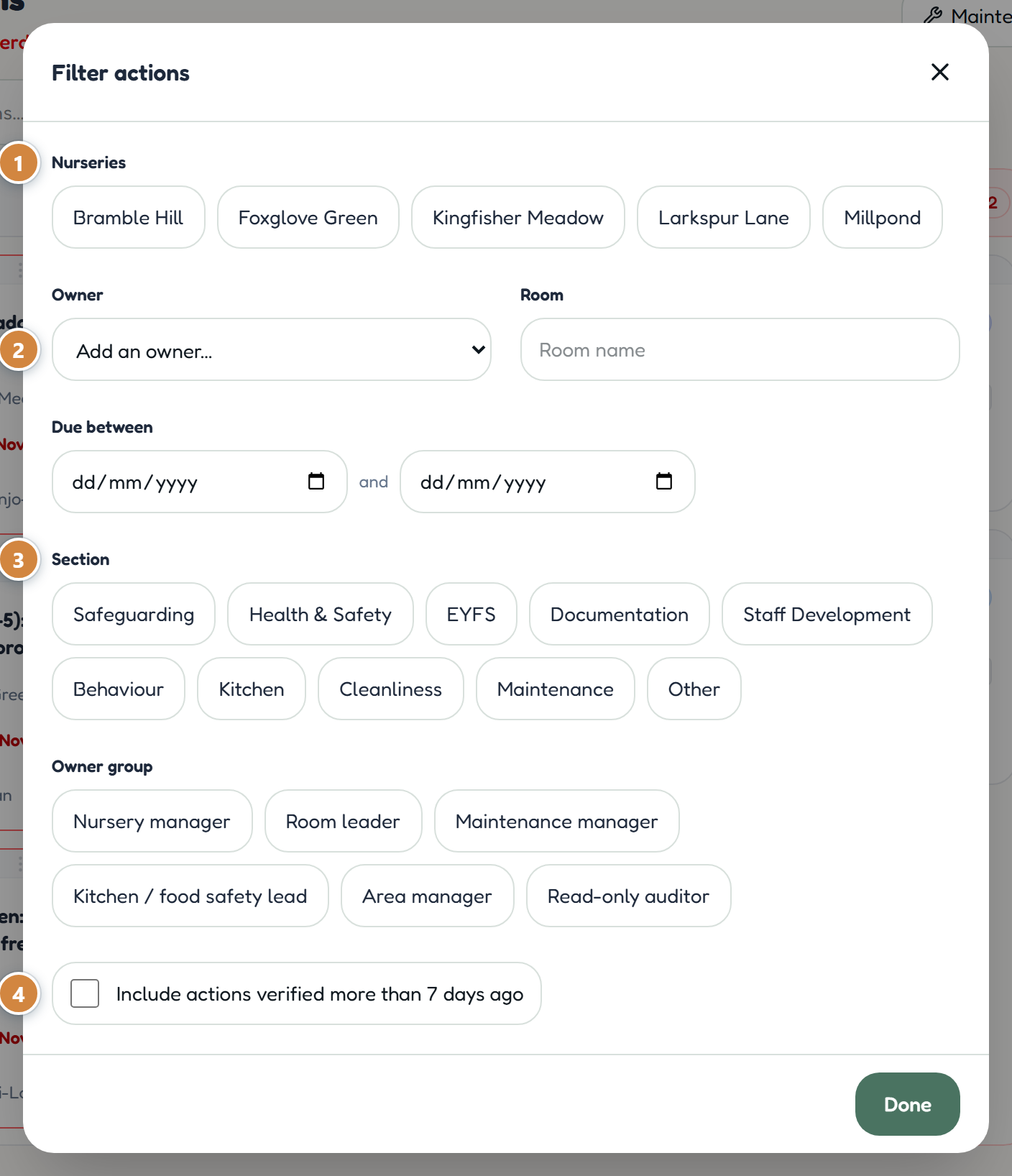
- Select Filters. The Filter actions window opens.
- Nurseries 1 (area support only): select one or more nurseries. Nursery staff only ever see their own nursery.
- Owner 2: choose Add an owner… to show the actions owned by one or more people. Room: type part of a room's name to show actions raised in that room. Due between: choose a date range.
- Section 3 and Owner group: select one or more sections (such as Health & Safety) or roles (such as Nursery Manager). Select one again to turn it off.
- Tick Include actions verified more than 7 days ago 4 to see older finished actions too.
- Select Done.
Each filter you've chosen shows as a chip next to Filters, with a count on the button. Select the cross on a chip to remove that filter, or Clear all to go back to everything.
Change how the cards look
Select Compact view to show each card on one line, which helps when a column is long. Select Full view to go back. Beacon remembers your choice on this device.
See what's happened recently
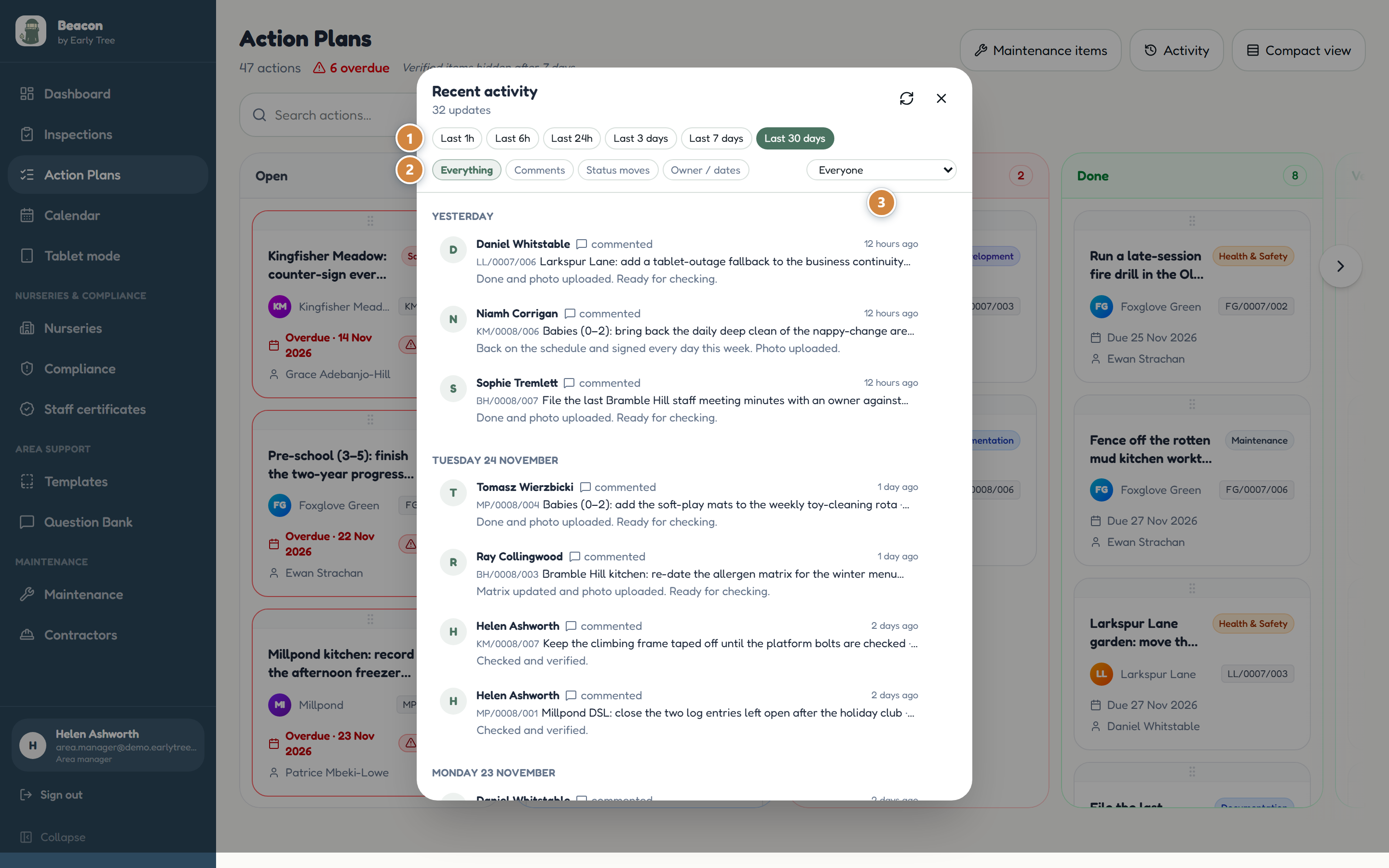
Select Activity to see who has commented on, moved or reassigned actions recently.
- Choose a time window 1: Last 1h up to Last 30 days.
- Choose what to show 2: Everything, Comments, Status moves or Owner / dates.
- To see one person's activity, choose them from the list 3.
- Select an entry to open that action in a new tab. Close the window with the cross at the top.
What you should see
The board shows only the actions that match your filters, with a count at the top. Overdue actions are counted in red next to the total.
Common problems
- An action I expected isn't on the board.
Check the filter chips first, and tick Include actions verified more than 7 days ago under Filters if it was verified more than a week ago. If you're not area support, the inspection's report may not be signed off yet. Maintenance actions are kept on the maintenance list instead: select Maintenance items 4 (see Actions tracked on the maintenance list).
- I can't see the Nurseries filter.
- It only shows for area support, who can see more than one nursery.
- The Verified column is off the edge of the screen.
- Scroll the columns sideways, or select the arrow at the edge of the board.
- I dragged a card and it jumped back with "Failed to update status".
You may not be allowed to make that change (only area support can move an action to Verified), or you lost your connection. Try again, or open the action and change its status there.