Action plans: reviewing, reassigning and verifying actions
Purpose
Keep each nursery's action plan honest: make sure every action has the right owner and a realistic date, chase the ones that are overdue, and close actions only when the evidence shows the work is really done.
Before you start
- You're an area support manager or lead for the nursery.
- Agree new dates with the nursery before you move them, and note why in an update.
Change the due date, role or owner
- In the menu, select Action Plans, then select the action's card.
- Change Due date 1. The change is saved when you leave the box.
- Change Assigned role 2, the role responsible (for example Nursery Manager or Maintenance Manager).
- Change Owner 3 to the person responsible, or Unassigned to leave it with the role.
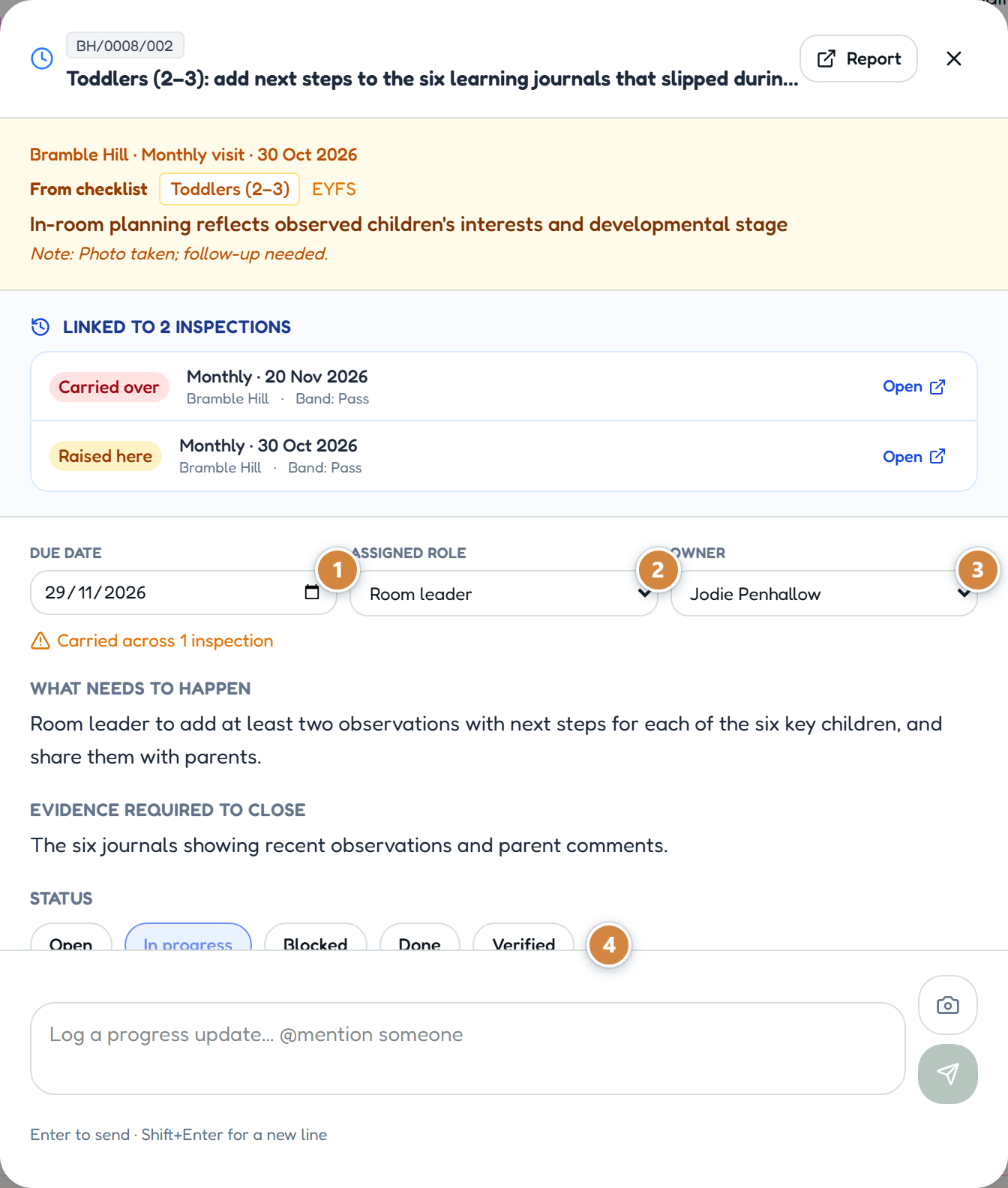
Each change is saved straight away, and Beacon adds a note to the action's updates saying what changed. Moving the due date into the future means the action is no longer overdue, and the overdue reminder (where email is switched on) is sent again if it becomes overdue later.
Chase overdue actions
- On the board, overdue cards have a red border and an OVERDUE badge, and the number overdue shows at the top.
- Use the Due and to dates, or a nursery, to narrow the board down.
- Open each overdue action. A red box says This item is overdue — extend the date above or update the status. Carried across 2 inspections means the same finding has come up again at later visits.
- Post an update and @mention the owner, or agree a new date and change it.
Where your organisation has Beacon's email switched on, the owner is also emailed once, the day after an action becomes overdue.
Verify an action
- Open an action in the Done column.
- Check the updates and photos against Evidence required to close. If you need to see it in the room, do it at your next visit.
- If the evidence is there, select Verified 4. If not, select In Progress and post an update saying what's missing.
What you should see
The action moves to Verified, with your name and the date recorded, and the updates show "Status changed from Done to Verified". After 7 days it drops off the board (select Show old verified to see it again).
Common problems
- I'm an area support lead and I can't see the Due date, Assigned role and Owner boxes.
In this release they only show for area support managers, although leads are allowed to make these changes. Ask an area support manager, or post an update.
- "Only Area Support Leads or Managers can reassign, retitle, reschedule, or verify an action item".
- You don't have an area support role for that nursery. Ask your area support manager.
- The person I want isn't in the Owner list.
They need a Beacon account with a role at that nursery. See Administration.