Action plans: an inspection's action plan and PDF
Purpose
See everything one inspection asked a nursery to do, grouped by section with the most important first, and export it as a PDF to share at a team meeting or keep on file.
Before you start
- The inspection's report has been signed off. Area support and read-only auditors can see the action plan while the report is still in review; everyone else sees it after sign-off.
Open an inspection's action plan
- Open the inspection's report: from Inspections, from the nursery's page, or by selecting Report on any of its actions. Then select Action Plan at the top of the report. (You can also download it straight away from the report with Action Plan PDF.)
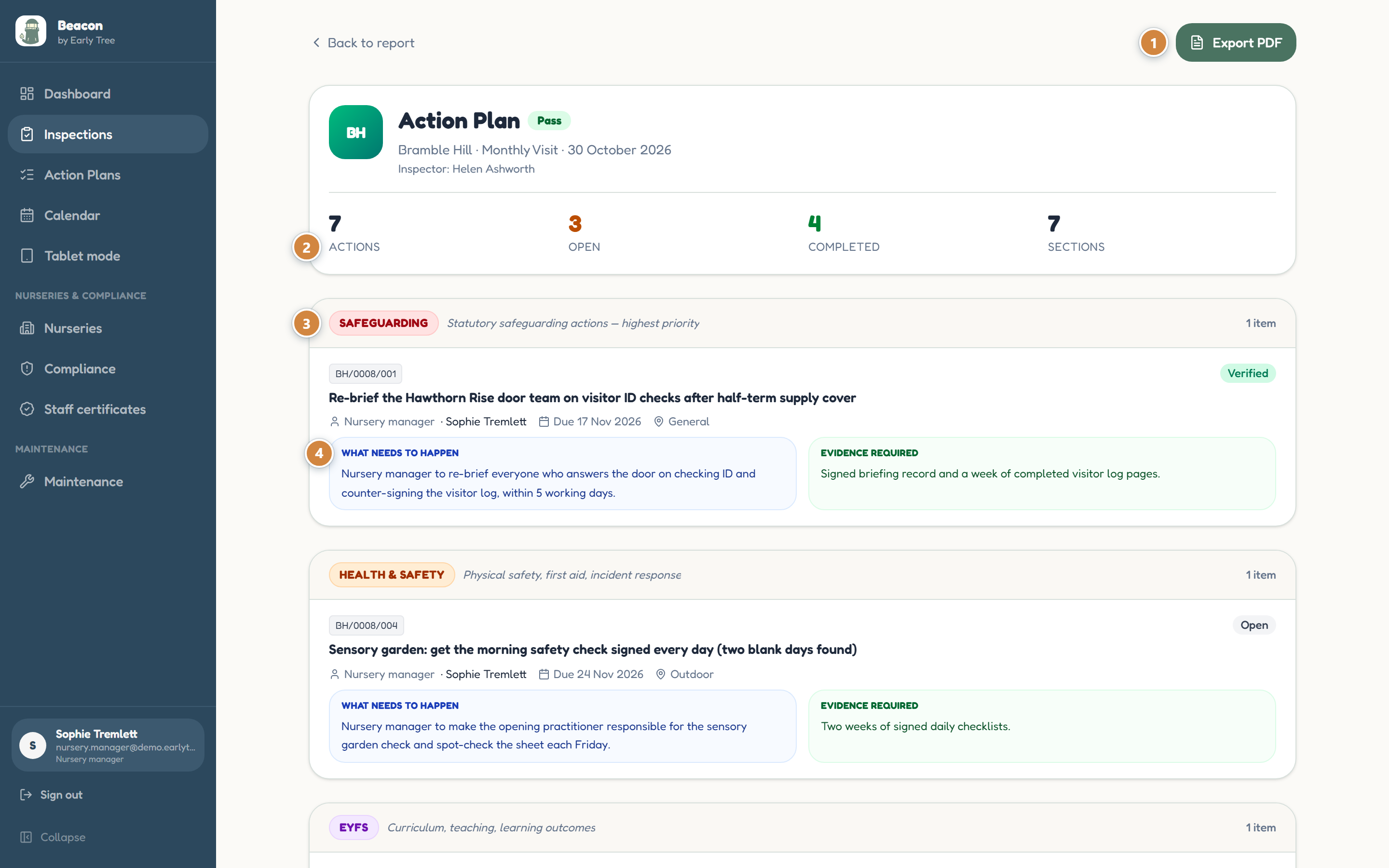
- The top of the page shows the nursery, the visit, the date, the inspector and the result. The counts 2 show how many actions there are, how many are still open and how many are completed.
- Actions are grouped into sections 3, starting with Safeguarding. Each shows its reference, title, owner, due date, room, status, What needs to happen 4 and Evidence required.
- To change an action, use the action plans board: this page is for reading and printing.
Export the action plan as a PDF
- Select Export PDF 1. The PDF opens in a new tab.
- Download, print or share it from there.
What you should see
A PDF of the action plan with the nursery, the visit and every action as it stands right now. Export it again later to get an up-to-date copy.
Common problems
- The page says it can't be found.
- The report hasn't been signed off yet, or the inspection is for a nursery you're not assigned to.
- "This inspection has no open action items."
- Nothing in the inspection needed an action.
- The PDF doesn't open.
- Your browser may have blocked the new tab. Allow pop-ups for your Beacon address and try again.