Templates: the inspection template
Purpose
Keep the inspection checklist right for your nurseries: add items when expectations change, so every inspection from then on checks them.
How an item is used
- Frequency decides which visits check it. A Monthly visit checks items marked Every visit and Monthly; a Quarterly visit adds Quarterly items; a Biannual visit adds Biannual items; an Annual or Ad-hoc visit checks everything.
- Applies To decides where it's checked: Nursery and Group items once for the nursery as a whole, Room items in every children's room, and Kitchen, Office and Outdoor items in each area of that kind. See Areas and rooms.
- Weight is how much the item counts. The score is the weighted share of items that passed: 80% or more is a Pass, 50% to 79% a Fail, and under 50% Immediate Action Required. Give the most important items (such as safeguarding and ratios) a weight of 2.
- Item Type is Standard (Pass/Fail) or Temperature Reading. A temperature item records the reading, and a reading outside the Min and Max fails automatically.
- Ofsted EY Areas tags the Ofsted areas the item gives evidence for. They're used to suggest grades during review.
Before you start
- You're an area support manager or lead.
- Agree the wording with your colleagues: everyone inspecting will see it.
Look through the template
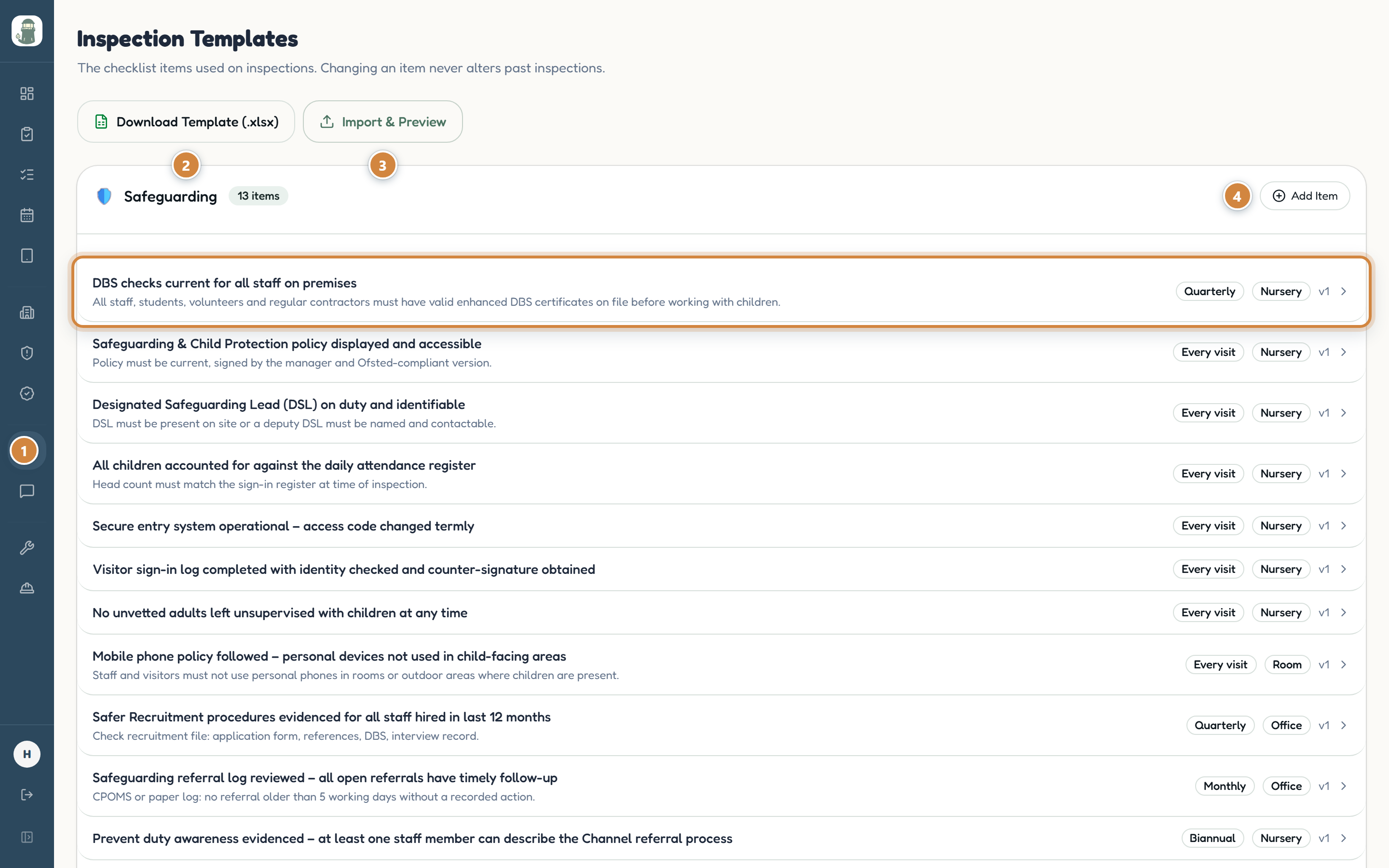
- In the menu, under Area Support, select Templates 1.
- Items are grouped by category, with how many there are. Each item shows its title, description, frequency, where it applies and its version (for example v2).
- Select an item to see its details and history. See Editing and retiring an item.
Add an item
- Select Add Item 4 on the category the item belongs to.
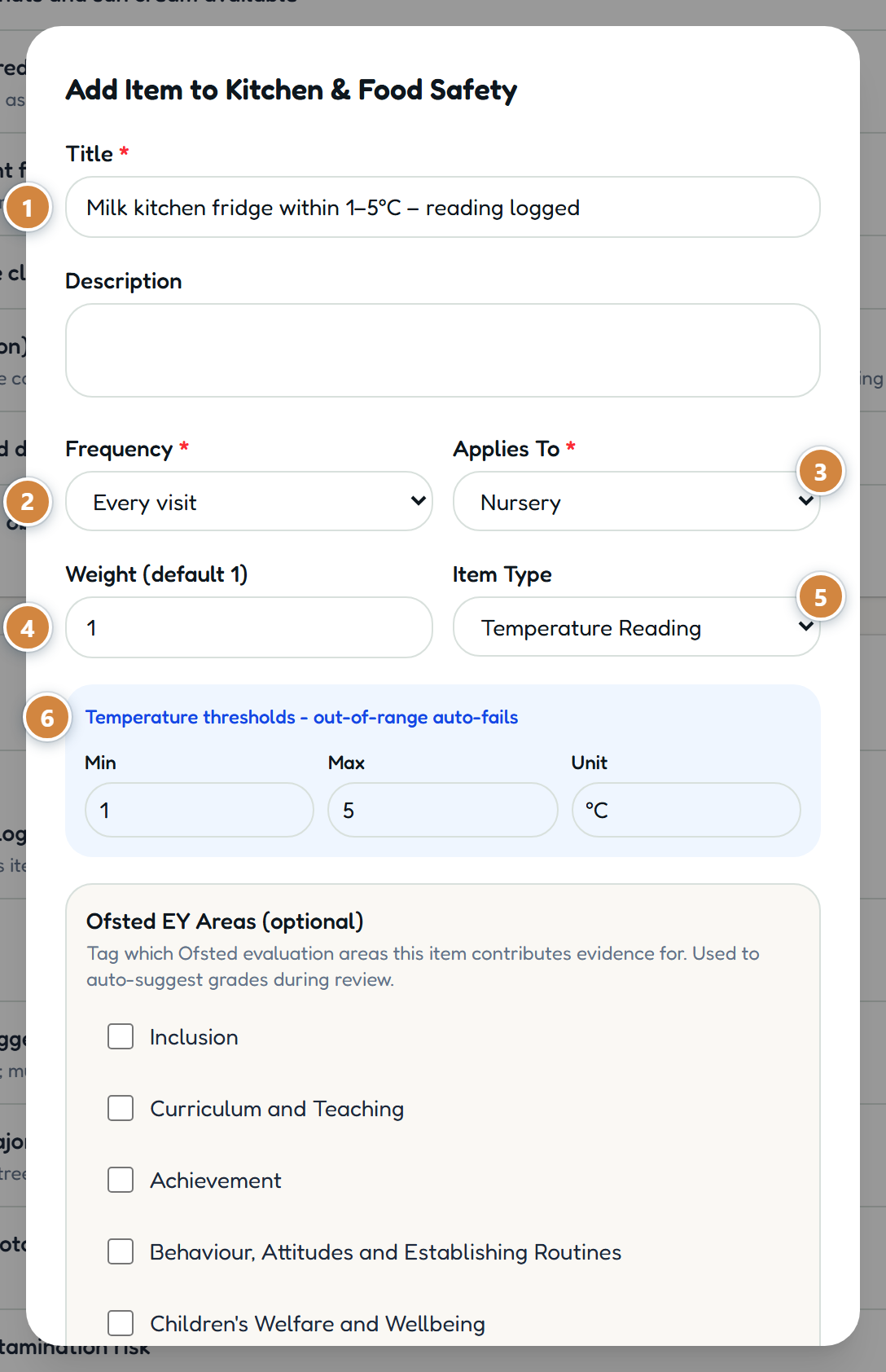
- Type the Title 1, written as what good looks like (for example "Fridge temperature within safe range (1–5°C) – reading logged"). Add a Description to tell the inspector what to look for.
- Choose the Frequency 2 and Applies To 3: Group, Nursery, Room, Kitchen, Office or Outdoor.
- Set the Weight 4 (1 unless it matters more).
- Choose the Item Type 5. For Temperature Reading, enter the Min and Max 6 and the Unit (°C).
- Tick any Ofsted EY Areas it gives evidence for.
- Select Create Item.
What you should see
The item appears in its category as v1. It's on every inspection started from now on that includes its frequency and has an area it applies to. Inspections already started don't change.
Common problems
- I can't see Templates in the menu, or Add Item.
- Only area support managers and leads (and Beacon administrators) manage the template. Anyone else who opens it sees it as view only.
- A new item isn't on an inspection.
Check the visit type includes its frequency, and the nursery has an area it applies to: a Nursery item needs the nursery's General (Nursery-wide) area. Inspections started before you added it don't change.