Templates: importing and exporting the template
Purpose
Review or change many checklist items at once, for example after a policy review, by editing the template in a spreadsheet. You always see a preview of every change before anything is saved.
Before you start
- You're an area support manager.
- You have Microsoft Excel or another program that opens .xlsx files.
Download the template
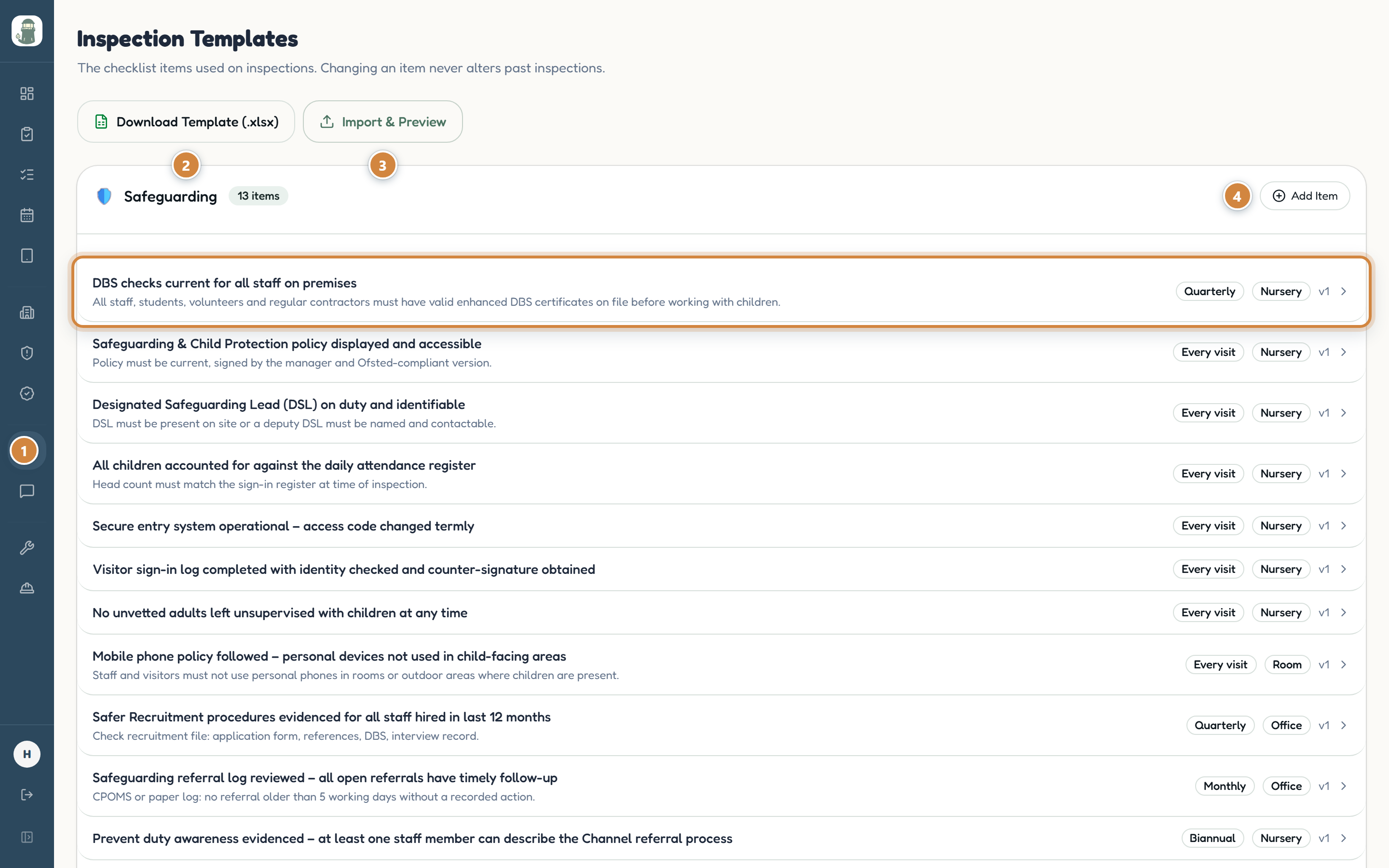
- In the menu, under Area Support, select Templates.
- Select Download Template (.xlsx) 2. Template file downloaded appears.
- Open the file. The first tab, Instructions, explains every column. Each category has its own tab.
Change the spreadsheet
- Edit an item's Name, Description, Weight, Type, Frequency, Applies To, Ofsted area columns (yes or no) or Active, and set its Status to updated. Each updated item gets a new version.
- To add an item, fill in a blank row on the right category's tab, leave ID empty and set Status to new.
- Leave Status as existing for anything you haven't changed. Never edit the ID column.
- Applies To can be Group, Nursery, Room, Kitchen, Office or Outdoor. Type is Standard or TemperatureReading.
- Set Active to no to retire an item, or yes to bring a retired one back.
Import your changes
- Select Import & Preview 3 and choose your saved file.
- Beacon shows an Import Preview: each item marked New item or Updated, with the old and new value of each changed field highlighted. Unchanged items are hidden; you can show them.
- Check every change. If something's wrong, fix the spreadsheet and import it again.
- Select Apply (it says how many changes, for example Apply 3 changes).
What you should see
Done — 1 item added, 2 updated (or similar) appears, and the template shows the new and updated items with their new version numbers.
Common problems
- "Please upload an Excel file (.xlsx or .xls)".
- Save the file as an Excel workbook, not CSV, and try again.
- "No changes detected — all items are marked as existing."
- Set Status to updated or new on the rows you changed.
- Row "…": invalid Applies To (or Frequency, or Type).
- Use one of the values from the drop-down in that column. Nothing is saved until every row is valid.
- A new item didn't appear.
- Its tab must be named exactly as an existing category. Don't rename the tabs.
- I can't see Download or Import.
- They're there for area support leads too, but only area support managers can use them.