Templates: editing and retiring an item
Purpose
Improve a checklist item's wording, weight or thresholds, or stop checking it, without changing any inspection that has already used it.
Before you start
- You're an area support manager or lead.
Edit an item
- In the menu, under Area Support, select Templates, then select the item.
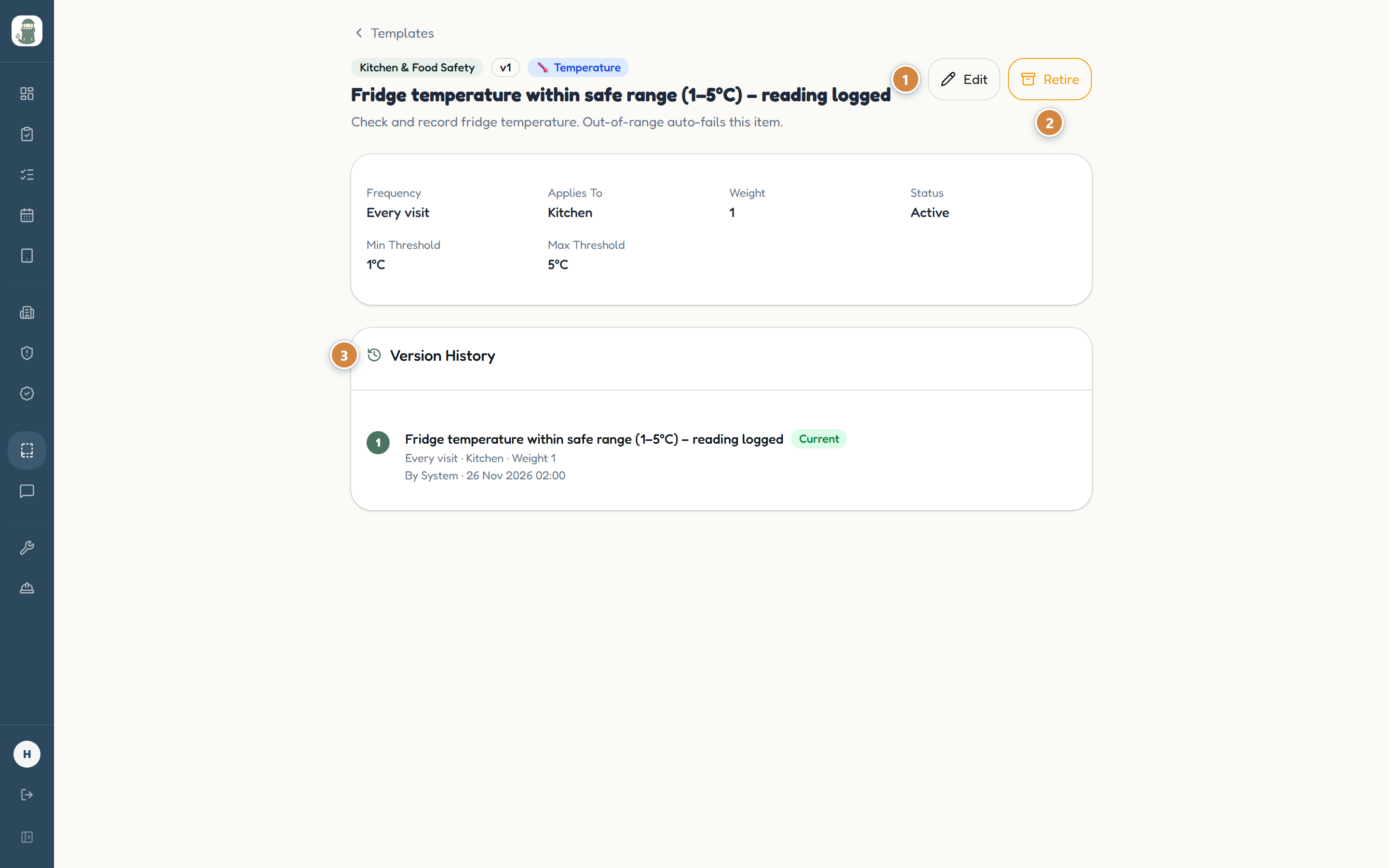
- The page shows its category, version, type, frequency, where it applies, weight, status and any thresholds or Ofsted areas.
- Select Edit 1, change what you need (the same fields as when adding an item), and save.
What you should see
The item's version goes up by one (for example v1 to v2). Version History 3 lists every version, newest first, with who made it, when, and what changed from the version before. Inspections already started keep the version they started with.
Retire an item
- Open the item and select Retire 2.
- Beacon asks Retire this item? Select Retire item to confirm.
A retired item isn't on new inspections. Answers already given to it are kept. Retired items drop out of the template list; to bring one back, create a new item, or set it active again in the spreadsheet (see Importing and exporting the template).
Common problems
- I can't find a retired item.
- Retired items aren't listed. Download the template spreadsheet: retired items are there with Active set to no.