Using Beacon on an iPad
Purpose
Most inspections are done walking round a nursery, so Beacon works on an iPad as well as on a computer. There's no app to download from the App Store: you add Beacon to the iPad's home screen from Safari, and it then opens full screen like an app, in either orientation, with its own lighthouse icon.
Before you start
- The iPad is up to date and connected to Wi-Fi or mobile data.
- You know your Beacon address.
- You use Safari. Other browsers on an iPad can't add Beacon to the home screen in the same way.
Add Beacon to the home screen
- Open Safari and go to your Beacon address. Sign in with your Microsoft work account (see Signing in and out).
- Tap the Share button (a square with an arrow pointing up) in Safari's toolbar.
- Scroll down and tap Add to Home Screen.
- Leave the name as Beacon (or your organisation's name for it) and tap Add.
- Close Safari and tap the new Beacon icon on the home screen.
What you should see
Beacon opens full screen, without Safari's address bar, and turns with the iPad. The menu down the left starts as a strip of icons, so pages keep their width; tap the expand button at its foot to see the names. The dashboard offers On site with your iPad? to switch to tablet mode.
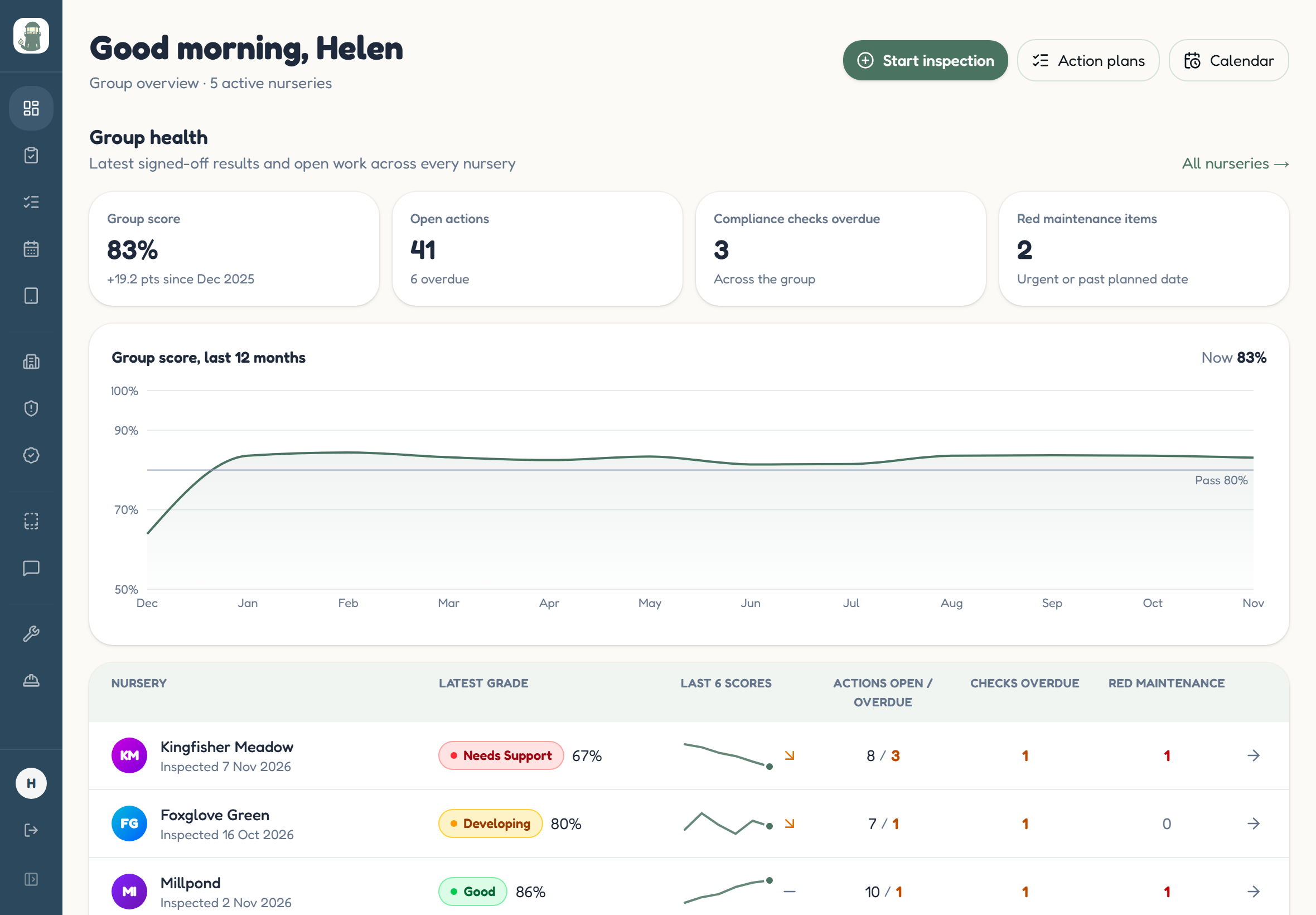
For a visit, select Tablet mode in the menu: it takes you room by room with large buttons, and keeps working without Wi-Fi, photos included. See Tablet mode for inspections.
The inspection page on an iPad
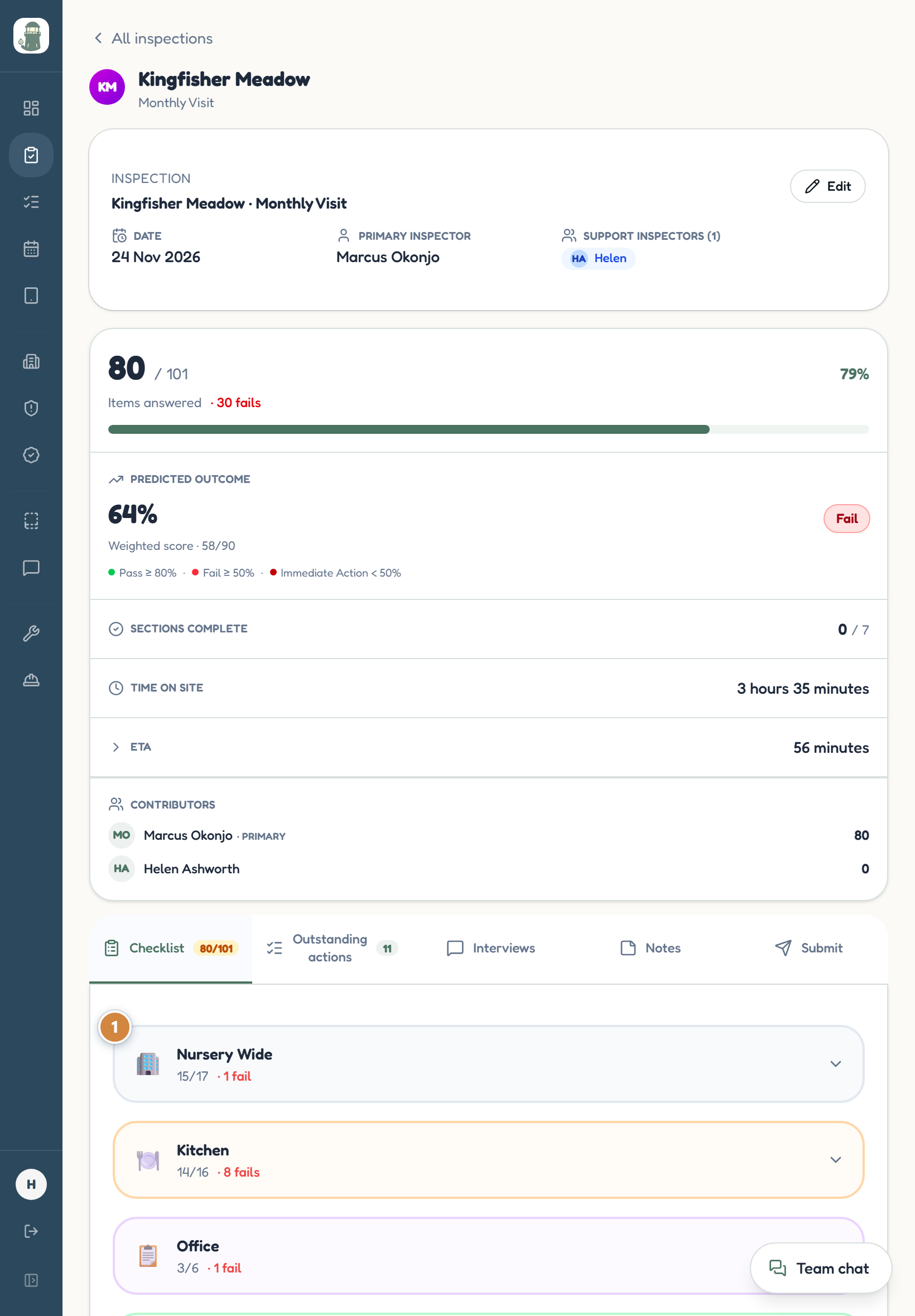
Outside tablet mode, the inspection page on an iPad shows the summary first (items answered, predicted outcome, time on site), then the tabs: Checklist, Outstanding actions, Interviews, Notes and Submit. Rooms are listed one under another; tap a room 1 to open its checklist.
- Photos: Take photo opens the camera inside Beacon, so you don't lose your place by switching to the Camera app. Allow camera access when Safari asks. Photos are made smaller before they upload, to save data.
- Losing signal: answers you give while offline are kept on the iPad and sent to Beacon when the connection comes back. Keep Beacon open until they've been sent, and don't reload the page while you're offline. Tablet mode also keeps photos taken offline. See Tablet mode for inspections.
Common problems
- There's no Add to Home Screen option.
- You're not in Safari, or you need to scroll further down the Share sheet. Open your Beacon address in Safari.
- The home-screen Beacon asks me to sign in again.
The home-screen app keeps its own sign-in, separate from Safari. Sign in once inside it; it then stays signed in like the website does.
- Take photo shows an error, or only lets me choose a file.
Safari wasn't allowed to use the camera. On the iPad, open Settings › Safari › Camera and choose Ask or Allow, then try again. Beacon falls back to the iPad's own camera screen when it can't use the camera inside the page.