The dashboard
Purpose
The dashboard is the first page you see after signing in. It shows what needs your attention today. There are two versions:
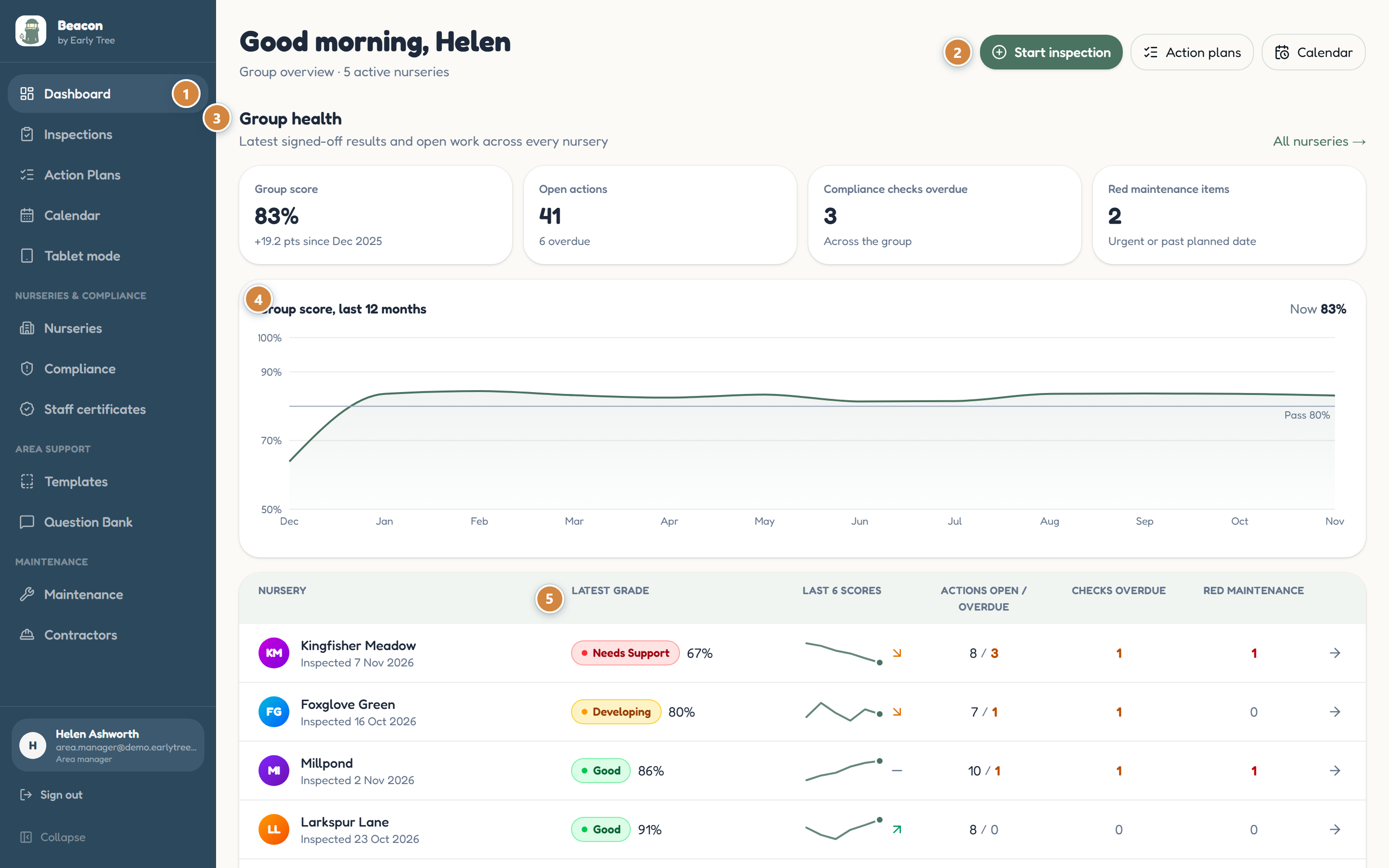
- The group overview, for area support managers, area support leads and read-only auditors: how every nursery is doing, and the group's inspections from planned visits through to signed-off reports.
- The nursery view, for nursery managers, room leaders, kitchen leads and maintenance managers: your nurseries' latest reports and the actions you need to work on.
If you hold roles of both kinds (for example nursery manager at one nursery and auditor across the group), you get the group overview.
Before you start
- You're signed in. To come back to the dashboard from anywhere, select Dashboard at the top of the menu.
The group overview (area support and auditors)
- Dashboard 1 in the menu brings you here from anywhere.
- Select Start inspection 2 to start a visit (area support managers and leads only). Action plans and Calendar next to it open those pages.
- Group health 3 leads with four figures: the Group score (the average of each nursery's latest signed-off report, and how it has moved), Open actions (and how many are overdue), Compliance checks overdue and Red maintenance items (urgent, or past their planned date). Select a figure to open the list behind it.
- Group score, last 12 months 4 shows the trend against the 80% pass line.
- The table 5 has one row per nursery, those needing most attention first: its Latest grade and score, a line of its Last 6 scores with an arrow for improving or declining, Actions open / overdue, Checks overdue and Red maintenance. Select a row to open the nursery. All nurseries opens the full list.
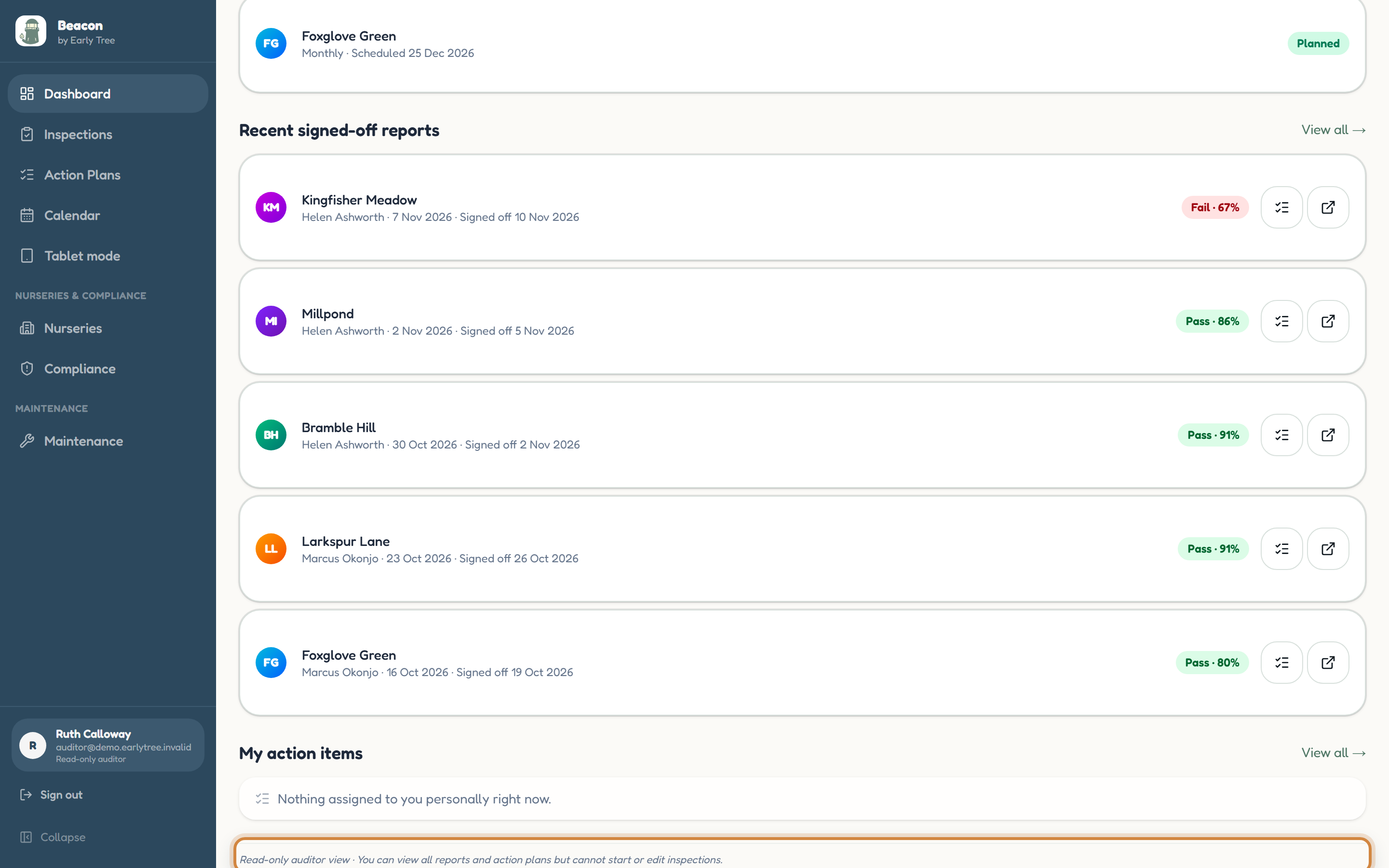
Further down the page are Inspections in progress, In review (each report's stage, such as Under review or Rework required), Planned inspections (with Turn into a Full Inspection to start one), Recent signed-off reports and My action items (actions assigned to you by name). If you have overdue actions of your own, a red banner at the top says how many, with View my actions.
On a signed-off report, the three small buttons download the report PDF, open the action plan and open the full report. Area support managers also see an archive button on inspections in progress, to tidy away a visit started by mistake.
For read-only auditors
Auditors see the same overview without Start inspection, and can open any inspection, including ones still in progress or in review, to look at it. They can't change anything. A line at the bottom says Read-only auditor view.
The nursery view (nursery managers and room leaders)
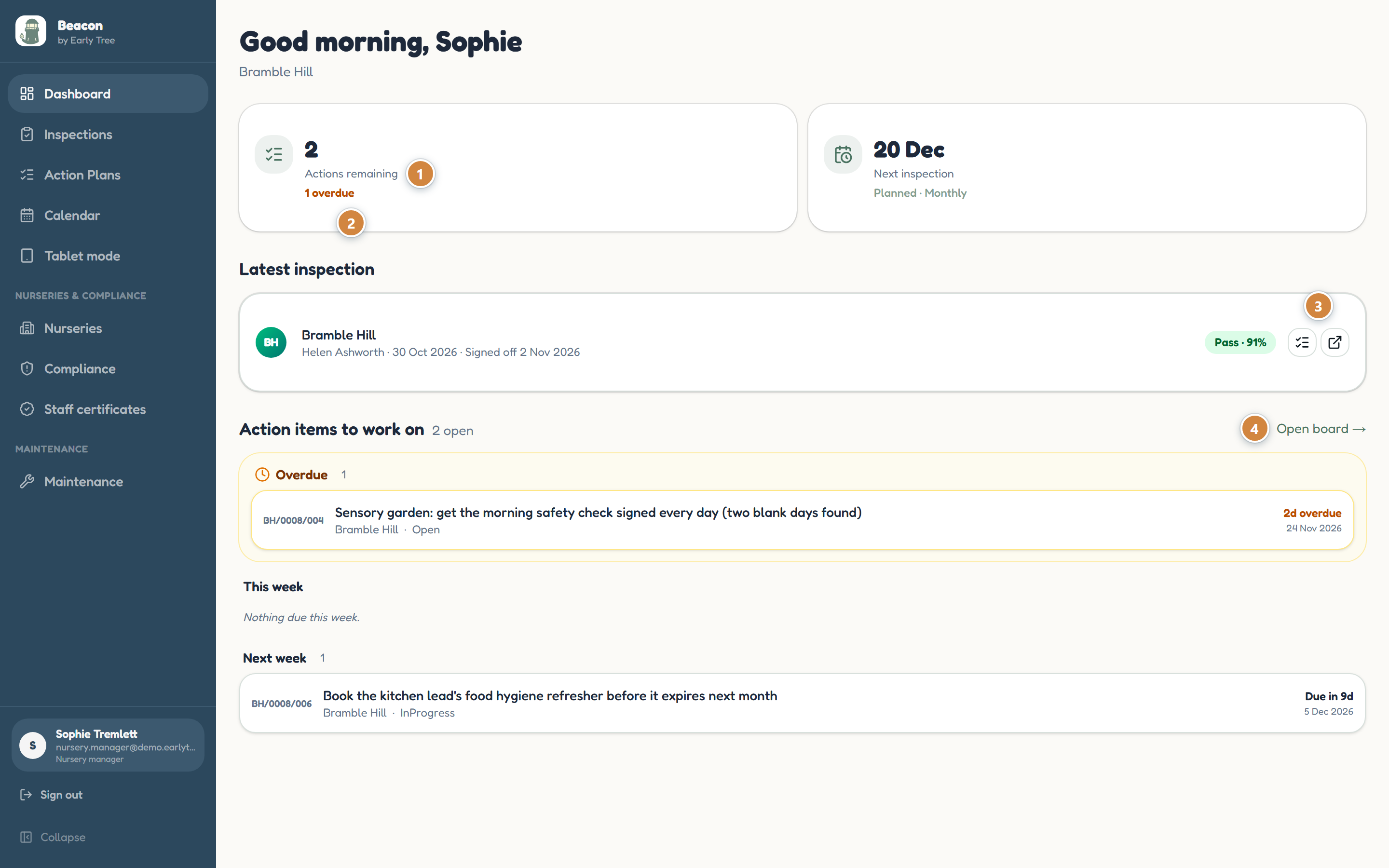
- Actions remaining 1 counts the open actions for you or your role, with how many are overdue 2. If any are more than two weeks late, a red banner at the top also says how many. Mark them done, ask a reviewer to extend the deadline, or mark them blocked so the area team can help.
- Next inspection shows the next planned visit.
- Latest inspection shows your nursery's most recent signed-off report, its result and score. Use the buttons 3 to open the action plan or the full report, or to download the report PDF once it has been made.
- Action items to work on lists your actions under Overdue, This week, Next week and Later. Select one to open it, or select Open board 4 to see the whole action plan board.
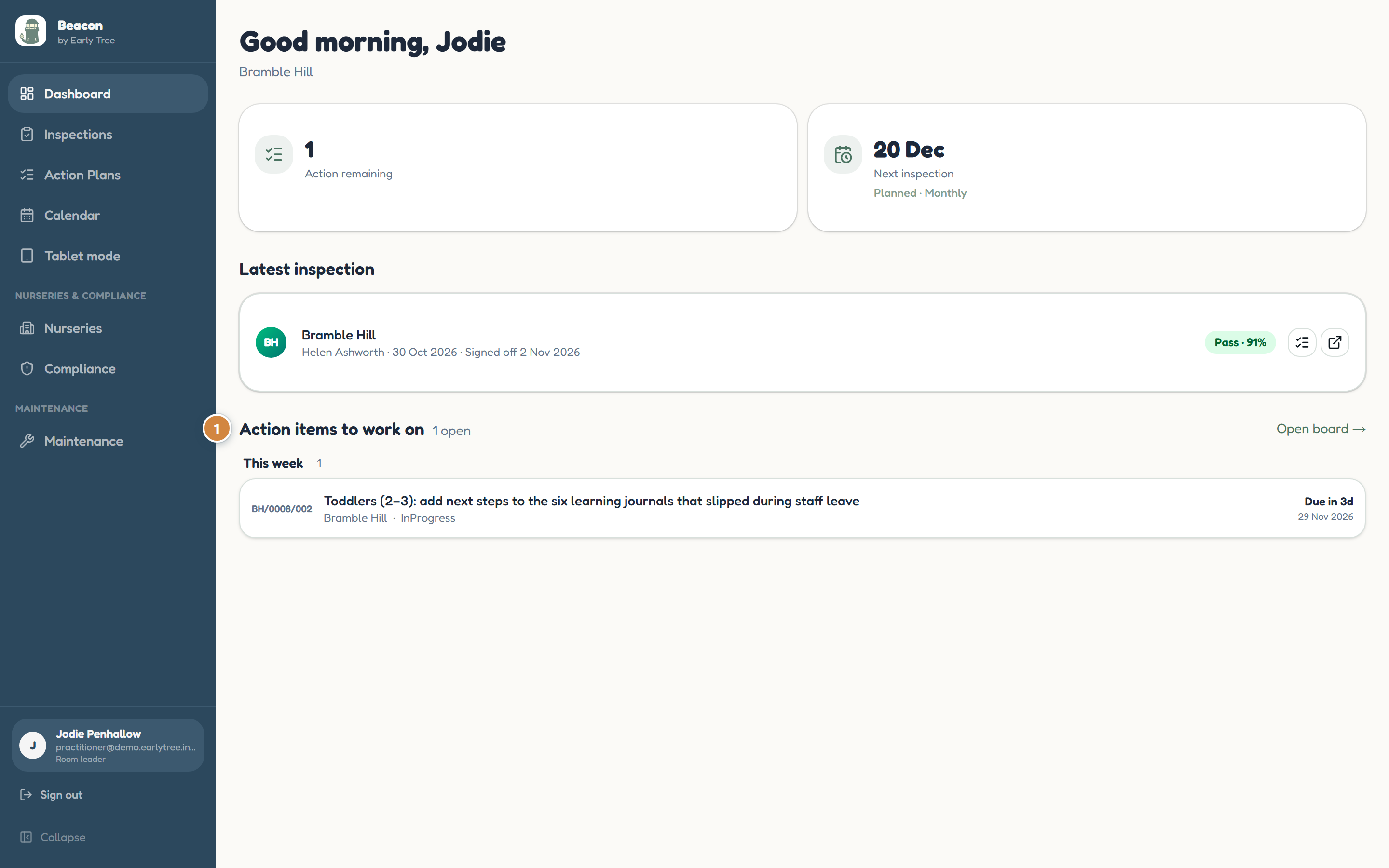
A room leader's dashboard is the same, listing only the actions for room leaders or for them by name.
For maintenance managers
Maintenance managers get the nursery view across every nursery: the latest report for each and any actions given to their role. Their maintenance work is on the Maintenance page 1, not the dashboard. See Maintenance.
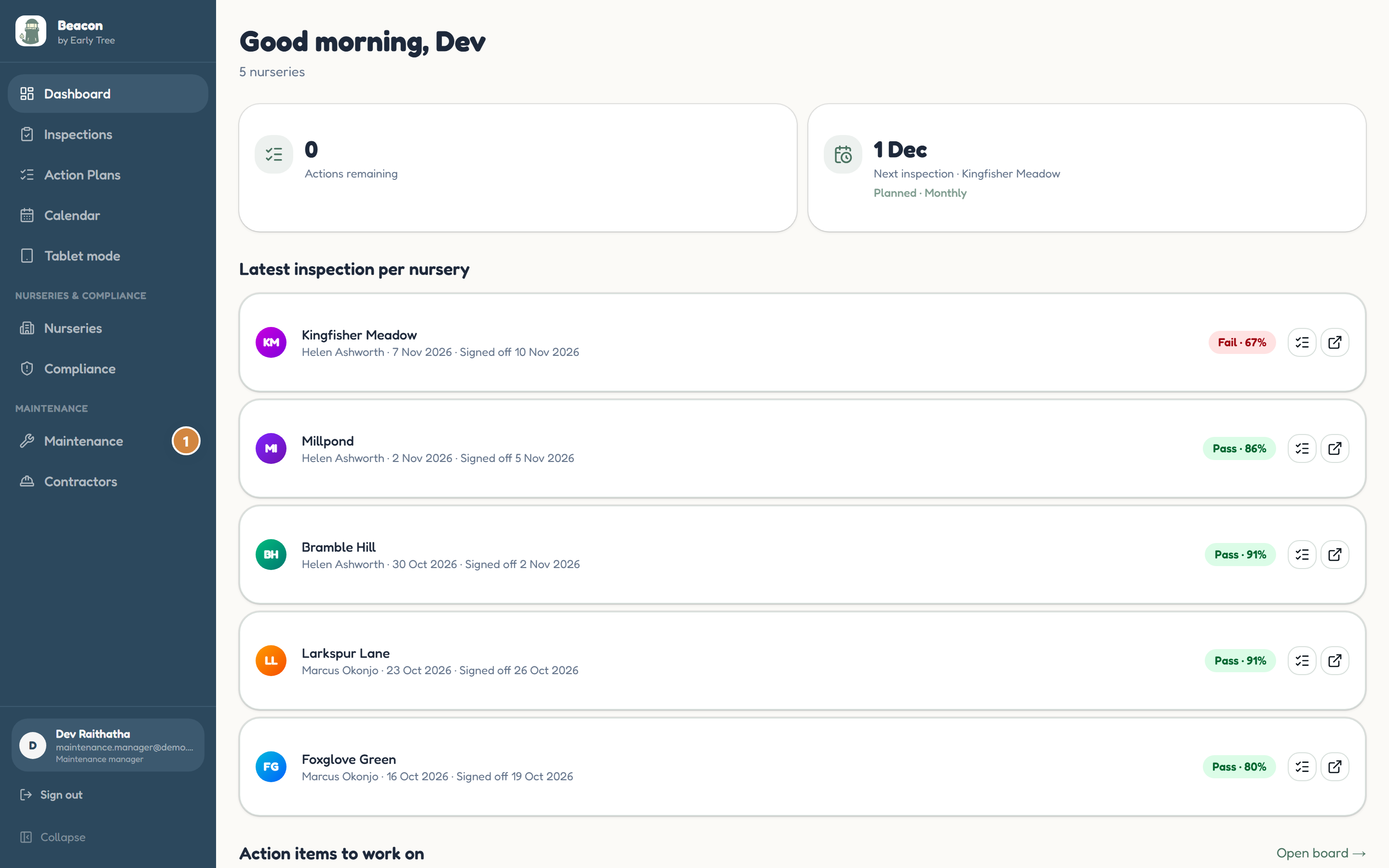
What you should see
Your dashboard greets you by first name (Good morning, Good afternoon or Good evening) and shows either Group overview with the number of active nurseries, or the name of your nursery.
Common problems
- A nursery shows "Not inspected yet" or "Awaiting first report".
- It has no signed-off report in Beacon yet, so it has no grade or score.
- "No signed-off reports yet".
- Your nursery hasn't had a report signed off in Beacon yet. Reports appear here once they're signed off.
- My action isn't under My action items.
My action items only lists actions assigned to you by name. Actions given to your role (for example "Nursery Manager") are on the action plan board.
- The figures look different from what a colleague sees.
- Each person sees only the nurseries in their scope. See Roles and what each can do.
- Red maintenance items says "No maintenance access".
- Your role has no maintenance access, so Beacon doesn't count maintenance for you.