Signing in and out
Purpose
Beacon uses your organisation's Microsoft work account, the one you use for email and Teams. There's no separate Beacon password to remember or reset. The first time you sign in, Beacon creates your account and waits for an administrator to give you a role and the nurseries you work with.
Before you start
- You know your Beacon address (for example
yourgroup.beacon.earlytree.co.uk). Ask your area support manager if you don't. - You have a Microsoft work account in your organisation (or in another organisation your Beacon has been set up to accept). Personal Microsoft accounts (Outlook.com, Hotmail) and guest accounts from other organisations can't sign in.
- Use an up-to-date browser: Safari on an iPad or iPhone, or Chrome or Edge on a computer.
Sign in
- Go to your Beacon address. You'll see the Beacon sign-in page with Sign in to continue.
- Select Sign in with Microsoft.
- Microsoft asks you to pick an account. Choose your work account, or select Use another account and type your work email address. Beacon always asks you to pick, so you never end up signed in as someone else on a shared device.
- Enter your password and complete any extra check your organisation uses, such as a code in the Microsoft Authenticator app.
What you should see
Beacon opens on your dashboard, with a greeting such as Good morning and your first name. The menu on the left shows the parts of Beacon your role can use.
The first time you sign in: Awaiting access approval
The first time you sign in, Beacon creates your account but doesn't let you in yet. You see Awaiting access approval, with your name, and a note that one of your Beacon administrators needs to approve you.
- Your administrators see that you're waiting on their dashboard and on Users & Roles (and get an email, where your organisation has email switched on). To speed things up, tell them which nurseries and role you need.
- When they've approved you, go to your Beacon address again and sign in. If you're still on the waiting page, refresh it.
- If you want to leave the page, select Sign out.
Your administrator may have set you up before your first sign-in (by importing you from Microsoft). Then you go straight in. The administrators Early Tree sets up for a new Beacon also go straight in.
If your account is suspended
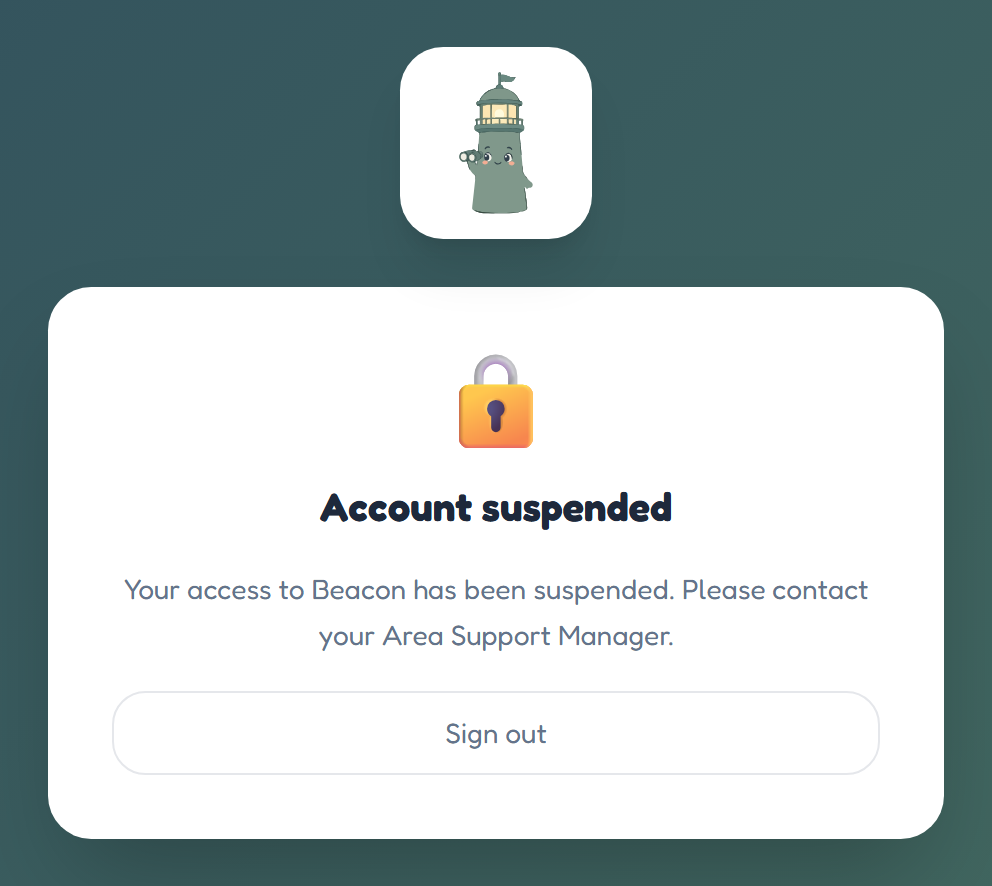
If an administrator has suspended your account, you see Account suspended: "Your access to Beacon has been suspended. Please contact your Area Support Manager." Nothing you recorded is deleted. Only an administrator can reactivate you; select Sign out and contact them.
Sign out
- At the bottom of the menu on the left, under your name, select Sign out. On a phone, open the menu with the button at the top right first.
- Beacon signs you out and also signs you out of Microsoft in that browser, so the next person can't get in as you, then shows the sign-in page again.
Always sign out on a shared computer or iPad.
Common problems
- "Access denied" or "Sign-in error".
Your account hasn't been given access to Beacon, or it belongs to an organisation your Beacon doesn't accept, or it's a guest account. Check you chose your own work account, then ask your area support manager to check you've been approved.
- "Account not linked".
Your Microsoft account uses a different email address from the one your administrator set up in Beacon (for example .com rather than .co.uk). Ask them to correct your email address in Beacon.
- "Sign-in callback error".
Something went wrong between Microsoft and Beacon, often when switching between two email addresses. Try signing in again. If it keeps happening, contact your area support manager.
- "Account linked successfully — one more click and you're in."
Beacon has matched your Microsoft account to the account your administrator set up. Select Sign in with Microsoft once more.
- I'm stuck on Awaiting access approval.
An administrator hasn't approved you yet. They can see you're waiting in Beacon; if it's urgent, contact them directly.
- Beacon signed me in as someone else.
Someone else's Microsoft account was still signed in on that device. Select Sign out, then sign in again and choose your own account.
The public demo at beacon.demo.earlytree.co.uk doesn't use Microsoft. Its sign-in page lists fictional people instead, so you can try each role. Everything there is made up and reset every night.