Finding your way around
Purpose
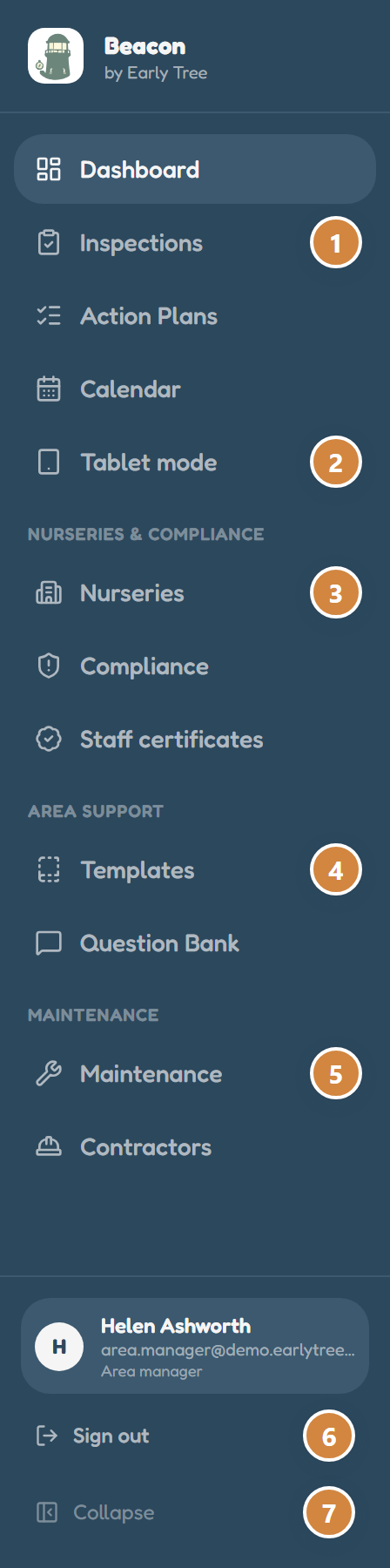
Everything in Beacon is reached from the menu down the left of the screen (on a phone, from the menu button at the top). The menu only shows what your role can use, so yours may be shorter than the one in the pictures. Every link you see opens a page you're allowed to use.
Before you start
- You're signed in. The pictures show an area support manager's menu.
Use the menu
- The first group is for everyone: Dashboard, Inspections 1, Action Plans, Calendar and Tablet mode 2 (the room-by-room view for iPads). If Nina is switched on for your organisation, Nina's desk is here too.
- Nurseries & compliance 3 holds Nurseries, Compliance and, for area support and nursery managers, Staff certificates.
- Area Support 4 holds Templates (the inspection checklist) and Question Bank (questions for staff during a visit). Area support managers and leads see it.
- Maintenance 5 holds the maintenance list. Anyone with full (Manager) maintenance access also sees Contractors here.
- Admin appears for administrators only: Users & Roles, MCP tokens and Audit Log.
- At the bottom are your name, email address and role (for example Area manager), Sign out 6, Connected apps (AI apps you've allowed to use Beacon for you; not on the demo) and Collapse 7.
Collapse the menu to icons
To give the page more room, select Collapse at the bottom of the menu. The menu shrinks to icons; hold the pointer over an icon to see its name. Select the expand button (highlighted) to open it again. Beacon remembers your choice on that computer.
On smaller screens, such as an iPad, the menu starts as icons by itself so the page keeps its width. Select the expand button to see the names.

On a phone
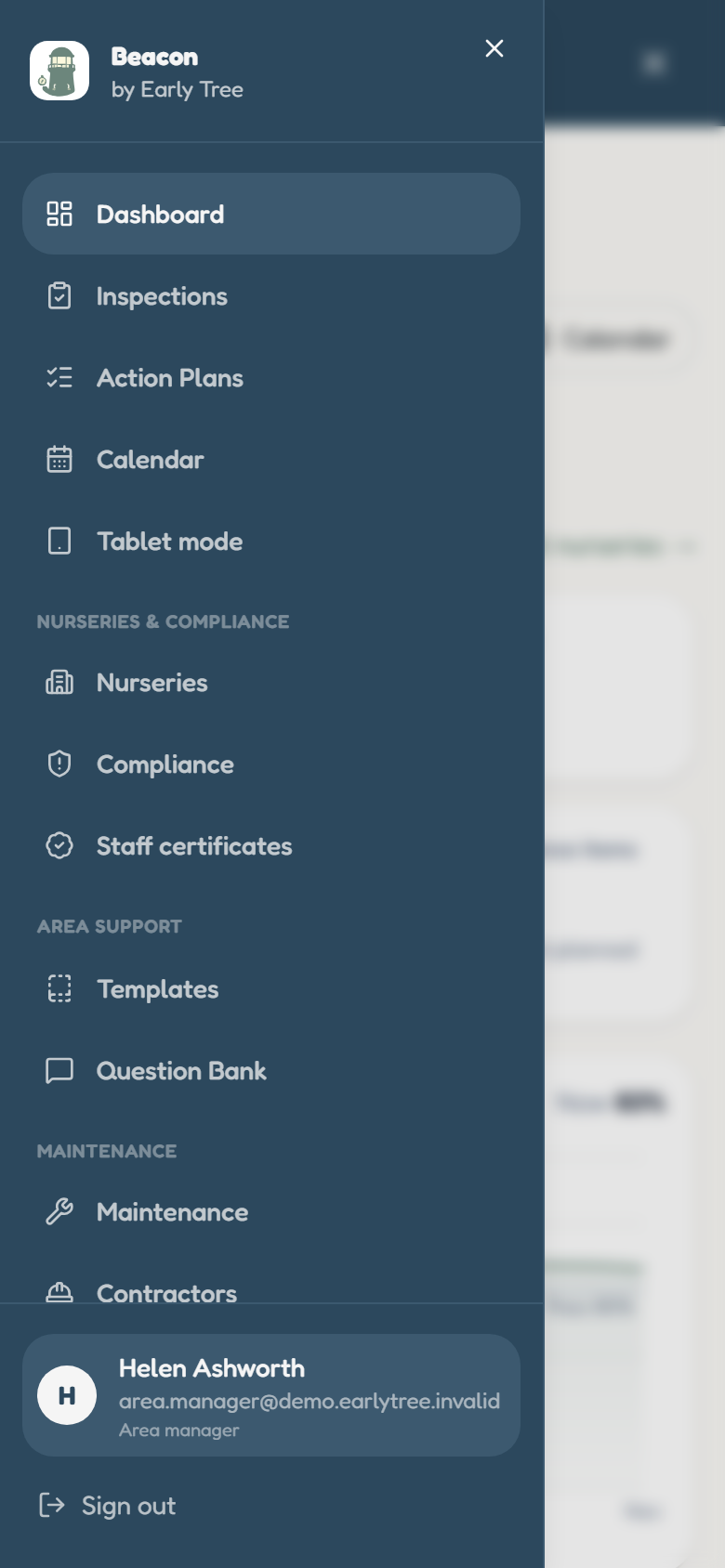
On a phone the menu is hidden to save space. A dark bar across the top shows Beacon and a menu button. Tap the menu button to open the menu, and tap a page to go there; the menu closes by itself. It lists the same pages as on a computer.
What you should see
Selecting a menu item opens that page and highlights it in the menu. Your name and role stay at the bottom of the menu.
Common problems
- A menu item I expected isn't there.
Your role doesn't include it. See Roles and what each can do, and ask an administrator if you need it.
- Question Bank takes me back to the dashboard.
Area support leads see Question Bank in the menu, but only area support managers can open it at the moment. Ask an area support manager to make the change.
- I can't see Nina's desk.
- Nina is switched off for your organisation. See Nina.