Calendar: using the calendar
Purpose
See what's coming up across your nurseries (visits, deadlines and maintenance) so you can plan around it and spot clashes or gaps.
Before you start
- Nothing to set up: the calendar fills itself from planned visits, inspections, actions and maintenance jobs.
- You see only the nurseries you're assigned to.
Find your way around
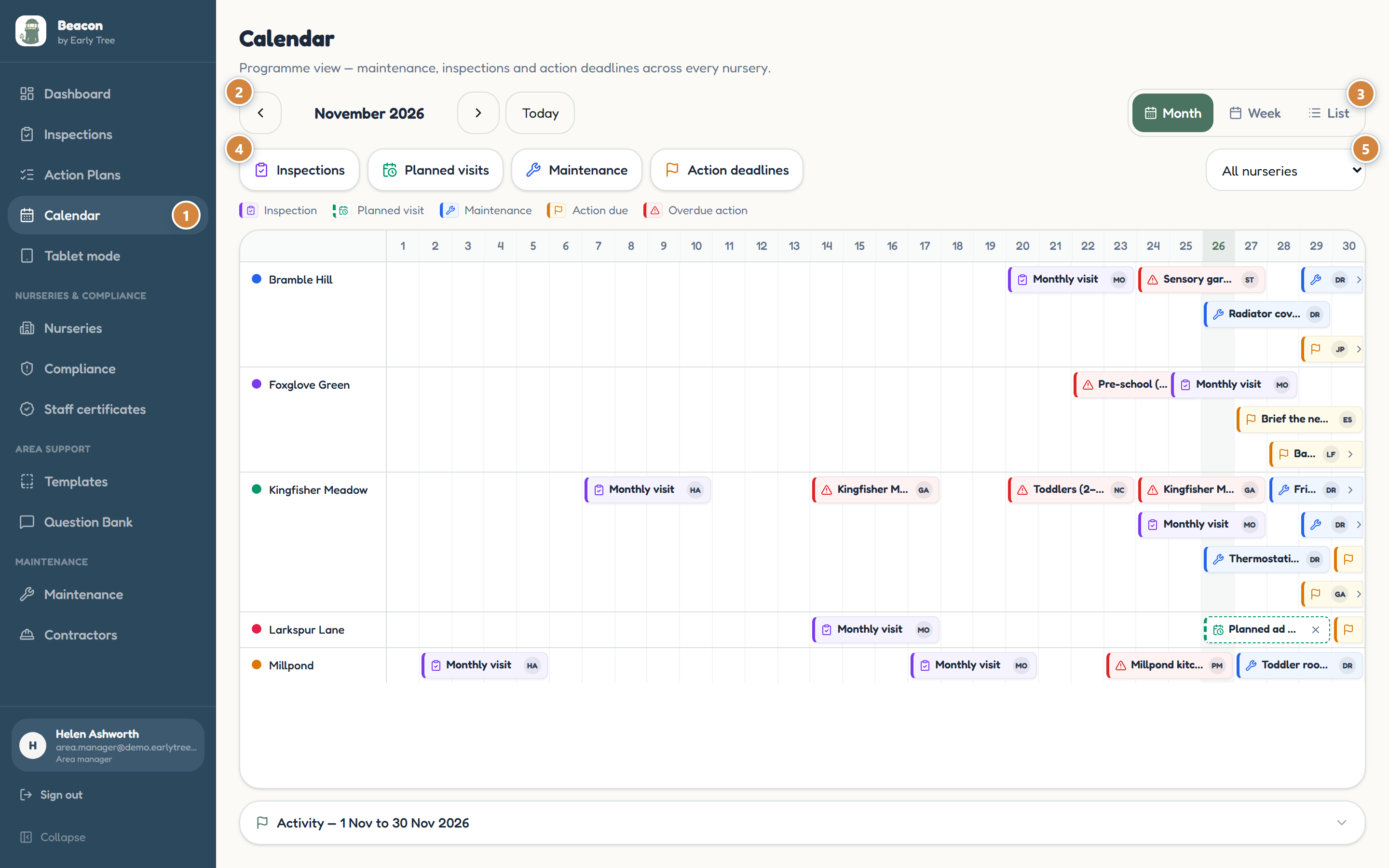
- In the menu, select Calendar 1. It opens on this month, with a row for each nursery and a column for each day. Today is shaded. (On a screen narrower than a small laptop, such as an iPad held upright, it opens on the List view instead.)
- Use the arrows 2 to move back or forward a month (or a week), and Today to come back.
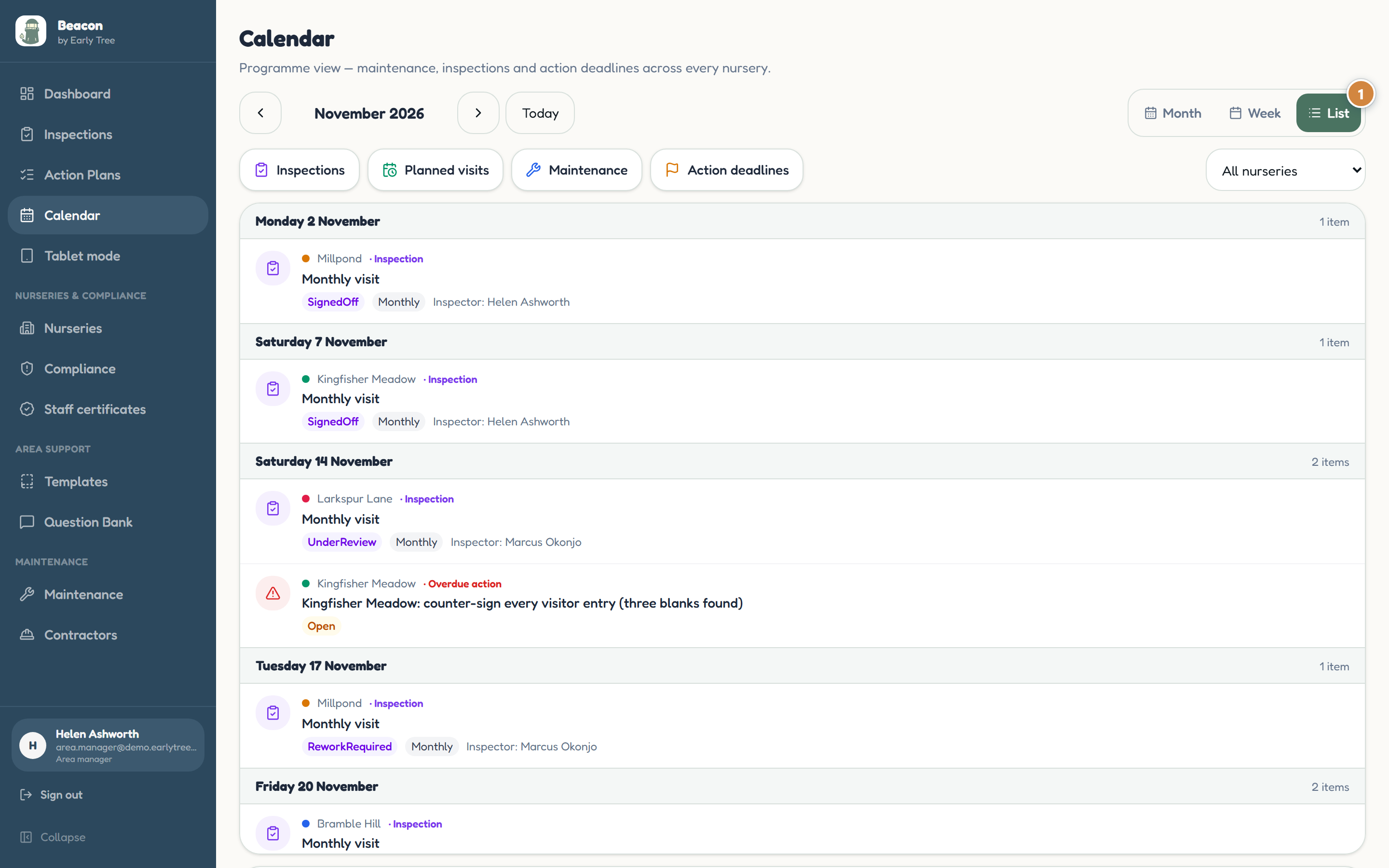
- Choose Month, Week or List 3. Week shows each day wider; List shows every entry in date order with its full details.
- Select Inspections, Planned visits, Maintenance or Action deadlines 4 to hide or show that kind of entry.
- Choose a nursery 5 to show only that nursery, or All nurseries.
- Each entry is a labelled chip, such as Monthly visit or an action's title, with a coloured stripe and icon for its kind. The key above the calendar explains the colours: Inspection, Planned visit (dashed), Maintenance, Action due and Overdue action (red).
- Select an entry to open it.
Use the list view
- Select List 1. Entries are grouped by day, each with its type, nursery, title and who it's assigned to.
- The arrows still move a month at a time.
At the bottom of the month and week views, Activity totals how many inspections, actions and maintenance jobs each nursery has in the period. Select it to open the totals.
Reschedule a maintenance job (area support managers)
Area support managers can drag a maintenance bar left or right in the month or week view to move its dates. Beacon saves the new dates straight away and shows Dates updated. Area support managers can also remove a planned visit with the bin on its entry in the list view.
What you should see
The calendar shows only the types and nursery you chose. Selecting an entry opens the job, inspection or action it belongs to.
Common problems
- The month view is crowded.
- Switch to Week or List, or pick one nursery.
- A planned visit has disappeared.
An inspection was started at that nursery within a week of the planned date, so the calendar shows the inspection instead.
- Selecting a planned visit opens a page I can't use.
- Only area support can start an inspection from a planned visit.
- An action isn't on the calendar.
Done and Verified actions aren't shown, nor are actions tracked on the maintenance list (their jobs are shown instead).